Waiver List
View all signed waivers from your customers in one place. Search through submissions, check when each waiver was signed, and view the full details of any individual waiver — all from a single, easy-to-navigate list.
Quick start
- Navigate to Waivers in the left sidebar under the ACCOUNTS section
- Click the Waiver List tab
- Browse the table to see all signed waivers
- Use the Search bar to find a specific submission
- Click View Waiver on any row to open the full signed waiver
What you can do
The Waiver List helps you:
- See all signed waivers in one place — Every waiver submission from your customers is listed in a single, organized table
- Find waivers quickly — Search by name or email to locate a specific customer's submission
- Check when waivers were signed — See the exact date and time each waiver was submitted
- View individual waivers — Open any waiver to see the full signed document for that customer
- Export waiver data — Download your waiver records as an Excel or CSV file for reporting or record-keeping
Navigating to the Waiver List
- Log in to your dashboard
- In the left sidebar, find the ACCOUNTS section
- Click Waivers
- Click the Waiver List tab at the top of the page
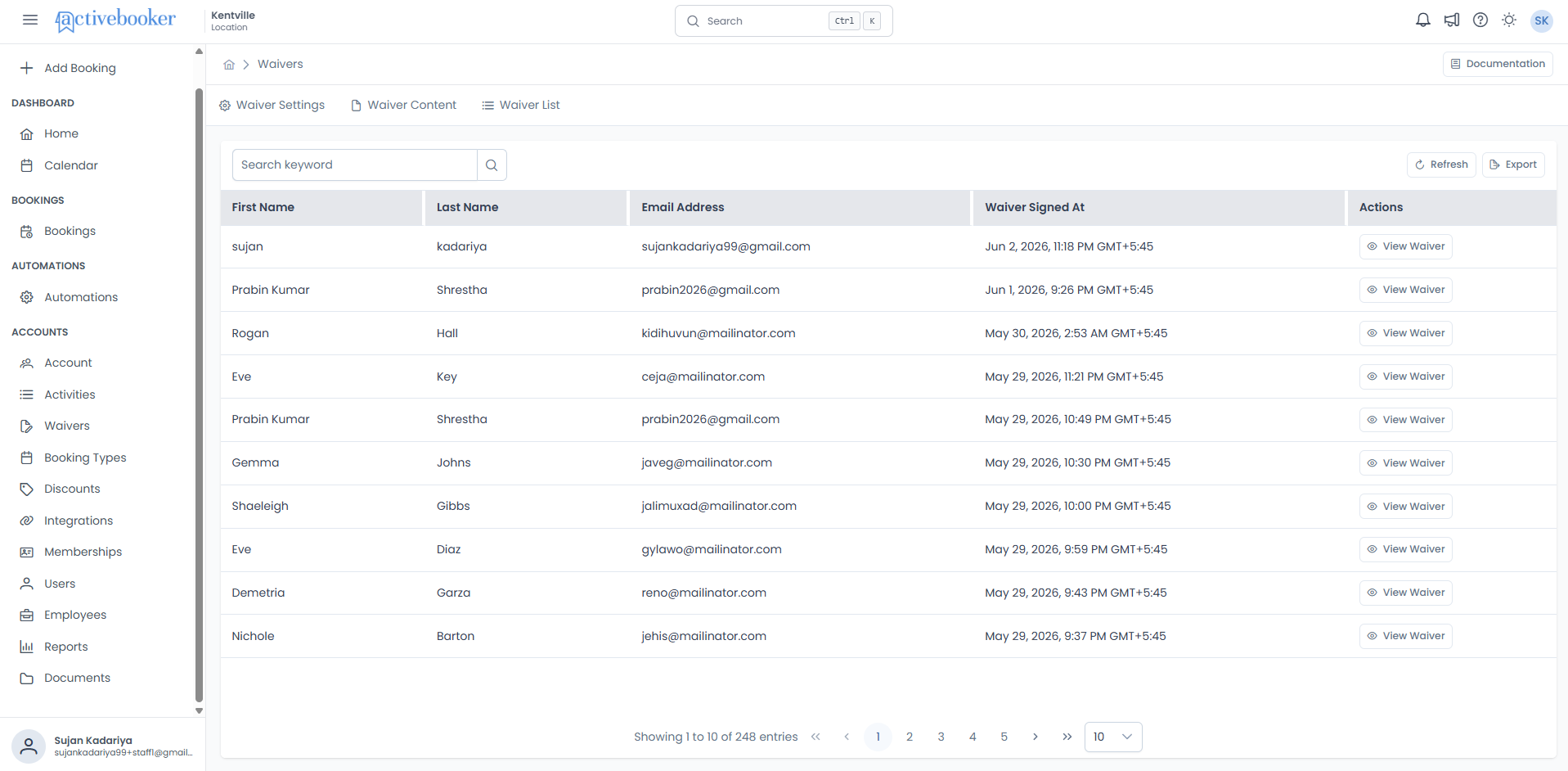
Understanding the Waiver List
Page controls
At the top of the list, you'll find controls to help you manage and find waiver records:
Search keyword
A search bar on the left side of the page. Type a customer's first name, last name, or email address to filter the list.
Refresh
Reloads the waiver list with the latest submissions. Click this if you expect a new waiver to have come in recently.
Export
Opens the Export Data dialog, where you can download your waiver records as an Excel (.xlsx) or CSV (.csv) file. See Exporting waivers below for full details.
Table columns
Each waiver submission is displayed as a row in the table with the following columns:
| Column | What it shows |
|---|---|
| First Name | The first name of the customer who signed the waiver |
| Last Name | The last name of the customer who signed the waiver |
| Email Address | The email address provided by the customer when signing |
| Waiver Signed At | The date and time the waiver was submitted, shown in your local time zone (e.g., "Jun 1, 2026, 9:26 PM GMT+5:45") |
| Actions | A View Waiver button to open the full signed waiver for that customer |
Pagination
At the bottom of the table you'll see:
- How many records are shown (e.g., "Showing 1 to 10 of 247 entries")
- Navigation arrows to move between pages
- An option to change how many entries are shown per page (defaults to 10)
Searching for waivers
To find a specific waiver:
- Click the Search keyword input field at the top of the page
- Type the customer's first name, last name, or email address
- Press Enter or click the search icon
- The table refreshes to show only matching records
To clear the search, remove the text from the field and press Enter again.
Viewing a waiver
To see the full signed waiver for any customer:
- Find the customer's row in the table
- Click the View Waiver button in the Actions column
- The full waiver document opens, showing everything the customer signed
Exporting waivers
You can download all waiver records as a file to use in reports, audits, or other record-keeping.
How to export
- Click the Export button in the top-right toolbar
- The Export Data dialog opens
- Choose your preferred file format — Excel (.xlsx) or CSV (.csv)
- Optionally enter a Name (title for this export, up to 100 characters)
- Optionally enter a Note (description for your own reference, up to 500 characters)
- Select which Columns to Include in the file — use Select All or Clear All to quickly manage your selection
- Click Export to submit the request, or Cancel to close without exporting
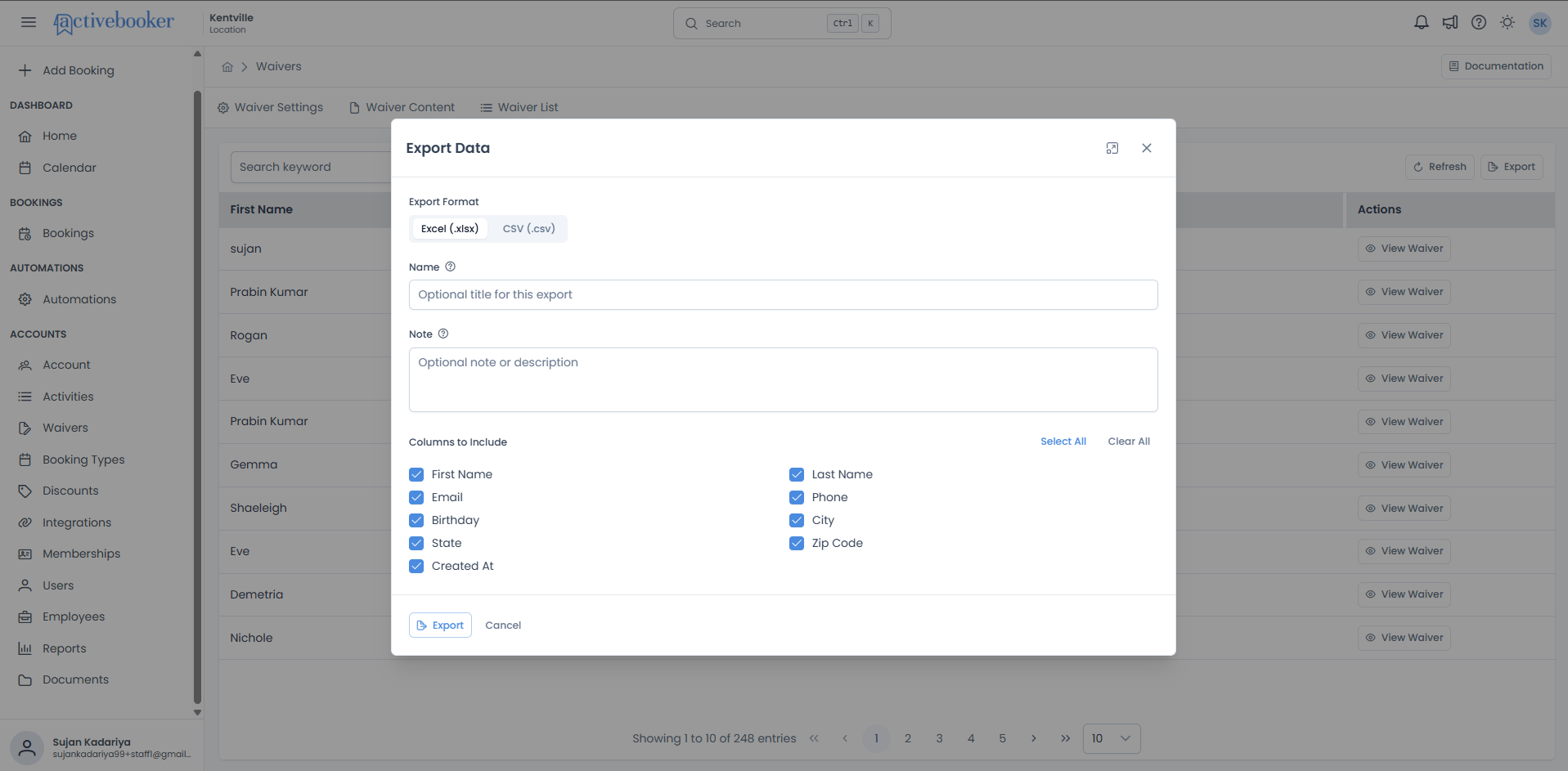
Available columns
When exporting, you can choose any combination of the following columns:
| Column | What it contains |
|---|---|
| First Name | Customer's first name |
| Last Name | Customer's last name |
| Customer's email address | |
| Phone | Customer's phone number |
| Birthday | Customer's date of birth |
| City | Customer's city |
| State | Customer's state |
| Zip Code | Customer's postal code |
| Created At | Date and time the waiver was signed |
What happens after you export
Your export request is queued and processed in the background. Once complete, the file is available to download from the Documents page. You can check the status and download your file from there.
You must select at least one column before the export can be submitted. If no columns are selected, the Export button will not proceed.
Common scenarios
Scenario 1: Confirming a customer has signed a waiver
A customer is about to take part in an activity and you want to confirm their waiver is on file:
- Go to Waivers > Waiver List
- Type the customer's name or email in the Search keyword field
- Look for their entry in the results
- Click View Waiver to confirm the full signed document
Scenario 2: Downloading waivers for a compliance review
You need to share waiver records with a third party or conduct an internal audit:
- Go to Waivers > Waiver List
- Click Export
- Select your preferred format (Excel or CSV)
- Select all relevant columns
- Optionally add a name and note for your reference
- Click Export
- Navigate to the Documents page to download the completed file once it is ready
Frequently asked questions
Can I search by the date a waiver was signed?
Currently the search field supports name and email. To find waivers by date, sort or browse the list, which is ordered by most recent first by default.
Can I delete a waiver?
Waiver records cannot be deleted from this page. They are stored as a permanent record of the customer's signed agreement.
How many waivers can I export at once?
The export includes all matching records in your list. There is no cap on the number of records exported.
Where can I download my exported file?
Completed exports are available on the Documents page. Navigate there from the left sidebar to find and download your file.
Related resources
- The customer waiver experience — How customers complete the waivers that appear in this list
- Waiver Settings — Choose which fields customers complete, and which are available to export
- Send a waiver to a customer — Get a waiver signed for a specific booking
- Waiver Content — Customize the legal text customers agree to