Step 3: Add-Ons
The Add-Ons step lets you include optional extras with the booking. Add-ons are additional products or services that can be attached to a reservation to enhance the customer's experience.
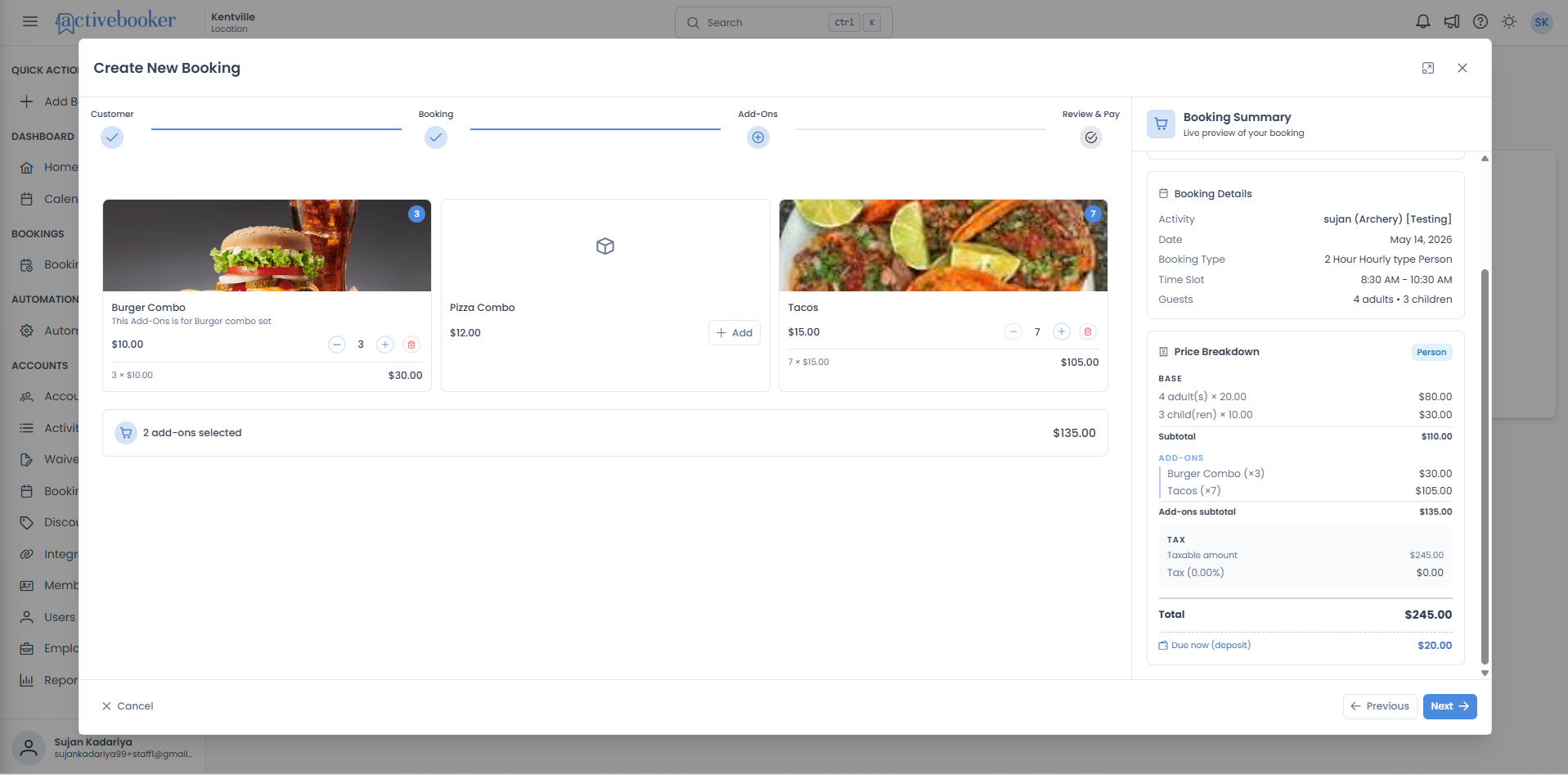
Quick start
Complete the Add-Ons step in just a few steps:
- Review the list of available add-ons for the selected activity
- Select any extras the customer would like to include
- Adjust quantities if needed
- Click Next → to proceed to the Review & Pay step — or click Next → to skip if no add-ons are required
What you can do
The Add-Ons step helps you:
- Offer extras to customers — Present available add-ons for the activity so nothing is overlooked at the time of booking
- Customise the reservation — Attach one or more add-ons to a booking to reflect exactly what the customer wants
- See the updated cost — The Booking Summary panel reflects the total including any selected add-ons so you always know the full price before proceeding
How it works
Overview
After completing the Booking step, the Add-Ons step loads any optional items configured for the selected activity and booking type. These might include equipment rentals, refreshment packages, photography upgrades, or any other extras your location offers.
If no add-ons are available for the selected activity and booking type combination, this step shows an empty state and you can move straight through to the Review & Pay step.
Key concepts
Add-on
An optional product or service that can be added to a booking for an additional charge. Add-ons are configured by your account administrator and are specific to an activity or your location.
Quantity
How many of a particular add-on the customer wants. Some add-ons may be limited to one per booking; others can be added in multiple quantities.
Add-on price
The cost of each add-on, shown alongside its name. Add-on prices are added to the booking total and displayed in the Booking Summary panel.
Selecting add-ons
Browsing available add-ons
When the Add-Ons step loads, all available add-ons for the selected activity and booking type combination are listed in alphabetical order. Each add-on card shows:
- Name — What the extra item or service is called
- Description — A brief explanation of what is included (when set)
- Price — The cost per unit of the add-on
- Thumbnail image — A photo of the add-on, or a placeholder icon if no image has been configured
Adding an add-on to the booking
To include an add-on:
- Find the add-on you want to include
- Click the + Add button on the card
- The button is replaced by quantity controls, use + and − to set the quantity
- The add-on appears in the Booking Summary panel on the right, with the price added to the total
The starting quantity when you first click + Add depends on the add-on's minimum quantity setting. For most add-ons this will be 1, but some may jump to a higher number.
Removing an add-on
To remove an add-on you have already selected:
- Find the add-on in the list
- Click the trash (remove) icon next to the quantity controls
- The quantity resets to zero, the + Add button reappears, and the add-on is removed from the Booking Summary
Adjusting quantity
Once an add-on has been added:
- Use the + button to increase the quantity and − to decrease it
- The total cost for that add-on updates immediately in the Booking Summary
The − button is disabled when the quantity reaches the minimum allowed for that add-on. The + button is disabled when the quantity reaches the maximum. If no maximum is set, you can add up to 100 of the same add-on.
Card visual feedback
While you adjust quantities, the add-on card gives you a live view of your selection:
- A numbered badge appears on the thumbnail showing the current quantity
- A line total (for example, 3 × $10.00 = $30.00) is shown at the bottom of the card and updates as you change the quantity
Step summary bar
When at least one add-on is selected, a summary bar appears at the bottom of the step showing the number of add-on types selected and the combined total. The bar updates in real time as you adjust quantities and disappears when all add-ons are removed.
What you'll see in the Booking Summary
The Booking Summary panel on the right continues to show all the details from previous steps. Once you select add-ons, the summary updates to include:
| Field | Description |
|---|---|
| Add-Ons | Each selected add-on is listed in the format Name (×qty) with its line amount (for example, Burger Combo (×3) — $30.00) |
| Add-ons subtotal | The combined cost of all selected add-ons |
| Updated Total | The booking total is recalculated to include all selected add-on costs |
Add-on costs are included in the taxable amount. If the activity has a tax rate, tax is calculated on the base price plus the add-ons total.
If you remove all add-ons, the Add-Ons section disappears from the panel and the total returns to the base booking price.
Common scenarios
No add-ons needed
If the customer does not want any extras, simply click Next → without selecting anything. Add-ons are entirely optional — the booking can be completed without them.
Adding multiple different add-ons
- Select the first add-on and set the quantity
- Scroll through the list and select additional add-ons as needed
- Check the Booking Summary panel to confirm the total looks correct
- Click Next → when you are satisfied with the selections
Changing an add-on selection after reviewing the summary
You can add, remove, or adjust add-ons at any time while you are on this step. Click ← Previous to return here from the Review & Pay step if you need to make changes.
Going back to change the activity or booking type
If you navigate back to the Booking step and change the activity or booking type, all previously selected add-ons are cleared when you return to the Add-Ons step and the list reloads for the new combination. If you go back without changing anything, your add-on selections are preserved.
Troubleshooting
Issue: No add-ons are listed
Why this happens: There are no add-ons configured for the selected activity and booking type combination, or all matching add-ons are currently inactive.
How to fix it:
- This is not an error, simply click Next → to proceed without add-ons
Issue: A selected add-on no longer appears in the Booking Summary
Why this happens: The add-on may have been deselected, or the quantity was set to zero.
How to fix it:
- Check the add-on in the list and confirm it is toggled on
- If a quantity field is visible, make sure the quantity is set to at least 1
Frequently asked questions
Are add-ons required to complete a booking?
No. Add-ons are entirely optional. You can proceed to the Review & Pay step without selecting any.
Can I go back and change add-ons after I have moved to the Review & Pay step?
Yes. Click ← Previous from the Review & Pay step to return to the Add-Ons step and change your selections.
Do add-on prices include tax and service fees?
Add-on pricing details depend on how your account administrator has configured them. Check the Booking Summary panel for the full price breakdown, which shows all charges including any applicable service fees and tax.
Can I add the same add-on more than once?
This depends on the add-on configuration. If a quantity selector is shown, you can increase the count. If no quantity selector is available, the add-on can only be added once.
What happens if I go back and change the activity or booking type?
All previously selected add-ons are cleared and the list reloads for the new activity and booking type combination. If you go back without changing the activity or booking type, your add-on selections are preserved.
What happens if I close the dialog on this step?
Clicking Cancel or the ✕ close icon discards the entire booking — including your customer information, booking details, and any selected add-ons. No data is saved.