Price Breakdown
When you create a booking, ActiveBooker automatically works out the total cost and shows you a full breakdown before you confirm. This page explains how that calculation works, step by step, so you always know where each number comes from.
Quick start
To see pricing in action:
- Open Create Booking from the Bookings page or QUICK ACTIONS
- Complete the Customer step and click Next
- On the Booking step, select an activity, date, booking type, time slot, and the number of guests
- Watch the Price Breakdown card appear on the right — it updates live as you change any detail
- On the Review & Pay step, the Payment Summary shows your final total and deposit
What you can do
Understanding how pricing works helps you:
- Explain costs to customers — Walk a customer through exactly what they are being charged and why
- Spot unexpected totals early — Check the breakdown during the Booking step, not after you confirm
- Know what changes the price — Understand which fields (guest count, booking type, add-ons) affect the total
- Set the right deposit — Understand the total before deciding how much deposit to collect
Calculation logic
Every booking price is built from the same formula, no matter which pricing strategy or booking side is used:
Total = Base Price − Discount + AddOns + Tax + Gratuity + Service Fee
- Tax = (Base Price − Discount + AddOns) × Tax Rate
- Gratuity = Base Price (before discount and add-ons) × Gratuity Rate — not taxable
- Service Fee = a flat amount, OR a percentage × (Base − Discount + AddOns + Tax + Gratuity)
The eight steps below walk through exactly how each part of this formula is applied, in order.
The eight calculation steps
Step 1 — Base price
The base price is the starting point. It is determined entirely by the pricing strategy set up for the activity and booking type. There are five strategies:
| Strategy | How the base price is calculated |
|---|---|
| Per Person | Adult rate × number of adults + child rate × number of children |
| Per Unit / [Unit Label] | Number of units needed (rounded up) × the saved unit price |
| Cascading | Each guest is charged at a tiered rate — the rate drops as more guests are added |
| Party (flat) | One fixed package price, regardless of guest count |
| Rental (flat) | One fixed rental price, regardless of guest count |
Step 2 — Dynamic price (optional)
Dynamic pricing lets your account administrator configure a different price for specific dates or days of the week. When dynamic pricing is set up for the date you select:
- The dynamic price replaces the base price entirely for that date
- All subsequent steps (discount, add-ons, tax, gratuity, service fee) are calculated from the dynamic price, not the original base price
- If no dynamic price is configured for the selected date, the base price is used as-is
Example: Base price = $120.00. A dynamic price of $90.00 is configured for weekends. If the customer books on a Saturday, the price calculation starts from $90.00, not $120.00.
Step 3 — Discount (optional)
A discount reduces the price before add-ons, service fees, or tax are applied. Discounts can be:
- No discount — the price passes through unchanged
- Percentage — e.g., 10% off → price × 10% = discount amount subtracted
- Flat amount — e.g., $20 off → fixed amount subtracted regardless of the price
The result after any discount is applied is called the Discounted Price (DP).
Step 4 — Add-Ons (optional)
Any add-ons the customer chose are totalled and added to the discounted price. Each add-on contributes quantity × unit price to the add-ons total:
Add-Ons total = sum of (quantity × unit price) for each selected add-on
Subtotal = Discounted Price + Add-Ons total
If no add-ons are selected, the subtotal equals the discounted price. Add-ons are always added after any discount — discounts do not apply to add-ons.
Step 5 — Tax (optional)
Tax is calculated as a percentage of the subtotal (discounted price + add-ons). Tax no longer includes the service fee:
Tax = Subtotal × tax rate %
Taxed subtotal = Subtotal + Tax
If the tax rate is 0% or not configured, no tax line appears and the taxed subtotal equals the subtotal.
Step 6 — Gratuity (optional, customer bookings only)
Gratuity is an optional tip that customers can add when booking through the customer-facing "Book Now" page. It is calculated from the original base price — before any discount, add-ons, or dynamic pricing are applied — and it is not taxable:
Gratuity = Base price (before discount and add-ons) × gratuity rate
Gratuity is added after tax, not before, so it never affects the tax amount. If a booking type does not have gratuity enabled, or the booking is created by staff on the Create Booking page, this step is skipped and gratuity is $0.00.
Step 7 — Service fee (optional)
A service fee is now calculated last, on top of the taxed subtotal and gratuity. It is either:
- A percentage of the taxed subtotal + gratuity — e.g., 10% of $91.53 = $9.15
- A flat fixed amount — e.g., $10.00 regardless of the taxed subtotal
Service Fee = flat amount, OR a percentage × (Subtotal + Tax + Gratuity)
Final Total = Subtotal + Tax + Gratuity + Service Fee
If no service fee is configured, the final total equals the taxed subtotal plus gratuity.
Step 8 — Deposit
The deposit is calculated from the final total and collected at the time of booking. There are four deposit types:
| Deposit type | How the deposit is calculated |
|---|---|
| Full Amount | When Full Amount is configured, the deposit equals the entire booking total — the customer pays in full at the time of booking |
| Percentage | A percentage of the final total (e.g., 10% of $285.89 = $28.59) |
| Flat amount | A fixed deposit regardless of the total (e.g., $50.00) |
| Per person | Based on the per-person rate × number of guests (available for Per Person bookings) |
Worked examples
All four examples below use these shared settings unless stated otherwise:
- Tax: 13% of the subtotal
- Service fee: 10% of the taxed subtotal (subtotal + tax + gratuity)
- Deposit type: Full Amount (equals the final total)
Example 1 — Dynamic pricing with a percentage discount
Scenario: A customer books a Per Person activity on a weekend. The administrator has configured a lower dynamic price for weekends, and a 10% percentage discount is also applied. There are no add-ons.
This example shows how dynamic pricing overrides the base price, and how a percentage discount is then calculated from that dynamic price.
Setup: Base price (B) = $120.00 | Dynamic price for weekends (BD) = $90.00 | Discount: 10% off | No add-ons | Service fee: 10% | Tax: 13%
| Step | Line item | Calculation | Amount |
|---|---|---|---|
| Step 1 | Base price (B) | 4 adults × $30.00 | $120.00 |
| Step 2 | Dynamic price (BD) | Configured for selected date — overrides B | $90.00 |
| Step 3 | Discount (10%) | $90.00 × 10% = $9.00 off | −$9.00 |
| Discounted price (DP) | $90.00 − $9.00 | $81.00 | |
| Step 4 | Add-ons | None | +$0.00 |
| Subtotal | $81.00 | ||
| Step 5 | Tax (13%) | $81.00 × 13% | +$10.53 |
| Taxed subtotal | $81.00 + $10.53 | $91.53 | |
| Step 6 | Gratuity | Not applicable — staff-created booking | +$0.00 |
| Step 7 | Service fee (10%) | $91.53 × 10% | +$9.15 |
| Final Total | $100.68 |
Key point: The 10% discount is applied to the dynamic price ($90.00), not the original base price ($120.00). Always check the dynamic price first before calculating your discount.
Example 2 — Per Person pricing with a flat amount discount
Scenario: A customer books an hourly Per Person activity for 3 adults and 1 child. A flat $15.00 discount is applied at the time of booking — for example, a staff loyalty discount. There is no dynamic pricing and no add-ons.
This example shows how a fixed discount amount is subtracted directly from the base price.
Setup: Adult rate = $25.00 | Child rate = $10.00 | 3 adults + 1 child | Flat discount: $15.00 off | No add-ons | Service fee: 10% | Tax: 13%
| Step | Line item | Calculation | Amount |
|---|---|---|---|
| Step 1 | Base price (B) | (3 × $25.00) + (1 × $10.00) | $85.00 |
| Step 2 | Dynamic price (BD) | Not configured — BD = B | $85.00 |
| Step 3 | Flat discount | Fixed $15.00 off | −$15.00 |
| Discounted price (DP) | $85.00 − $15.00 | $70.00 | |
| Step 4 | Add-ons | None | +$0.00 |
| Subtotal | $70.00 | ||
| Step 5 | Tax (13%) | $70.00 × 13% | +$9.10 |
| Taxed subtotal | $70.00 + $9.10 | $79.10 | |
| Step 6 | Gratuity | Not applicable — staff-created booking | +$0.00 |
| Step 7 | Service fee (10%) | $79.10 × 10% | +$7.91 |
| Final Total | $87.01 |
Key point: A flat discount always subtracts the same fixed dollar amount, regardless of how many guests or what the total price is. It is straightforward and predictable.
Example 3 — Per Unit / Lane pricing with a single add-on
Scenario: A group of 7 books a lane-based activity. The lane holds 6 people, so the system allocates 2 lanes. The customer also adds one optional extra — a shoe rental package at $25.00.
This example shows how unit pricing works with rounding and how a single add-on is added after the discounted price.
Setup: Unit price = $50.00 per lane | Capacity = 6 per lane | 7 guests | No discount | Add-on: Shoe rental = $25.00 | Service fee: 10% | Tax: 13%
| Step | Line item | Calculation | Amount |
|---|---|---|---|
| Step 1 | Base price (B) | 7 guests ÷ 6 capacity = 2 lanes (rounded up) → 2 × $50.00 | $100.00 |
| Step 2 | Dynamic price (BD) | Not configured — BD = B | $100.00 |
| Step 3 | Discount | None — DP = BD | $100.00 |
| Step 4 | Add-on: Shoe rental | 1 × $25.00 | +$25.00 |
| Subtotal | $100.00 + $25.00 | $125.00 | |
| Step 5 | Tax (13%) | $125.00 × 13% | +$16.25 |
| Taxed subtotal | $125.00 + $16.25 | $141.25 | |
| Step 6 | Gratuity | Not applicable — staff-created booking | +$0.00 |
| Step 7 | Service fee (10%) | $141.25 × 10% | +$14.13 |
| Final Total | $155.38 |
Key point: The system always rounds up to the nearest full unit. Even 1 guest requires 1 full lane. Even 7 guests in a 6-person lane require 2 full lanes. You cannot book a partial unit, and the calculation always uses the saved unit price from Price Settings.
Example 4 — Cascading pricing with three add-ons
Scenario: A group of 5 books a cascading-priced activity where each additional guest is charged at a lower rate. The customer selects three add-ons: a welcome drink package, a photography upgrade, and extra equipment. No discount is applied.
This example shows how cascading tiers are applied per guest and how multiple add-ons are combined before service fee and tax are calculated.
Setup: Tier 1 = $30.00 | Tier 2 = $25.00 | Tier 3 = $20.00 (repeats for all additional guests) | 5 guests | No discount | Add-on 1: Welcome drinks = $15.00 | Add-on 2: Photography = $20.00 | Add-on 3: Extra equipment = $10.00 | Service fee: 10% | Tax: 13%
Cascading tier assignment:
| Guest | Tier applied | Amount |
|---|---|---|
| Guest 1 | Tier 1 | $30.00 |
| Guest 2 | Tier 2 | $25.00 |
| Guest 3 | Tier 3 | $20.00 |
| Guest 4 | Tier 3 (repeats) | $20.00 |
| Guest 5 | Tier 3 (repeats) | $20.00 |
| Base price total | $115.00 |
Full price breakdown:
| Step | Line item | Calculation | Amount |
|---|---|---|---|
| Step 1 | Base price (B) | $30 + $25 + $20 + $20 + $20 | $115.00 |
| Step 2 | Dynamic price (BD) | Not configured — BD = B | $115.00 |
| Step 3 | Discount | None — DP = BD | $115.00 |
| Step 4 | Add-on 1: Welcome drinks | +$15.00 | |
| Add-on 2: Photography | +$20.00 | ||
| Add-on 3: Extra equipment | +$10.00 | ||
| Add-ons total | $15 + $20 + $10 | +$45.00 | |
| Subtotal | $115.00 + $45.00 | $160.00 | |
| Step 5 | Tax (13%) | $160.00 × 13% | +$20.80 |
| Taxed subtotal | $160.00 + $20.80 | $180.80 | |
| Step 6 | Gratuity | Not applicable — staff-created booking | +$0.00 |
| Step 7 | Service fee (10%) | $180.80 × 10% | +$18.08 |
| Final Total | $198.88 |
Key point: All three add-ons are combined into a single Add-ons total before tax is calculated. Tax is always applied to the combined subtotal (discounted price + all add-ons), and the service fee is applied last on top of the taxed amount — never to each item individually.
Where you see the price
The price breakdown appears in two places as you create a booking:
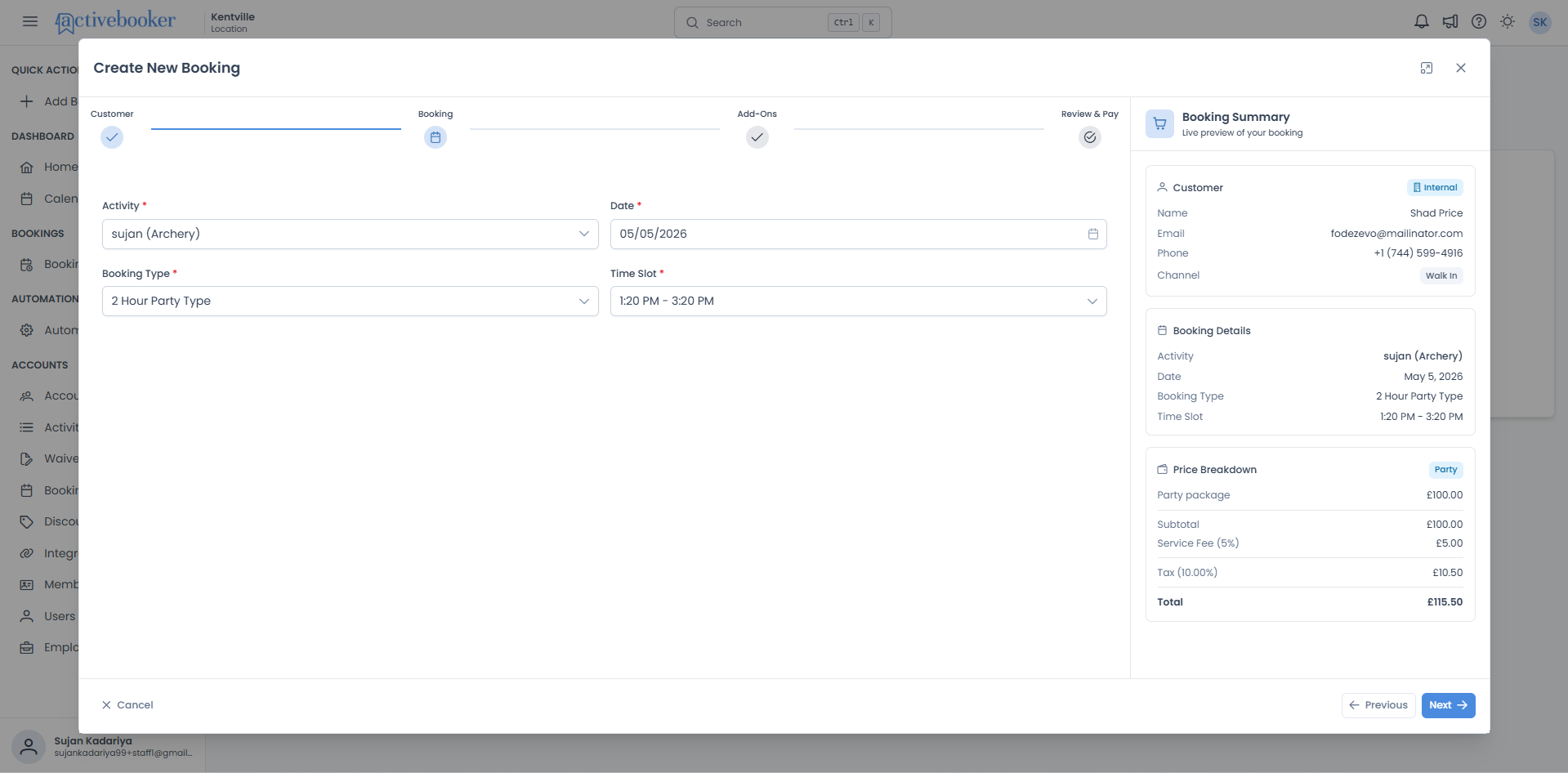
During the Booking step
The Price Breakdown card in the Booking Summary panel updates live as you change the activity, booking type, date, time slot, or number of guests. You do not need to click anything — it recalculates automatically.
During the Add-Ons step
The Booking Summary panel continues to show the full price breakdown. As you add, remove, or adjust add-on quantities, the add-ons subtotal and grand total update in real time — including any applicable service fee and tax recalculated on the new total.
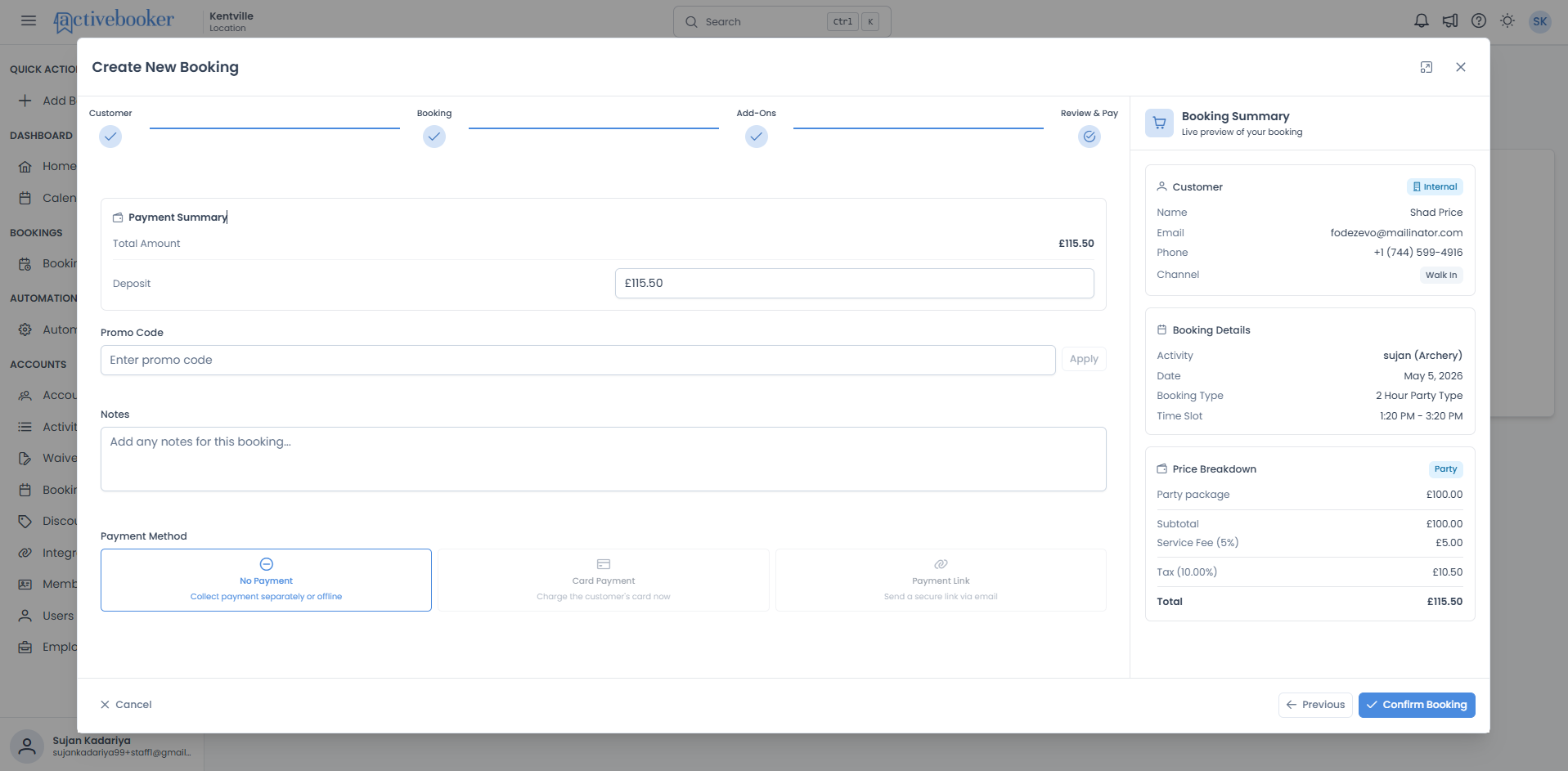
On the Review & Pay step
The Payment Summary section shows the Total Amount and the Deposit amount. This is where you can adjust the deposit if needed and choose a payment method before confirming.
Frequently asked questions
What is dynamic pricing and how does it affect my booking cost?
Dynamic pricing is a feature that allows your account administrator to configure a different price for specific dates or days of the week — for example, a lower price on weekdays or a higher price during peak seasons. When dynamic pricing is active for the date you have selected, it completely replaces the base price. All discount, add-on, tax, gratuity, and service fee calculations then start from the dynamic price, not the original base price.
Why did the price change when I added more guests?
For Per Person and Cascading pricing, the base price depends directly on the number of guests. Adding more guests increases the base price, which in turn increases any percentage-based service fee and tax.
Why doesn't the price change when I change guests for a Party or Rental booking?
Party and Rental booking types use a flat price — one fixed amount for the entire booking regardless of how many people attend. Guest count fields are not shown for these booking types.
Does a discount apply to add-ons?
No. Discounts are applied to the base price (or dynamic price) only. Add-ons are always added after the discount, so they are never reduced by a percentage or flat discount.
The service fee percentage is the same, but the fee amount changed. Why?
A percentage service fee is calculated from the taxed subtotal (discounted price + add-ons + tax + gratuity). If you changed the number of guests, added/removed add-ons, or the tax amount changed, that base changes, and so does the fee amount — even though the percentage stays the same.
Is the service fee included in the tax calculation?
No. Tax is calculated on the subtotal (discounted price + add-ons) only. The service fee is calculated afterward, on the taxed subtotal (plus gratuity, if any) — so it is never part of the taxable amount.
Is gratuity taxed?
No. Gratuity is calculated from the original base price, before any discount or add-ons, and it is added after tax. It is never included in the taxable amount and does not affect the tax calculation.
Can I add gratuity when creating a booking as staff?
No. Gratuity is only available to customers booking through the customer-facing Book Now page. Bookings created from the Create Booking page do not include a gratuity step.
Can I see the price before I choose a time slot?
No. The full price calculation requires all booking details — activity, date, booking type, time slot, and guests — to be selected. The Price Breakdown card only appears once all of these are filled in.
What is the difference between the deposit and the total?
The total is the full amount owed for the booking. The deposit is the portion collected upfront at the time of booking. Any remaining balance is collected separately (for example, on the day of the event). The deposit is shown and can be adjusted on the Review & Pay step.