Link locks to units
Tell ActiveBooker which locks each room, lane or bay opens. When someone books a unit, their door code is set up on exactly those locks.
Before you start
- RemoteLock is connected, and your locks show on the Devices tab. See Set up RemoteLock.
- The activity you want to link is active.
Steps
-
Go to Integrations > RemoteLock and open the Unit Link tab
-
Pick an activity from the Select Activity list
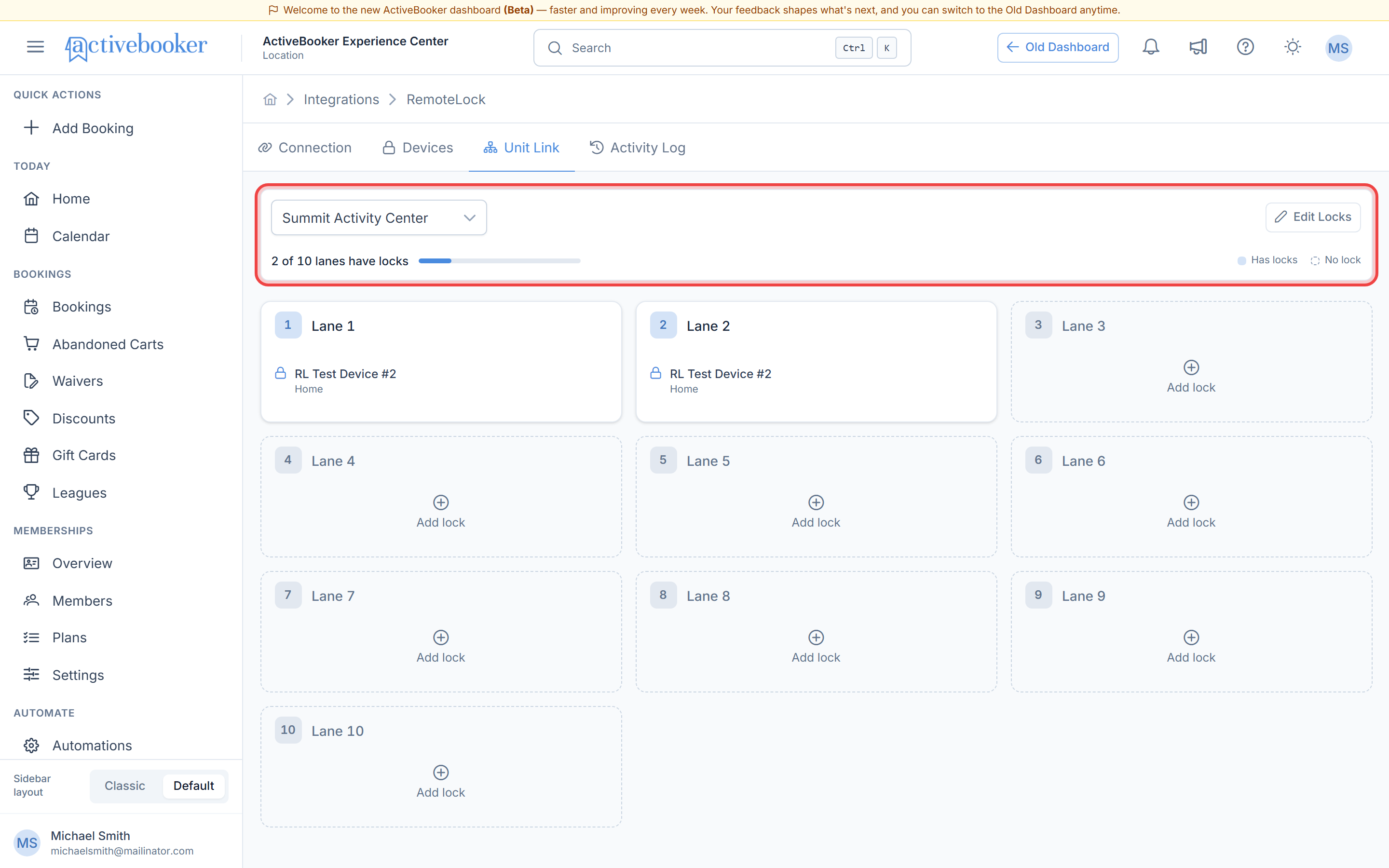
Each unit of the activity shows as a card. Units with locks list them; units without one show Add lock.
-
Click Edit Locks to edit every unit at once, or click a single unit's card to edit just that one
-
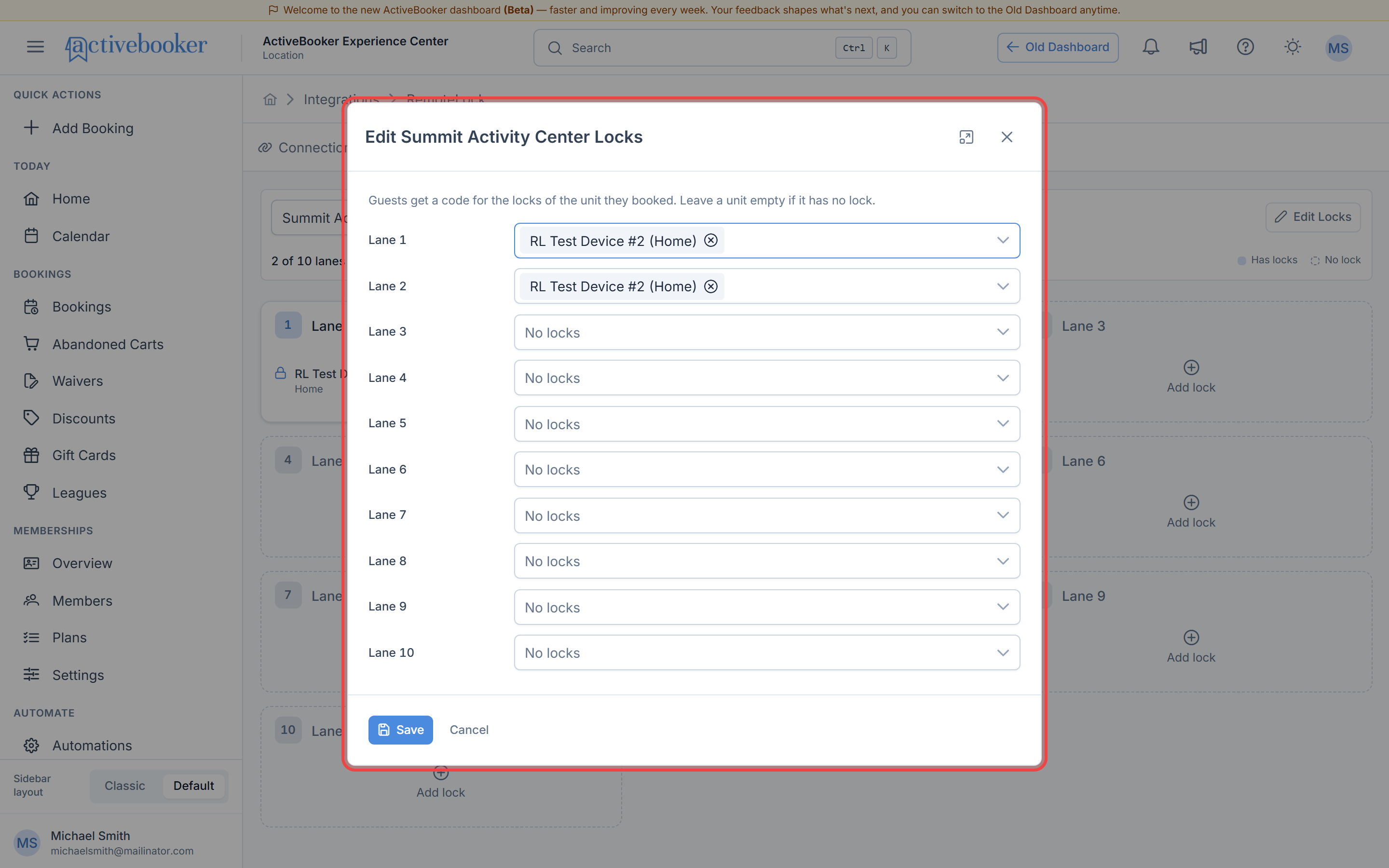
For each unit, select the locks that guests of that unit should be able to open
-
Click Save
The bar above the cards shows how many units have locks, for example "4 of 6 lanes have locks". Leave a unit empty if it doesn't have a lock. Bookings for that unit simply won't get a door code.
Shared doors
If guests need to get through a front entrance or hallway door before reaching their room, add that door to every unit as well as the unit's own lock. Each guest's code then opens the shared door and their own room, and nothing else.
Bookings with more than one unit
When a booking uses several units (for example two lanes), its code opens the locks of all of them.
Changing links only affects new bookings and codes created from now on. Existing door codes keep the locks they were made with. To update one, open the booking and click Regenerate Code.
Related
- Door codes for bookings — what happens once units have locks
- Set up RemoteLock — connect and sync your devices