Door codes for bookings
Once RemoteLock is connected and your units have locks, every new booking gets its own door code automatically. This page covers what the guest receives, where you see the code, and what happens when a booking changes.
What happens when a booking is made
- A booking is created for a unit that has locks linked
- ActiveBooker asks RemoteLock for a new PIN and gives it access to that unit's locks
- The PIN works from the booking's start time until its end time
- The guest is emailed their code
This usually takes a few seconds. There's nothing for you to do. The code is created as soon as the booking is saved, whether or not it has been paid.
A code only works during the booking itself. It won't open the door before the start time or after the end time. Bookings that run past midnight keep working until their end time the next day.
What the guest receives
The guest gets an email with the subject Your door code for followed by your location name. It shows the booking number, the PIN in large text, and the date and times the code works.
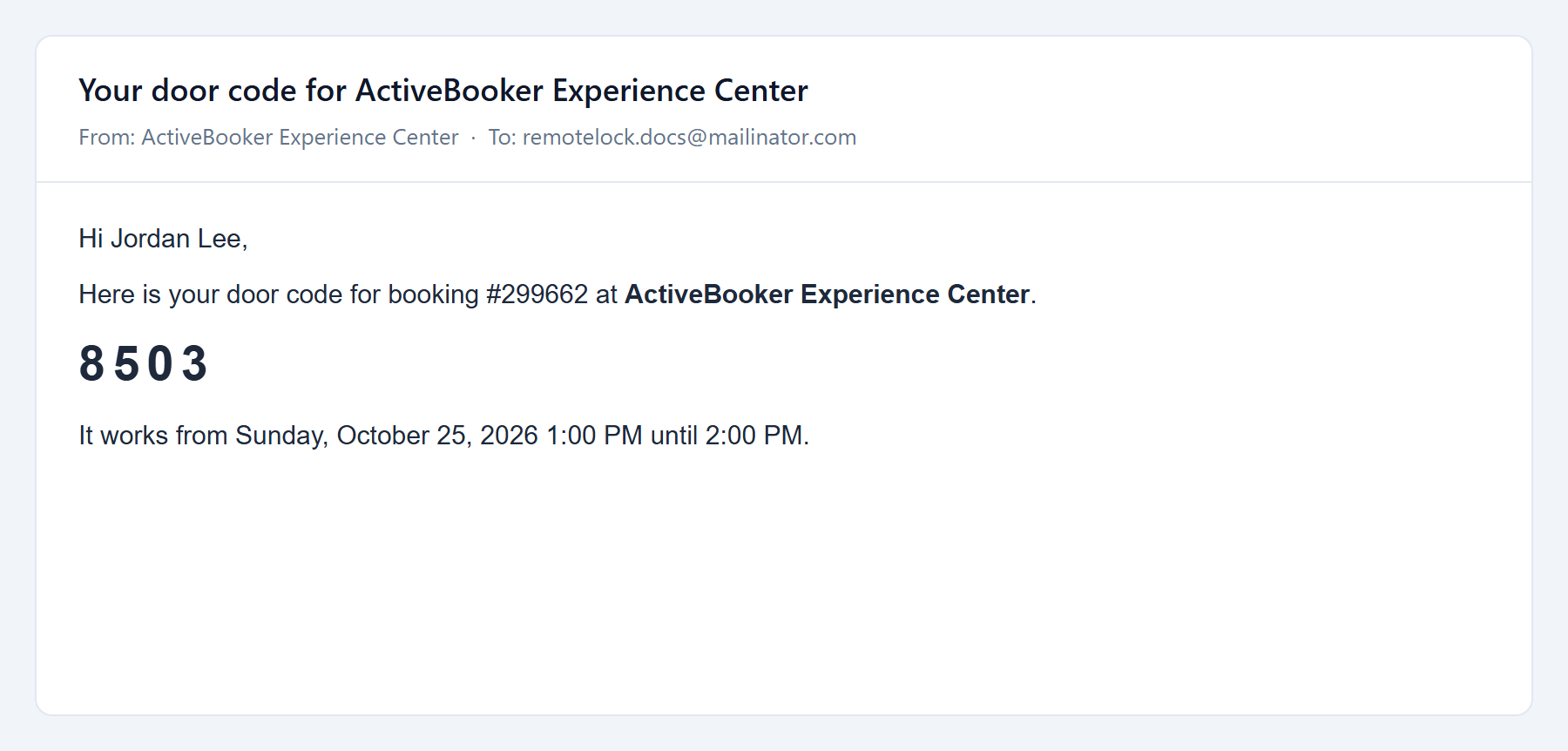
The email goes to the customer's email address on the booking. If the booking doesn't have an email address, no email is sent. You'll see this in the activity log, and you can give the guest the code yourself from the booking.
See a booking's door code
- Go to Bookings and open the booking
- Find the Door Access card, below the booking details and above Add-Ons
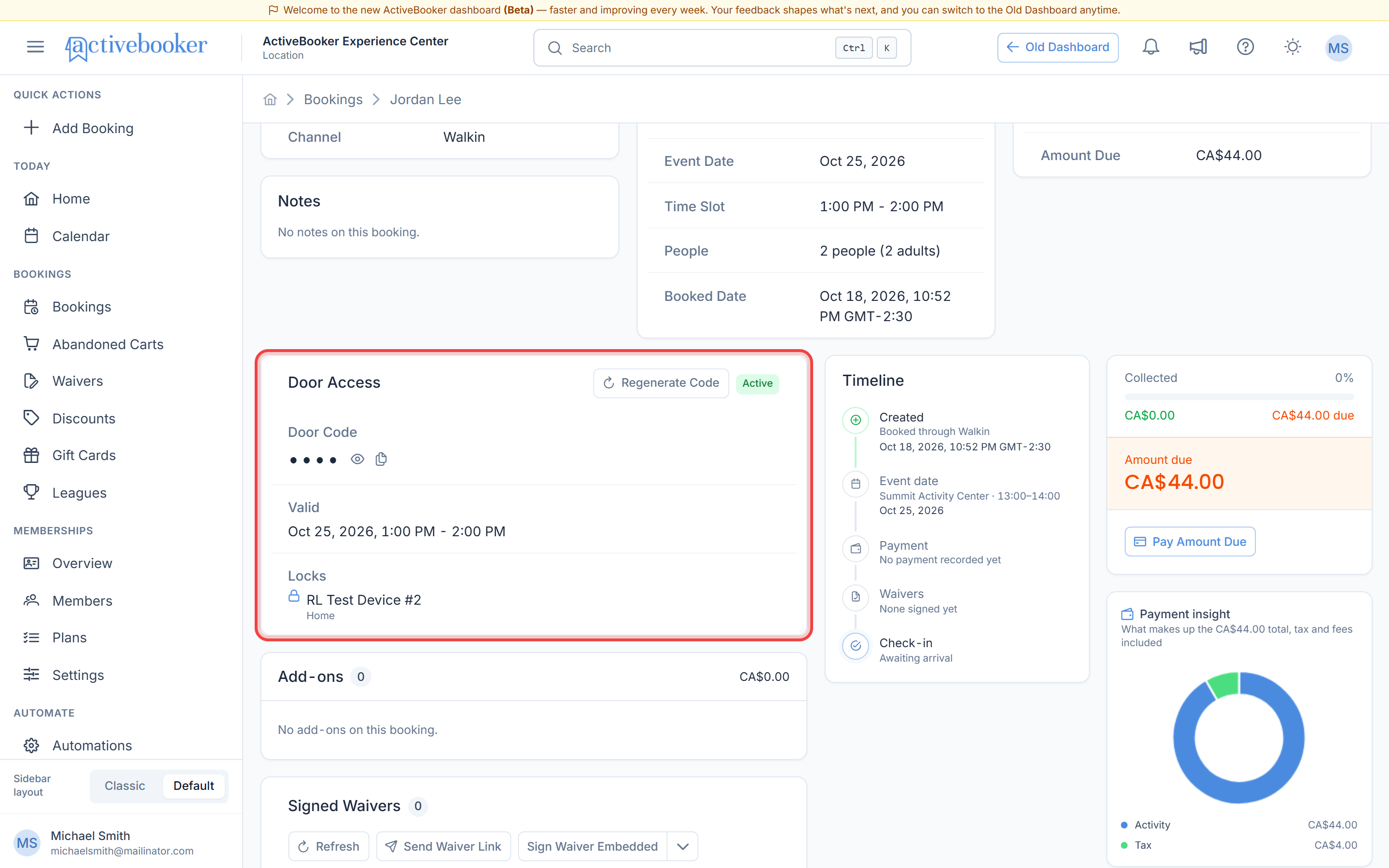
The card shows:
- Door Code — hidden by default. Click the eye icon to show it, or the copy icon to copy it
- Valid — the date and times the code works
- Locks — the locks this code opens
The code's status is shown at the top right of the card, next to Regenerate Code. The booking header shows the same status as a RemoteLock tag (for example RemoteLock · Active), so you can check it without scrolling.
The card only appears when RemoteLock is connected and the booking either has a code or can get one.
Door code statuses
| Status | What it means |
|---|---|
| Generating | RemoteLock is creating the code. It normally becomes Active within seconds. |
| Delayed | The code has been generating for more than two minutes. Click Regenerate Code. |
| Active | The code is on the locks and will work during the booking. |
| Failed | RemoteLock couldn't create the code. The card shows the reason. |
| Revoked | The code was removed and no longer opens any door. |
| No code | The booking doesn't have a code yet. |
Generate or replace a code
Click Regenerate Code at the top of the Door Access card when:
- A code is Failed or Delayed
- A guest thinks their code has been shared and you want to give them a new one
- You changed the locks on the Unit Link tab and want this booking to use the new ones
If the booking has no code yet, the button reads Generate Code. Use it for bookings made before RemoteLock was connected, or before the unit had a lock.
Replacing a working code asks you to confirm first, because the old PIN stops working straight away. The new code is emailed to the guest once it's ready.
When a booking changes
Codes follow the booking, so you don't need to update RemoteLock yourself.
| Change | What happens to the code |
|---|---|
| Moved or edited so the date, time or lanes change | The old PIN stops working and a new one is created and emailed |
| Edited without changing the date, time or lanes (customer details, notes) | Nothing, the code stays the same |
| Cancelled or deleted | The code is removed |
| Checked in or paid | Nothing, the code stays the same |
A guest count change counts as a lane change if the booking now needs a different number of lanes.
This applies to bookings managed in the ActiveBooker dashboard and booked online. Bookings created, moved or cancelled in the Old Dashboard don't update door codes. If you change a booking there, open it in the new dashboard and use Regenerate Code, or remove the code in RemoteLock.
Check the activity log
The Activity Log tab on the RemoteLock page lists everything the integration has done: connections, device syncs, and every code issued, emailed, replaced or removed. Each entry shows when it happened, a short description, a link to the booking, and who did it. Automatic actions show System.
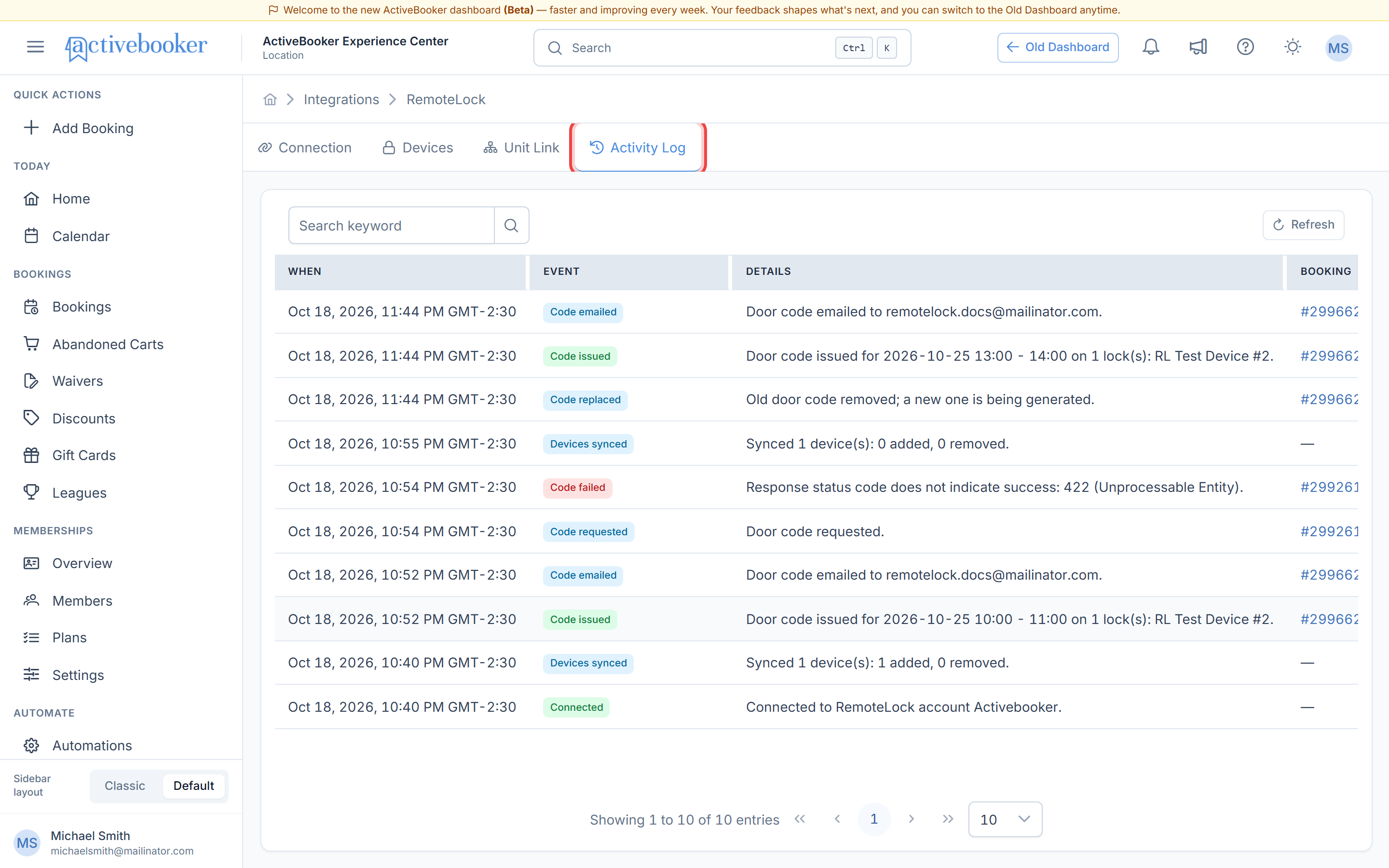
Use the search box to find entries for a particular booking or lock. It's the first place to look when a guest says their code didn't arrive or didn't work.
Troubleshooting
A booking didn't get a door code
Why this happens: The booked unit has no locks linked, the booking was made before RemoteLock was connected, or it was made in the Old Dashboard. How to fix it: Check the unit on the Unit Link tab, then open the booking in the dashboard and click Generate Code.
The code shows Failed
Why this happens: RemoteLock rejected the request, for example because a lock was removed from the account or is offline. The reason is shown on the card and in the activity log. How to fix it: Fix the cause in RemoteLock if needed, then click Regenerate Code.
The guest didn't get the email
Why this happens: The booking has no email address, or the email couldn't be delivered. The activity log shows Email failed with the reason. How to fix it: Add or correct the guest's email, then regenerate the code to send a fresh one. Or copy the code from the Door Access card and pass it on yourself.
The code doesn't open the door
Why this happens: It's outside the booking time, the lock is offline, or the lock's battery is flat. How to fix it: Check the Valid times on the card. Then check the lock's status and battery on the Devices tab or in RemoteLock.
A cancelled booking's code still works
Why this happens: RemoteLock couldn't be reached when the booking was cancelled. The activity log shows Removal failed. ActiveBooker keeps retrying in the background, and the code stops working at the booking's end time either way. A booking cancelled in the Old Dashboard isn't removed at all. How to fix it: If you need the code gone right away, delete the guest in RemoteLock. The guest is named after the booking number.
Sign-in refresh failed in the activity log
Why this happens: ActiveBooker can no longer reach your RemoteLock account, usually because access was removed in RemoteLock. How to fix it: Disconnect on the Connection tab and connect again.
Related resources
- Link locks to units — choose which locks each unit opens
- Set up RemoteLock — connect, sync devices, disconnect
- Booking details — the page where the Door Access card lives