Set up RemoteLock
Connect your RemoteLock account so ActiveBooker can create a door code for each booking. Guests get a PIN by email, and it opens only the doors they booked, only for the time they booked.
Quick start
- Go to Integrations and click Manage Integration on the RemoteLock card
- Click Connect RemoteLock, sign in to RemoteLock, and approve access
- Open the Unit Link tab and choose which locks each room, lane or bay opens
That's it. From then on, every new booking for a linked unit gets its own door code.
Don't see RemoteLock on the Integrations page? It is turned on per account. Contact ActiveBooker support to have it enabled.
How the two systems work together
RemoteLock is where your locks live. You install and register your smart locks or access control doors in your RemoteLock account, and RemoteLock sends codes to them.
ActiveBooker is where your bookings live. Once the two are connected, ActiveBooker asks RemoteLock for a new PIN whenever a booking is made, tells it which doors that PIN should open, and when it should work.
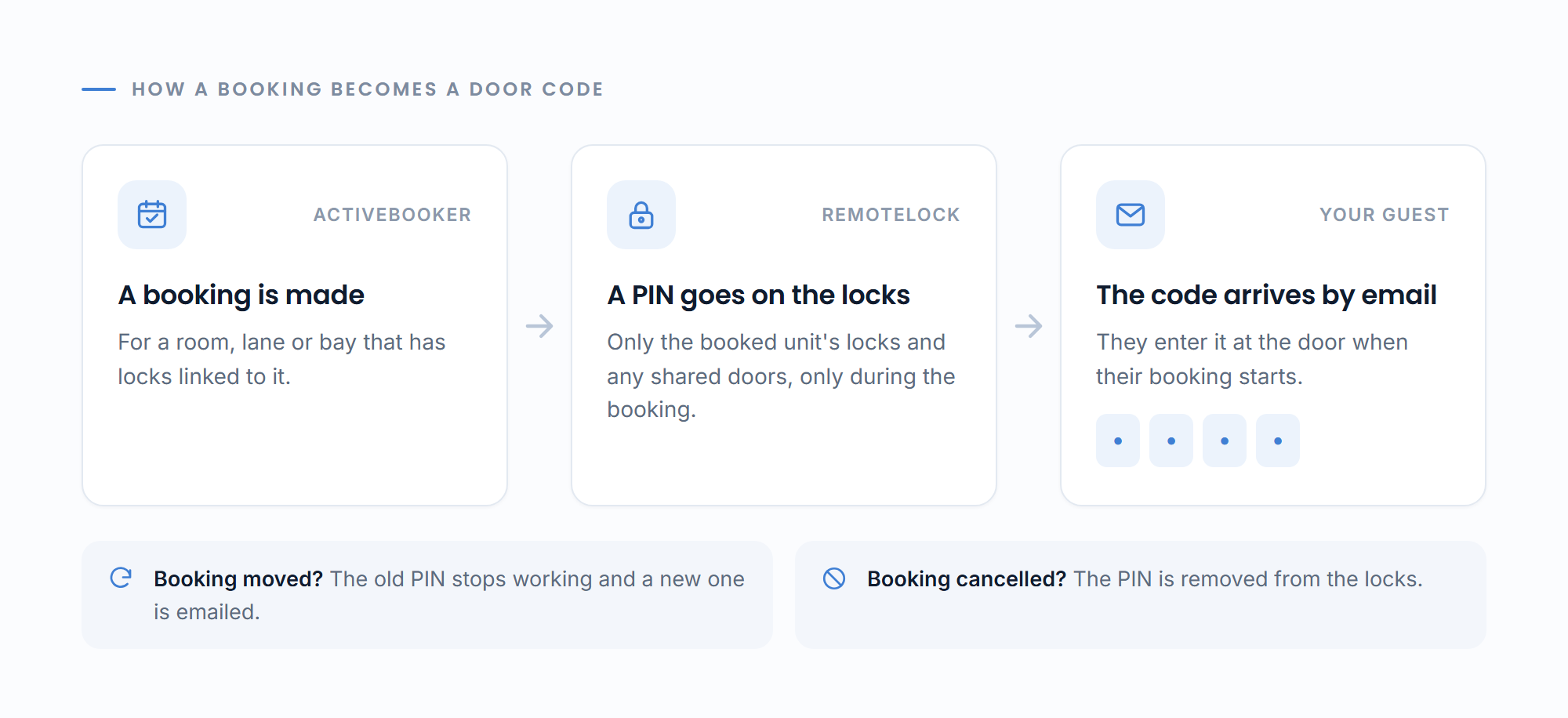
You keep managing the locks themselves (batteries, firmware, adding new hardware) in RemoteLock. Everything to do with bookings and codes happens in ActiveBooker.
A few things to know up front:
- Each location connects on its own. If you have more than one location, connect RemoteLock from each one. They can use the same RemoteLock account or different ones.
- Codes come from the new dashboard. Bookings made in the ActiveBooker dashboard or booked online get codes. Bookings created, moved or cancelled in the Old Dashboard don't.
- Only bookings made after you connect get a code automatically. For earlier bookings, use Generate Code on the booking.
Before you start
On the RemoteLock side, make sure that:
- You have a RemoteLock account, and you can sign in to it as an account owner or admin
- Your locks are installed, registered in RemoteLock, and online
- The locks have sensible names in RemoteLock (for example "Room 1 Door" or "Front Entrance"), since those names are what you'll pick from in ActiveBooker
On the ActiveBooker side, you need your activities set up with their units (rooms, lanes, bays), because locks are linked to units.
Connect your RemoteLock account
-
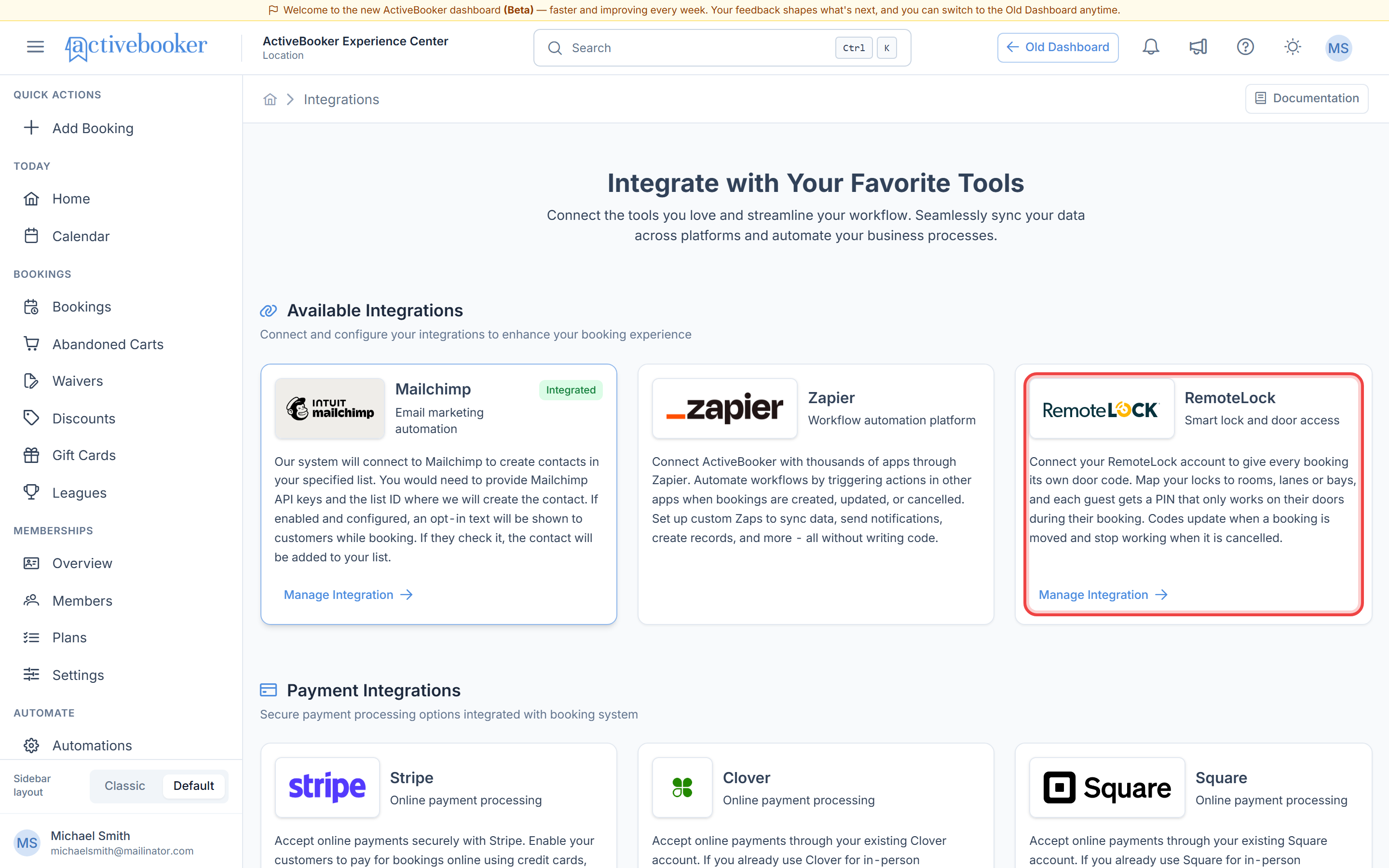
From the left menu, click Integrations
-
Find the RemoteLock card and click Manage Integration
-
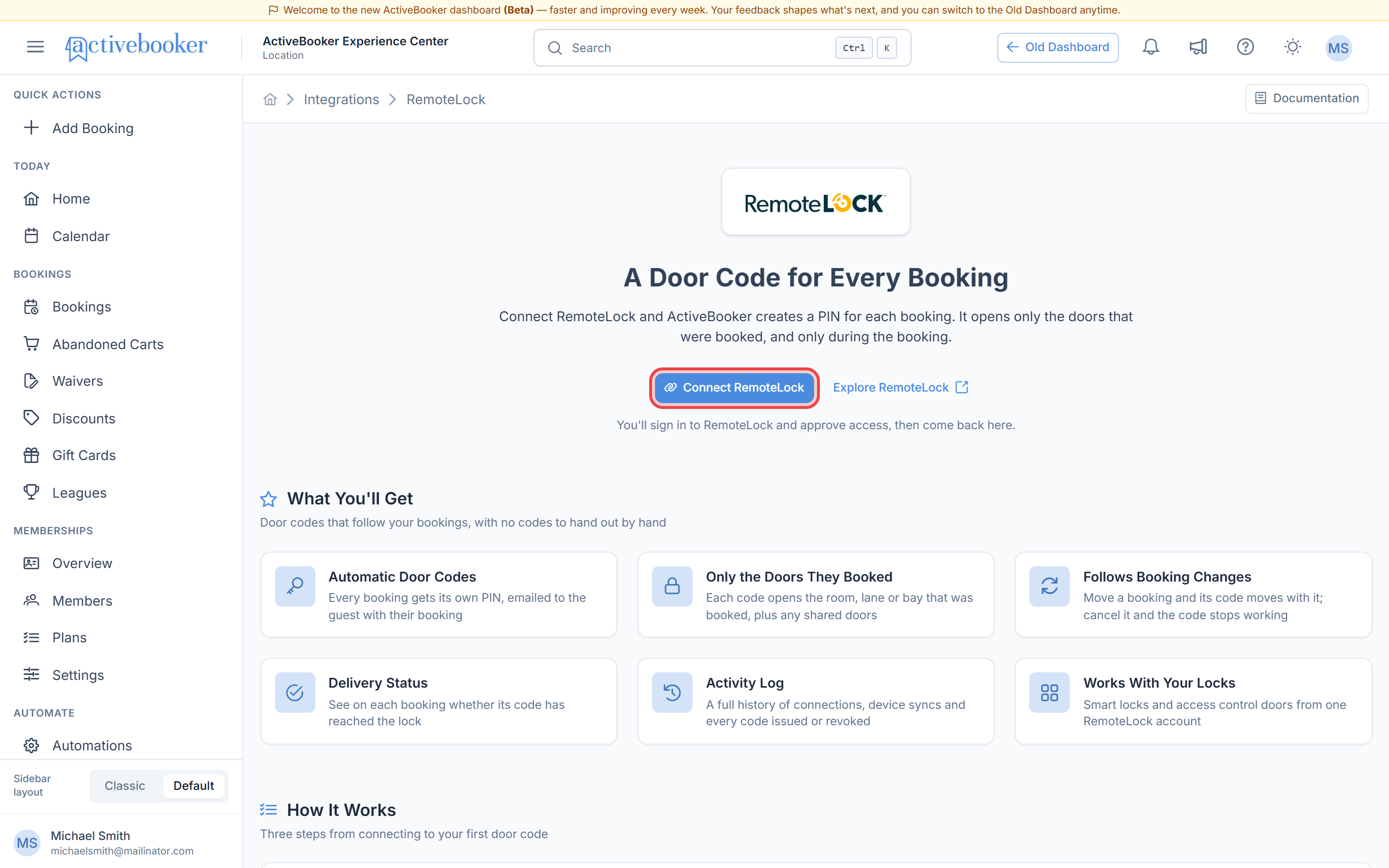
Click Connect RemoteLock
-
You're taken to RemoteLock. Sign in and approve access for ActiveBooker
-
RemoteLock sends you back to ActiveBooker, and you'll see RemoteLock connected successfully!
-
Click Back to RemoteLock to open the integration
Your locks are synced from RemoteLock straight away, so you can go on to link them to units.
If you cancel on the RemoteLock sign-in page, you'll see Sign-in cancelled and nothing is connected. Click Back to RemoteLock and try again when you're ready.
Find your way around
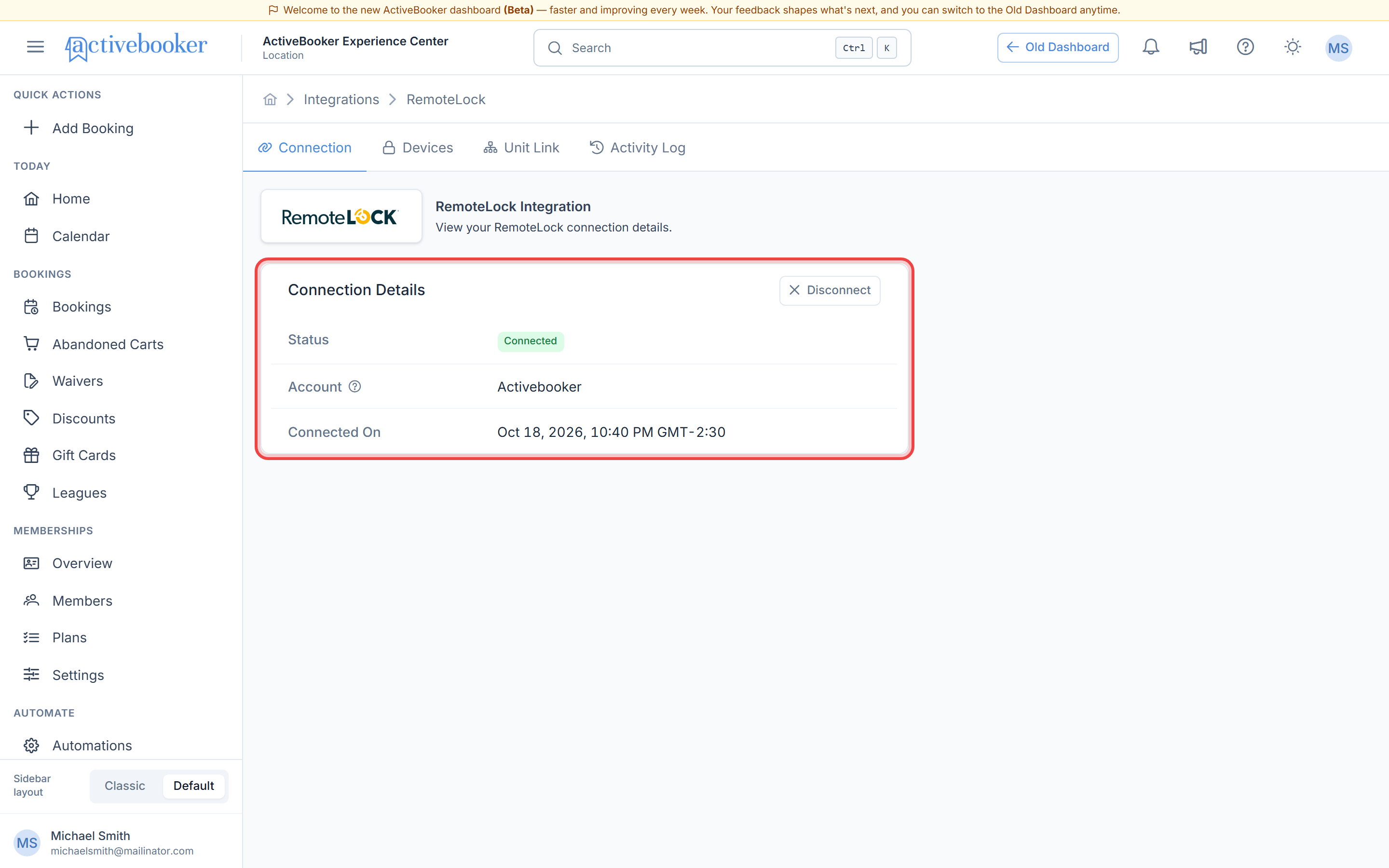
Once connected, the RemoteLock page has four tabs:
| Tab | What it's for |
|---|---|
| Connection | Shows which RemoteLock account is connected and when. This is also where you disconnect. |
| Devices | The locks and doors in your RemoteLock account. |
| Unit Link | Choose which locks each unit opens. See Link locks to units. |
| Activity Log | A history of everything the integration has done. See Door codes for bookings. |
View your devices
The Devices tab lists everything in your RemoteLock account: name, type, RemoteLock location, model, serial number, firmware and battery level.
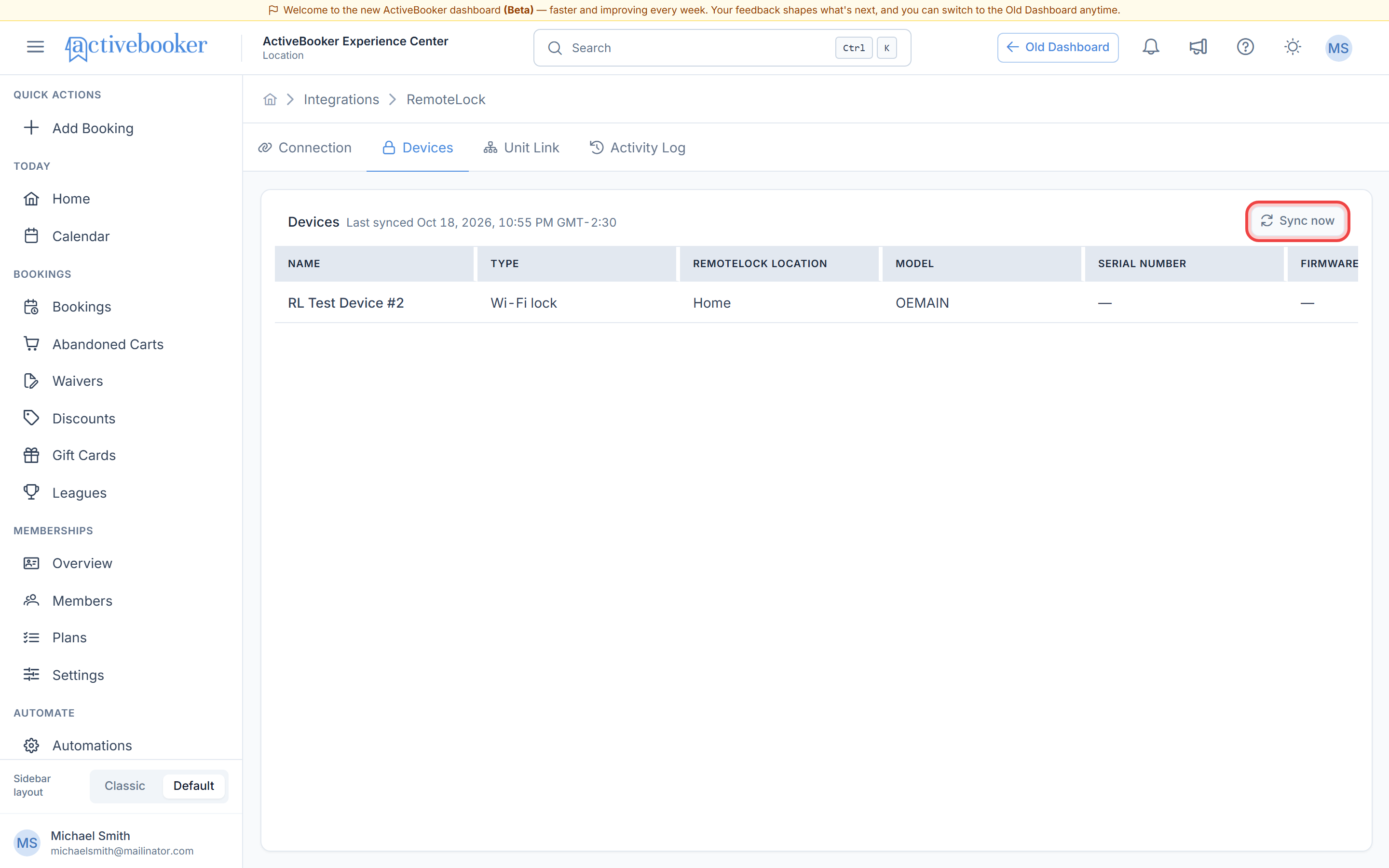
ActiveBooker syncs this list from RemoteLock every hour. If you've just added or renamed a lock in RemoteLock and want to see it now, click Sync now.
Keep an eye on the Battery column. A lock with a flat battery won't open, even with a valid code.
Disconnect RemoteLock
- Open the Connection tab
- Click Disconnect and confirm
After you disconnect, ActiveBooker stops creating and updating door codes for this location.
Codes that were already issued keep working until their booking ends, even if the booking is later cancelled or moved. If you need to stop a code sooner, remove it in RemoteLock.
Disconnecting also clears your devices and unit links. You can connect again at any time, but you'll need to link locks to units again.
Troubleshooting
"Could not connect" when clicking Connect RemoteLock
Why this happens: ActiveBooker couldn't start the sign-in with RemoteLock, usually a short network problem. How to fix it: Wait a moment and click Connect RemoteLock again. If it keeps happening, contact support.
"Connection failed" after signing in
Why this happens: RemoteLock reported a problem with the sign-in, or the sign-in took too long. How to fix it: Click Back to RemoteLock and connect again. Make sure you sign in with an account that has admin access in RemoteLock.
A lock is missing from the Devices tab
Why this happens: The lock was added in RemoteLock after the last sync, or it's under a different RemoteLock account. How to fix it: Click Sync now. If it still doesn't show, check in RemoteLock that the lock is registered to the same account you connected.
Related resources
- Link locks to units — the next step after connecting
- Door codes for bookings — what guests receive and how codes follow booking changes
- Integrations overview — all available integrations