Price Settings
Price Settings define how much customers pay for your booking type. You can choose from three pricing models and configure taxes, capacity, and minimum booking requirements to match your business needs.
Quick start
Configure pricing for a booking type in three steps:
- Navigate to activities and click view detail for your desired activity
- Select the Booking Types tab and click on view detail for the booking type you want to configure
- Click Edit in the Price Settings section
- Choose your pricing type, set prices, and configure related options
Understanding pricing types
Every booking type must have one of three pricing models:
| Pricing Type | Best For | How It Works |
|---|---|---|
| Person | Activities charged per participant | Each person pays a set price. You can set different prices for adults and children. |
| Unit | Resources rented as a whole | Customers pay per unit (lane, court, room, etc.) regardless of how many people use it. |
| Cascading | Group activities with tiered pricing | Price changes based on group size. Larger groups pay different rates per person. |
Accessing price settings
To view or edit price settings:
- Navigate to Activities > select your activity
- Click on Booking Types in the activity detail tabs
- Select the specific booking type you want to configure
- Click the Price tab
- In the Price Settings section, click Edit
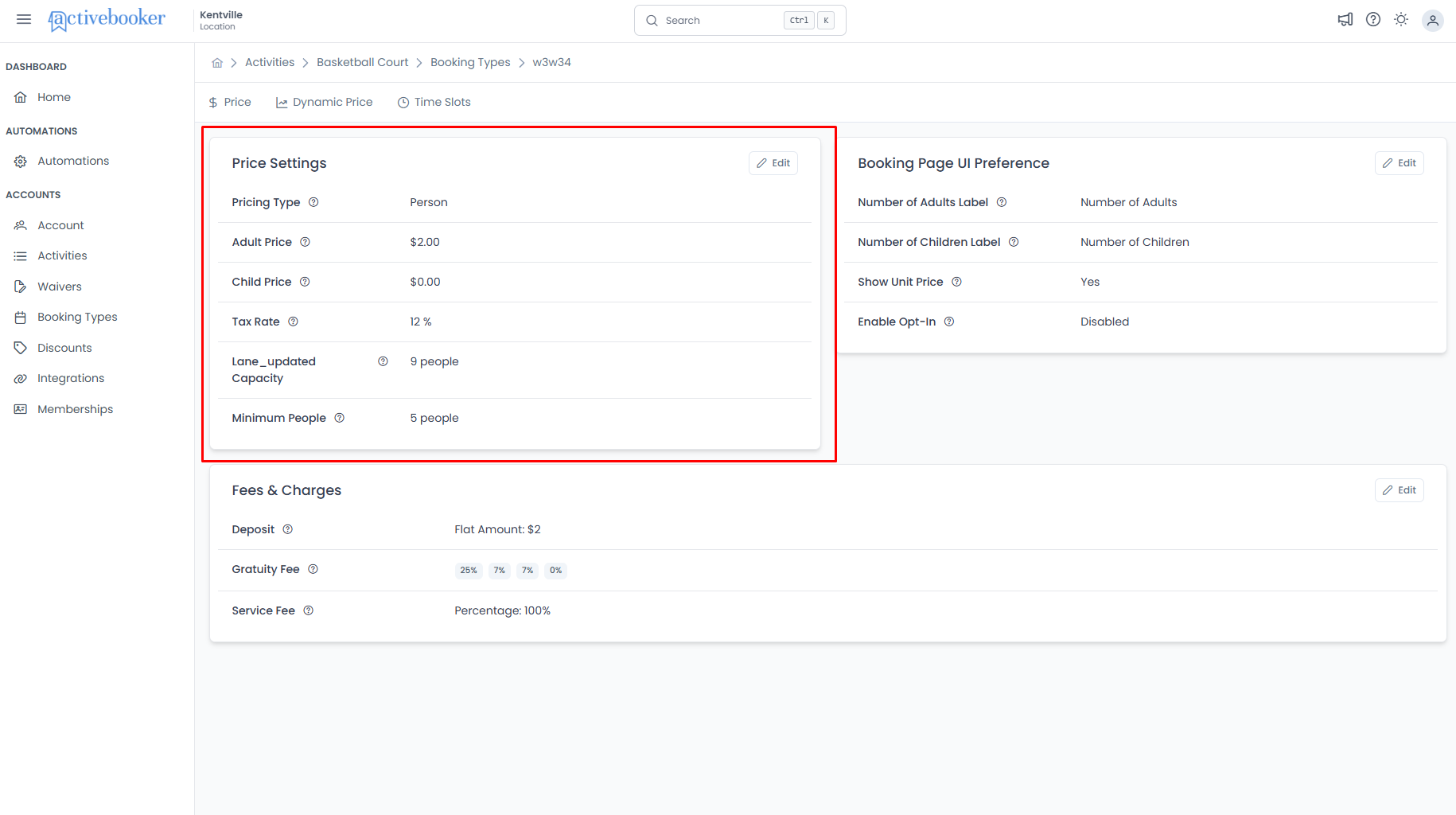
The Price Settings dialog opens with all configuration options for your selected booking type.
Person pricing
Use Person pricing when customers pay individually for participation in an activity.
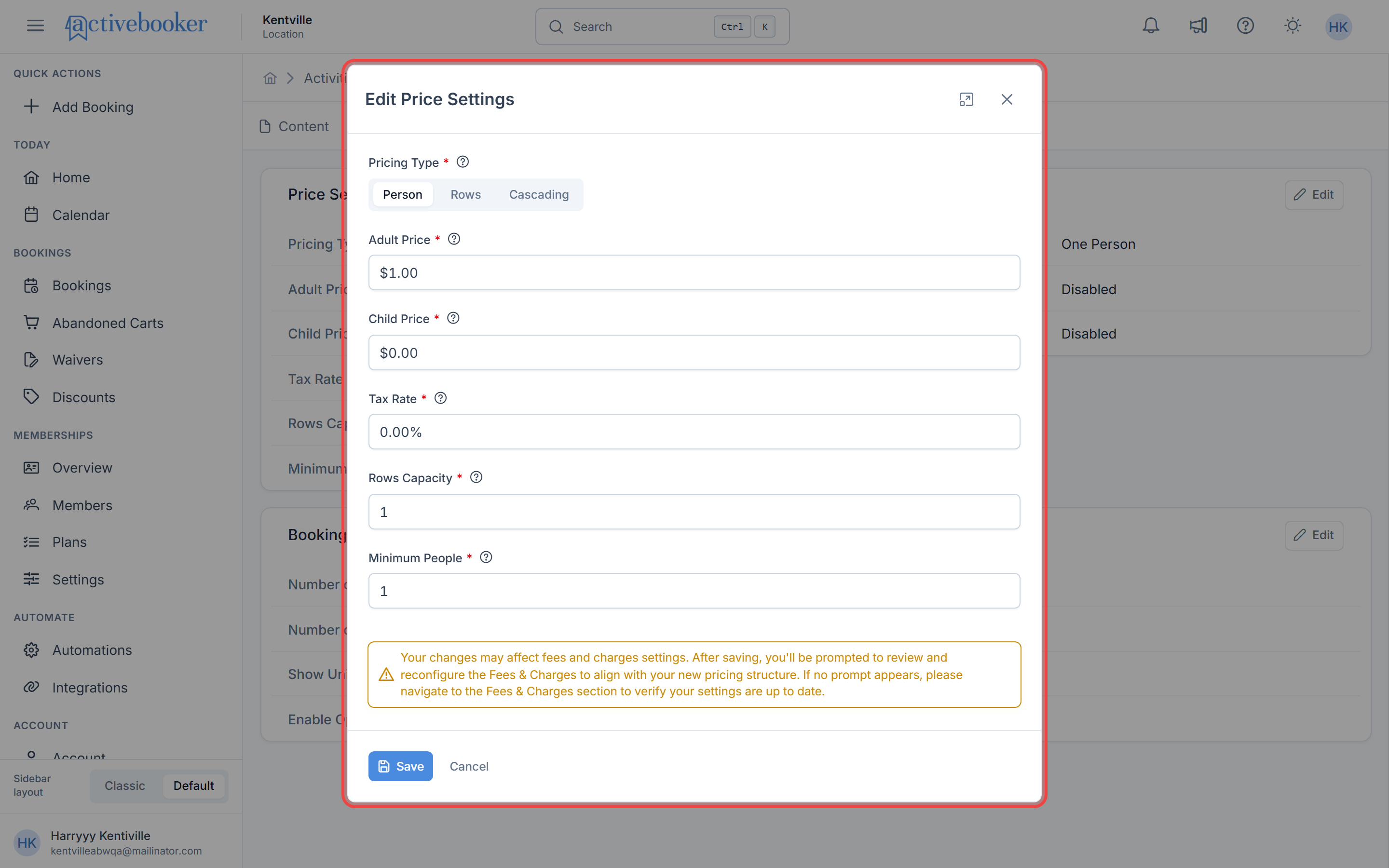
Configuration fields
Pricing Type
Select Person from the pricing type options.
Adult Price
The amount charged for each adult in the booking. This price will be multiplied by the number of adults when calculating the total booking cost.
- Example: $25.00 for a fitness class
Child Price (Optional)
The amount charged for each child in the booking. This price is multiplied by the number of children when calculating the total.
- Example: $15.00 for children under 12
Tax Rate
The tax percentage automatically added to the booking subtotal to calculate the final price. Percentage is entered as a number (e.g., 8.5 for 8.5% sales tax) and displayed separately to customers at checkout.
Activity Unit Capacity
The maximum number of people that can be accommodated per activity unit.
Minimum People
The minimum number of participants required for a booking.
Set Minimum People to 2 for partner activities like doubles tennis, or to 8 for group fitness classes that need a minimum attendance to run.
Unit pricing
Use Unit pricing when customers rent an entire resource (lane, court, room) regardless of how many people use it.
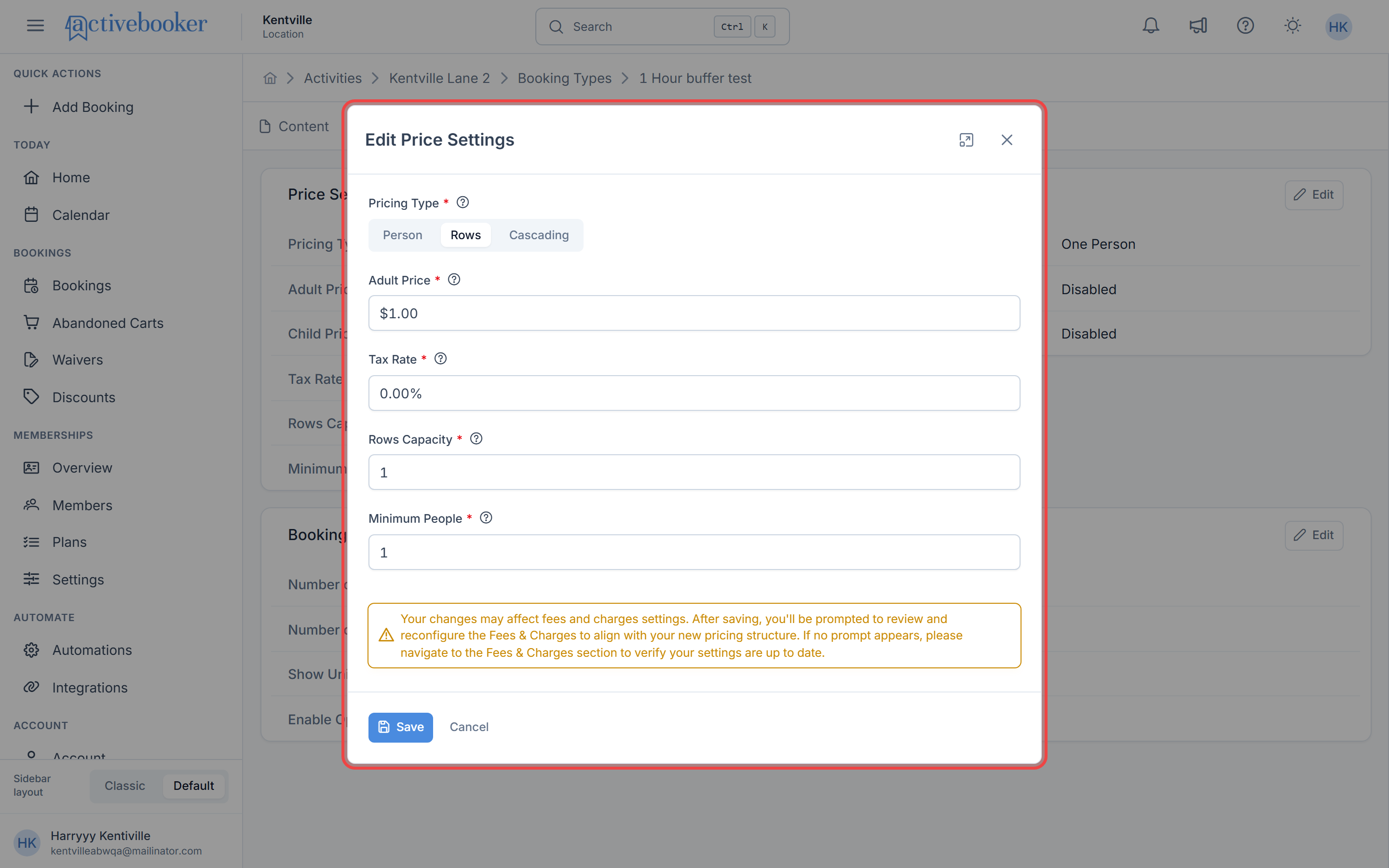
Unit pricing field behavior
Pricing Type
Select your activity's unit label (e.g., Lane, Court, Room) from the pricing type options.
The unit label comes from your activity configuration. If you set your activity to use "Court" as the unit, that's what appears in the pricing type options.
Adult Price
The per-person price used to derive the unit price behind the scenes.
Unit Price
The price charged for the whole unit. This is the value customers pay regardless of how many people are in the booking, up to capacity.
When Unit pricing is selected, the form shows Adult Price and Unit Price side by side. Both fields are required.
Changing either value updates the other automatically based on the current capacity:
- Changing Adult Price auto-fills Unit Price
- Changing Unit Price auto-fills Adult Price
- Changing Activity Unit Capacity re-derives Adult Price from the existing Unit Price while keeping Unit Price fixed
When the values cannot be represented exactly at the current capacity, a warning appears to let you know one value will be rounded when saved.
The Child Price field is not shown for Unit pricing.
Tax Rate
The tax percentage applied to the booking subtotal to calculate the final price.
Activity Unit Capacity
The maximum number of people allowed per activity unit.
Minimum People
The minimum number of people required for a booking.
With Unit pricing, customers pay the full unit price regardless of how many people are in their group (up to capacity). If 2 people or 6 people book the unit, the price is the same.
Switching pricing types
- Switching from Person to Unit requires a Unit Price before saving
- Switching from Unit back to Person hides the Unit Price field and uses Adult Price directly
- Changing only Activity Unit Capacity keeps Unit Price unchanged while recalculating Adult Price
Fee review after unit price changes
Changing Unit Price on a booking type with a flat-amount deposit can invalidate that deposit. When that happens, the system prompts you to review Fees & Charges and resets the deposit to Full Amount if needed.
If you save without changing Unit Price, existing flat deposits stay as they are.
Cascading pricing
Use Cascading pricing when you want prices to change based on group size. This is ideal for group activities where larger parties get better per-person rates.
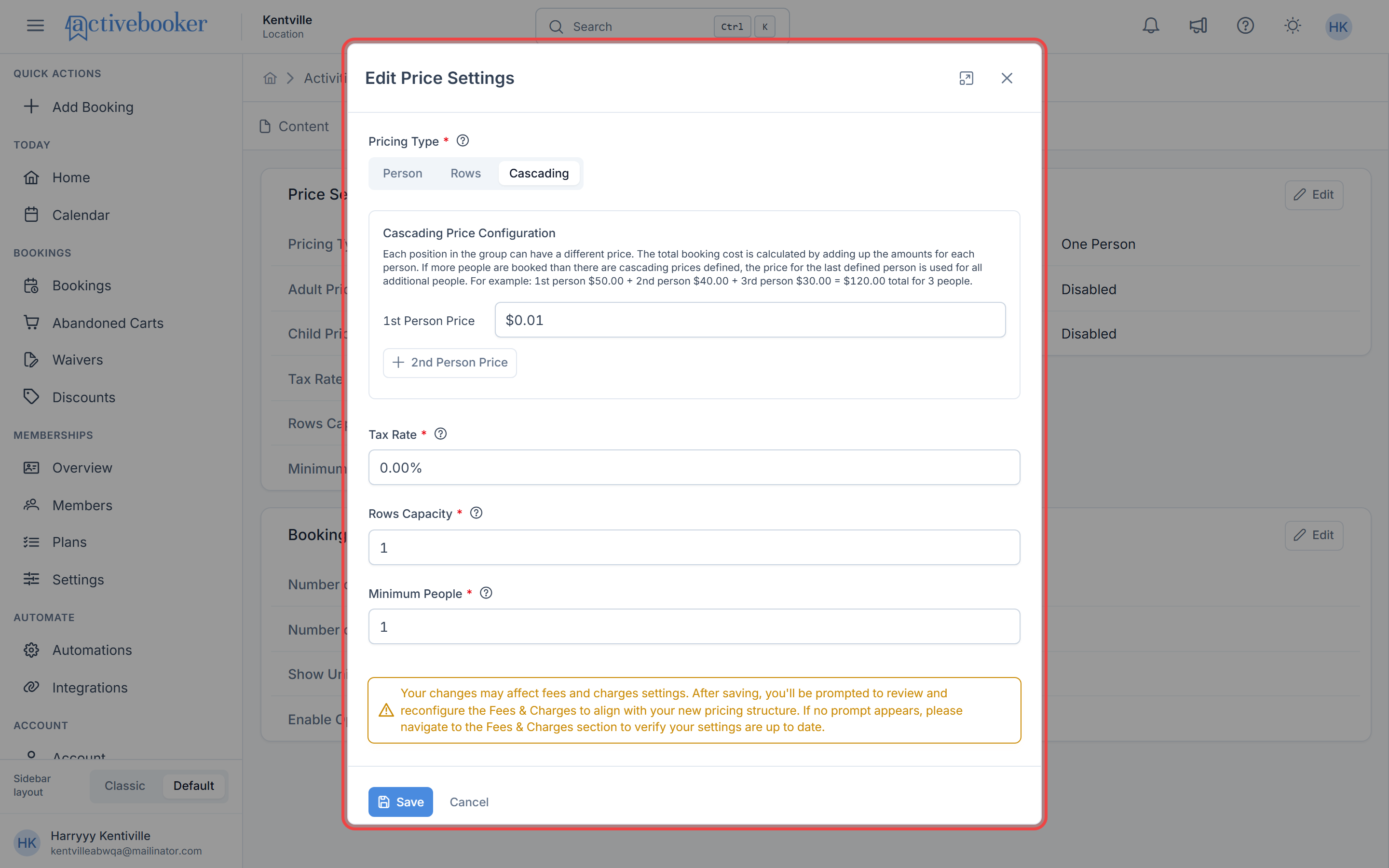
Configuration fields
Pricing Type
Select Cascading from the pricing type options.
Cascading Price Configuration
Define prices for different group sizes.
- 1st Person Price: Price when 1 person books
- 2nd Person Price: Price when 2 people book
- 3rd Person Price: Price when 3 people book
- And so on...
You can configure up to 20 different pricing tiers.
How it works:
Each position in the group can have a different price. The total booking cost is calculated by adding up the prices for each person in the group.
Example:
1st person: $50
2nd person: $46
3rd person: $41

Booking for 3 people = $50 + $46 + $41 = $137 total
Click + 2nd Person Price to add the next pricing tier. The button updates dynamically (3rd, 4th, 5th, etc.) as you add more tiers. You can configure as many tiers as needed, up to 20 people.
Tax Rate
Set the tax percentage applied to the booking subtotal.
Activity Unit Capacity
The maximum number of people that can be accommodated per activity unit.
Minimum People
Set the minimum number of participants required for a booking.
Unlike Person pricing where everyone pays the same rate, Cascading pricing means the 1st person might pay $50, the 2nd person $45, the 3rd person $40, etc. The total is the sum of all individual prices, not the number of people times one price.
Saving and applying changes
After configuring your price settings:
- Review all fields to ensure accuracy
- Click Save to apply the changes
- The Price Settings section updates to show your new configuration
Price settings display
After saving, the Price Settings section displays your configuration:
Common Fields Shown:
- Pricing Type: Person, [Unit Label], or Cascading
- Adult Price: Shows the saved or derived price used for calculations
- Unit Price: Shows the saved unit price for Unit pricing
- Cascading Prices: For cascading, shows formatted price list (e.g., "1st person: $0.01")
- Tax Rate: Displayed as percentage (e.g., "0.01%")
- Activity Unit Capacity: Shows capacity (e.g., "4 people")
- Minimum People: Shows minimum (e.g., "1 person")
Pricing for Party and Rental booking types
Party and Rental booking types use a simplified flat-rate pricing model. When you edit Price Settings for a Party or Rental booking type, you'll see a streamlined set of fields instead of the full pricing options available for Hourly booking types.
What you'll see
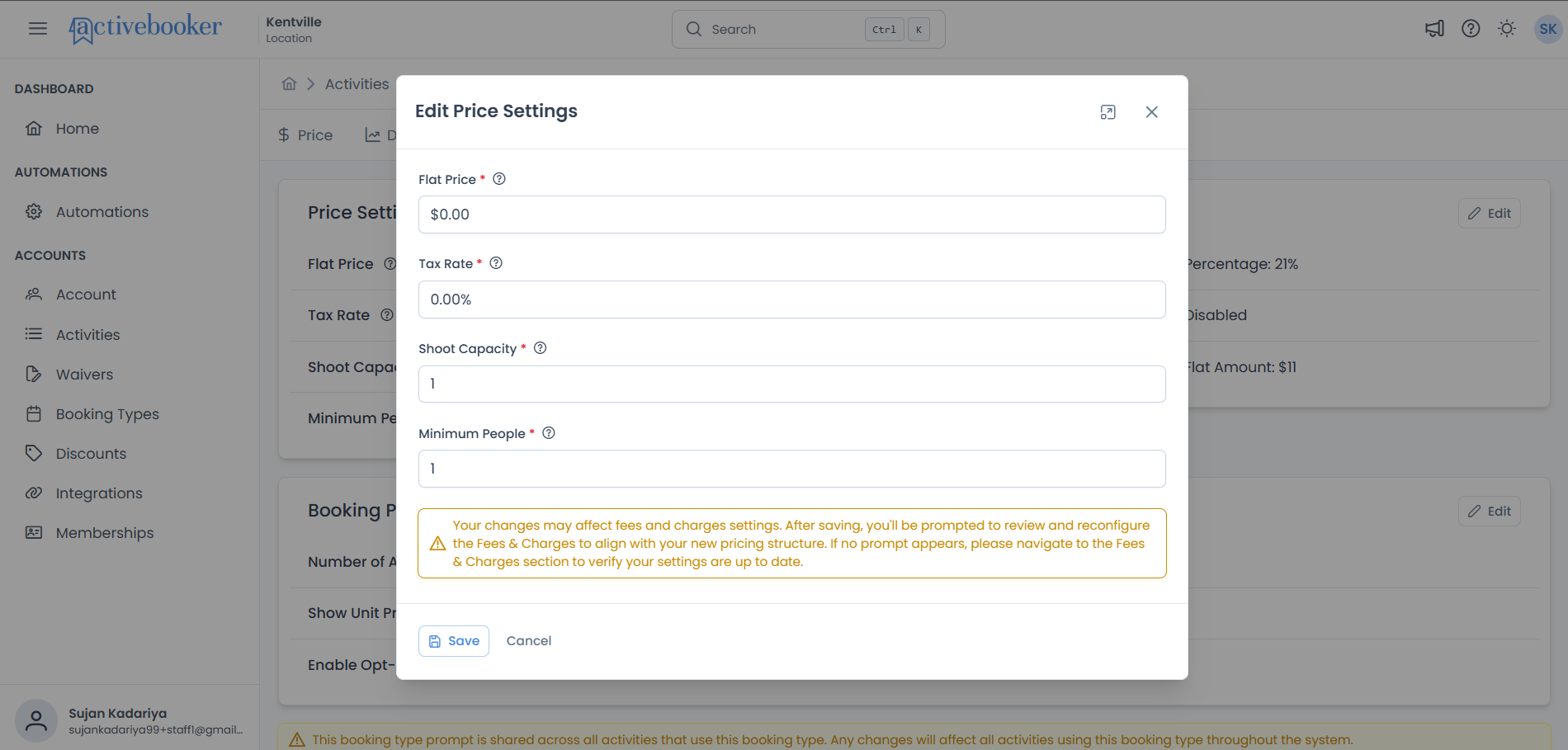
The Edit Price Settings dialog for Party and Rental booking types includes:
- Flat Price — The single price charged for the booking (replaces the Adult Price field)
- Tax Rate — The tax percentage applied to the booking
- Activity Unit Capacity — Maximum number of people per activity unit
- Minimum People — Minimum number of participants required
The Pricing Type selector (Person / Unit / Cascading) and Child Price field do not appear for Party and Rental booking types.
What the price settings section shows
After saving, the read-only Price Settings section displays:
- Flat Price
- Tax Rate
- Activity Unit Capacity
- Minimum People
Warning message when editing price settings
When you open the Edit Price Settings dialog, you'll see a warning message at the bottom of the form:
⚠ "Your changes may affect fees and charges settings. After saving, you'll be prompted to review and reconfigure the Fees & Charges to align with your new pricing structure. If no prompt appears, please navigate to the Fees & Charges section to verify your settings are up to date."
This message appears for all pricing types and is always visible. It reminds you that changing your pricing may affect your deposit and service fee settings.
What happens after you save price changes
Once you save the Edit Price Settings modal, regardless of whether any changes were made, the system automatically opens the Fees & Charges edit form for review and updates.
When the fees & charges form opens automatically
The Fees & Charges form opens after saving Price Settings Modal
A notification banner on the Fees & Charges form will let you know that your price settings have changed and your fees may need updating.
If you cancel or close without saving
Clicking Cancel or the X button discards your changes. No fees or charges are affected and the Fees & Charges form does not open.
Common pricing scenarios
Fitness class (Person pricing)
Setup:
- Pricing Type: Person
- Adult Price: $20.00
- Child Price: $15.00 (student rate)
- Tax Rate: 0%
- Activity Unit Capacity: 20 people
- Minimum People: 5 people
Result: Adults pay $20, Child pay $15. Class must have at least 5 participants to run.
Bowling lane (Unit pricing)
Setup:
- Pricing Type: Lane
- Lane Price: $45.00
- Tax Rate: 8.5%
- Activity Unit Capacity: 6 people
- Minimum People: 1 person
Result: Whether 1 person or 6 people bowl, the lane costs $45.00 plus tax.
Escape room (Cascading pricing)
Setup:
- Pricing Type: Cascading
- 1st: $35, 2nd: $30, 3rd: $25, 4th: $25, 5th: $20, 6th: $20
- Tax Rate: 0%
- Capacity: 6 people
- Minimum: 2 people
Result:
- 2 people: $35 + $30 = $65 total
- 4 people: $35 + $30 + $25 + $25 = $115 total
- 6 people: $35 + $30 + $25 + $25 + $20 + $20 = $155 total
Best practices
✅ Match pricing to your business model — Choose the pricing type that aligns with how you actually charge customers
✅ Set realistic capacities — Consider safety limits, space constraints, and quality of experience when setting maximum capacity
✅ Use minimum people wisely — Set minimums only when absolutely necessary for the activity to function
✅ Consider tax implications — Verify your local tax requirements and set the correct tax rate
✅ Test before going live — Make a test booking to verify the pricing calculates correctly from the customer's perspective
❌ Don't change pricing frequently — Frequent changes can confuse customers who've already started the booking process
❌ Avoid complex cascading unless needed — Cascading pricing is powerful but can be confusing. Use it only when group discounts make sense for your business
If you're unsure which pricing model to choose, start with Person pricing. It's the most straightforward for both you and your customers. You can always change it later as you learn what works best for your business.
Frequently asked questions
Can I change the pricing type after bookings are made?
Yes, but existing confirmed bookings keep their original price. Only new bookings use the updated pricing.
What happens if I set Minimum People higher than some existing bookings?
Existing bookings are not affected. The minimum only applies to new bookings going forward.
Can I have different prices for weekdays vs weekends?
Not directly in Price Settings. For time-based pricing variations, you'll need to use Dynamic Pricing features or create separate booking types.
What if I need to charge per hour and per person?
Choose Person pricing and set your duration appropriately. The system multiplies the per-person price by the number of time slots booked.
How do I handle promotional pricing or discounts?
Price Settings defines your standard pricing. For temporary promotions or discounts, use the Discounts feature to create codes customers can apply at checkout.