Time Slots
Configure available booking time slots for your activities. Time slots define when customers can make reservations for specific booking types, ensuring your facility operates on a structured schedule that matches your business hours and resource availability.
Quick start
Access and manage time slots in just a few steps:
- Navigate to Activities in your dashboard sidebar
- Find the activity you want to configure
- Click View Detail in the Actions column
- Switch to the Time Slots tab
- Select a booking type from the dropdown
- Click Add Time Slot or Add Bulk Time Slots to create availability
What you can do
The Time Slots feature helps you:
- Define available times — Set when customers can book specific activities
- Manage booking schedules — Configure different time slots for different booking types
- Create bulk schedules — Generate multiple time slots at once for recurring availability
- Control weekday availability — Specify which days of the week each time slot is available
- Activate or deactivate slots — Turn time slots on or off without deleting them
For detailed instructions on creating time slots, see:
- Add Time Slot — Create, edit, and delete individual time slots
- Add Bulk Time Slots — Create and delete multiple time slots at once
Understanding the interface
Time slots can be accessed in two locations:
Activity Time Slots Tab
Located on each activity's detail page, this tab lets you manage time slots across all booking types for that activity.
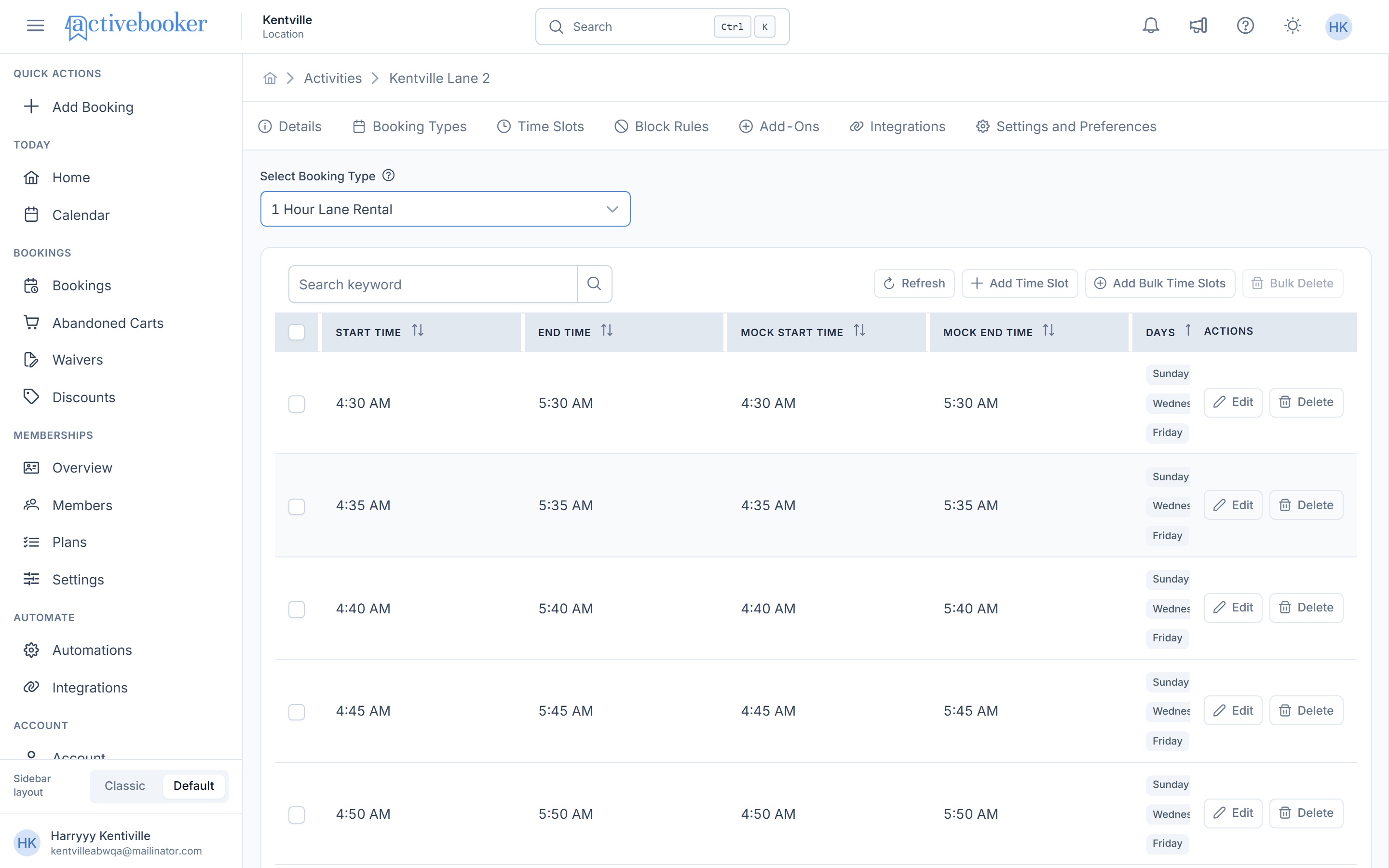
Key Features:
- Booking Type Selector — Choose which booking type's time slots to view and manage
- Time Slots Grid — View all configured time slots for the selected booking type
- Bulk Actions — Create, edit, or delete multiple time slots at once
Booking Type Time Slots Tab
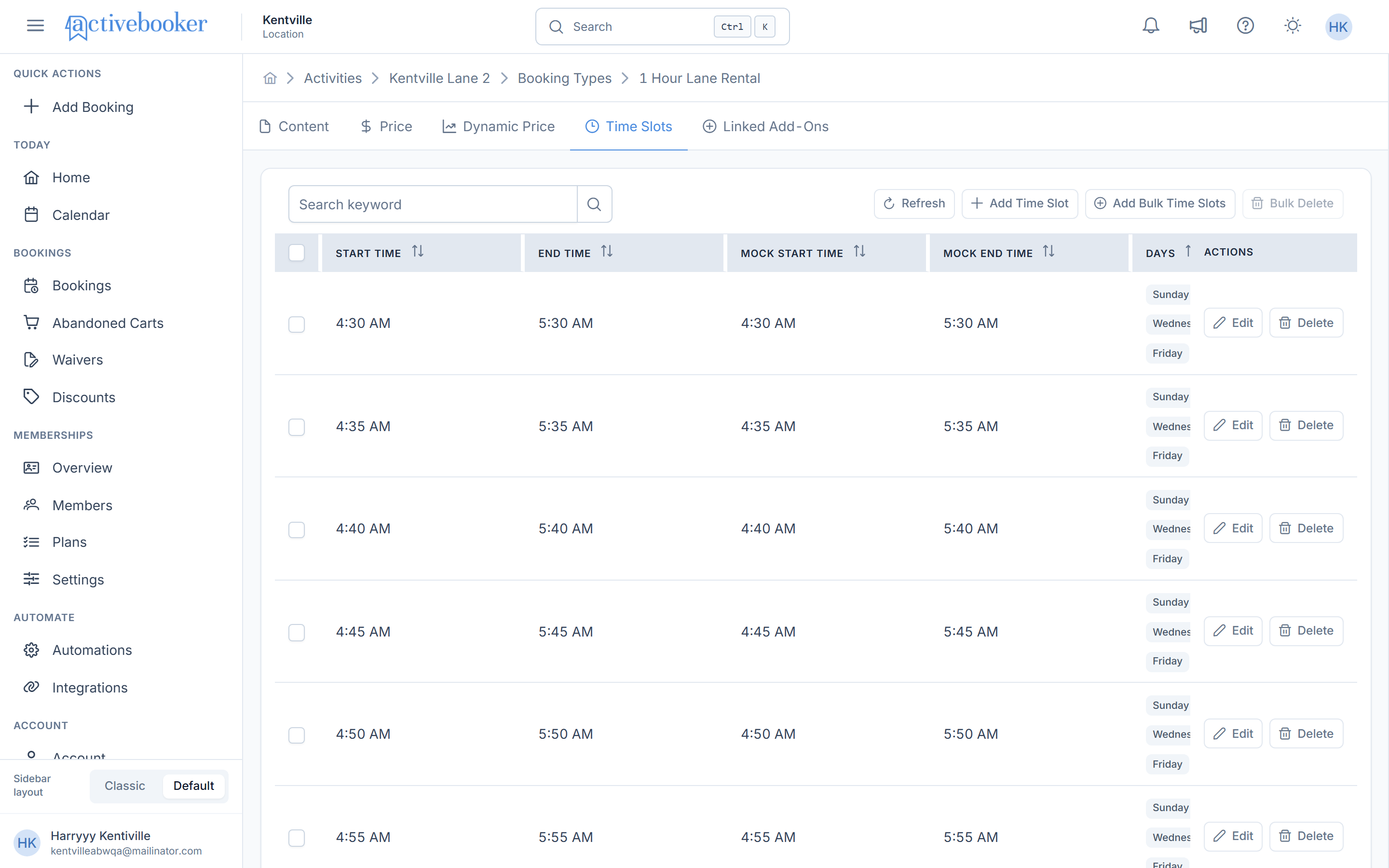
Located on each booking type's detail page when accessed from an activity, this tab shows time slots specific to that booking type and activity combination.
What are time slots?
Time slots are specific time windows when customers can book your activity. Each time slot has:
- Start Time — When the booking session begins
- End Time — When the booking session ends (calculated from booking type duration)
- Active Days — Which days of the week this slot is available
- Status — Whether the slot is active and bookable
Example: You run a bowling alley with a booking type called "1 Hour Lane Rental" (60 minutes duration). You create time slots at 10:00 AM, 11:00 AM, and 12:00 PM. Customers can then book:
- 10:00 AM - 11:00 AM
- 11:00 AM - 12:00 PM
- 12:00 PM - 1:00 PM
Time slots repeat on the days of the week you specify. If you set a 10:00 AM slot for Monday, Wednesday, and Friday, it's available every Monday, Wednesday, and Friday.
- Booking Type Duration: How long each booking lasts (e.g., 1 hour, 2 hours)
- Time Slot: When bookings can start (e.g., 10:00 AM, 11:00 AM, 2:00 PM)
- End Time: Automatically calculated as Start Time + Booking Type Duration
Accessing time slots
Accessing from Activity Details
To manage time slots across all booking types for an activity:
- Navigate to Activities in the dashboard sidebar
- Find the activity you want to configure
- Click View Detail in the Actions column
- Click the Time Slots tab
- Use the Select Booking Type dropdown to choose which booking type to configure
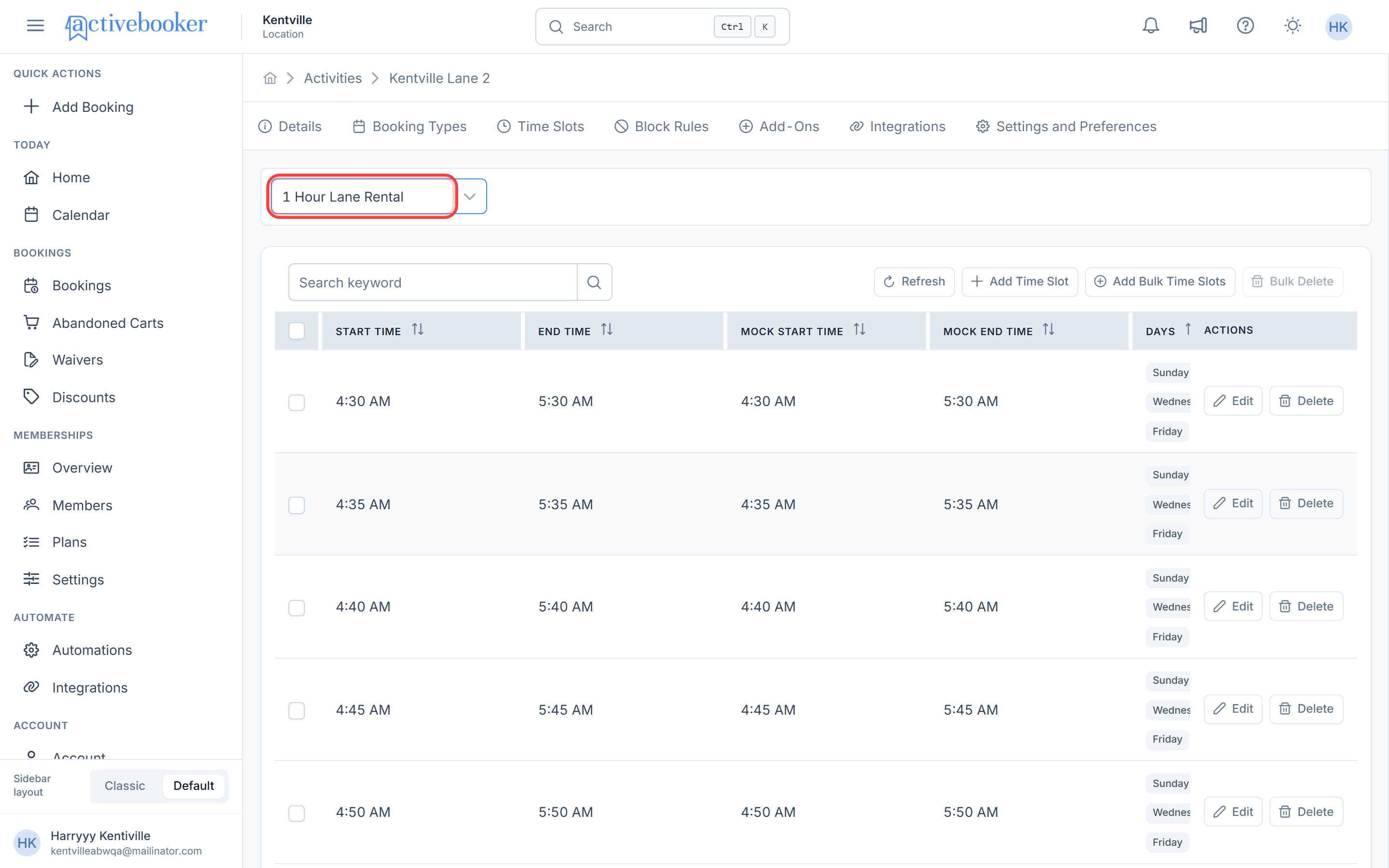
The booking type dropdown appears only in the Activity Time Slots tab, not in the Booking Type Time Slots tab (since the booking type is already selected there).
Accessing time slots from booking type details
When viewing a specific booking type's details from within an activity, you'll find a Time Slots tab that shows time slots configured for that booking type and activity combination.
How to access:
- Navigate to Activities > View Detail for an activity
- Click the Booking Types tab
- Click View Detail for a specific booking type
- Click the Time Slots tab
This provides the same functionality as the main Activity Time Slots tab, but filtered to only the currently selected booking type. You won't see the booking type selector dropdown since the booking type is already determined by context.
Whether you access time slots from the Activity Time Slots tab or from a Booking Type's Time Slots tab, the functionality is identical. Use whichever navigation path makes sense for your workflow:
- Activity Time Slots tab: When configuring multiple booking types for an activity
- Booking Type Time Slots tab: When focused on one specific booking type's configuration
Both paths lead to the same time slot data and editing capabilities.
If a booking type uses custom duration (allowing customers to choose their own session length), time slots cannot be configured for it.
Viewing time slots
Once you've accessed the Time Slots tab and selected a booking type (if applicable), the time slots grid displays all configured slots for that booking type and activity.
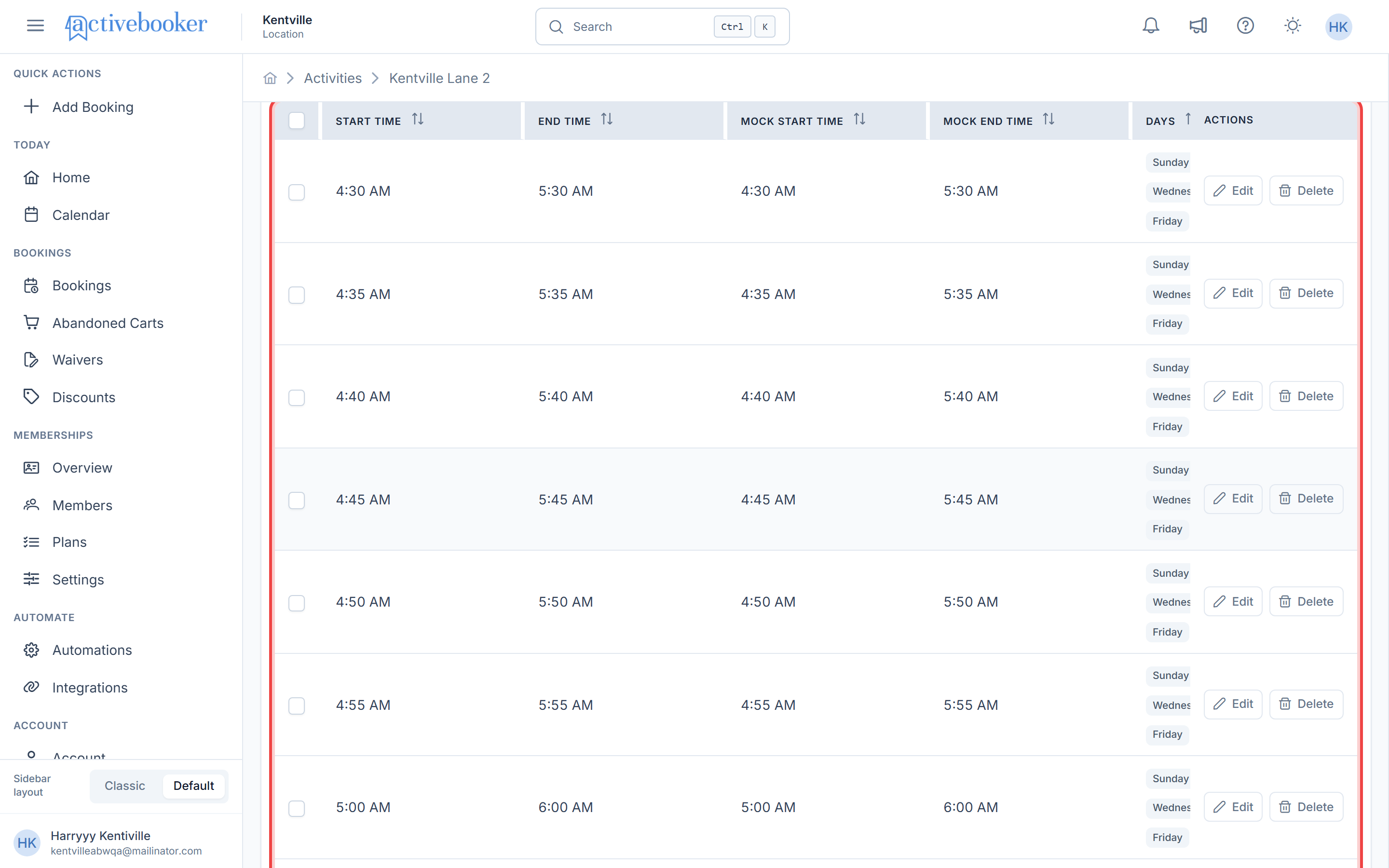
Time Slots Grid
The grid displays the following information:
| Column | Description |
|---|---|
| Checkbox | Select multiple time slots for bulk deletion |
| Start Time | When the booking session starts |
| End Time | When the booking session ends |
| Mock Start Time† | Display start time for party bookings (includes setup time) |
| Mock End Time† | Display end time for party bookings (includes cleanup time) |
| Days | Days of the week when this slot is available |
| Status | Active or Inactive |
| Actions | Edit or Delete buttons |
† Mock Start/End Time columns appear only for party-type booking types
Start Time and End Time
Display in 12-hour format (e.g., "12:00 PM", "2:30 PM"). The end time is always calculated as Start Time plus the booking type's duration.
Mock Start Time and Mock End Time (Party Bookings Only)
For party-style bookings, these times represent what the customer sees. The actual booking duration remains the same, but mock times can include setup and cleanup periods.
For example:
- Actual: 2:00 PM - 4:00 PM (2-hour party rental)
- Mock Times: 1:30 PM - 4:30 PM (shown to customer, includes 30 min setup and 30 min cleanup)
Party bookings often need buffer time before and after the main event for setup and cleanup. Mock times let you display the total time commitment to customers while keeping the actual booking slot accurate in your system.
Days
Shows day names for when the slot is available (e.g., "Monday, Wednesday, Friday" or "Tuesday, Thrusday").
Status
- Active — Customers can book this time slot
- Inactive — Slot exists but is not available for booking (useful for temporarily disabling slots)
Toolbar Actions
Located at the top of the grid:
| Action | Icon/Button | Description |
|---|---|---|
| Search | 🔍 Search field | Filter time slots by keyword |
| Refresh | ↻ Refresh | Reload the time slots list |
| Add Time Slot | + Add Time Slot | Create a single time slot (details) |
| Add Bulk Time Slots | + Add Bulk Time Slots | Create multiple time slots at once (details) |
| Bulk Delete | 🗑️ Bulk Delete | Delete selected time slots (details) |
Row Actions
Each time slot row has the following actions:
| Action | Icon | Description |
|---|---|---|
| Edit | ✏️ Edit | Modify the time slot details (details) |
| Delete | 🗑️ Delete | Remove the time slot with confirmation (details) |
For activities with many time slots, use the search field to quickly find specific times or days. Search works across all visible columns.
Frequently asked questions
Do time slots repeat every week automatically?
Yes. Time slots define recurring availability based on days of the week. A slot set for "Monday" will be available every Monday.
Can I create a one-time time slot for a specific date?
No. Time slots are recurring weekly patterns. For one-time availability or exceptions, use Block Rules to block normal slots and create a special booking manually if needed.
What happens if I change a booking type's duration after creating time slots?
Existing time slots remain with their current start times, but their end times will be recalculated based on the new duration. Review and adjust time slots after changing booking type durations.
Can customers see time slots when they're booking?
Yes. Active time slots appear as available booking times in your customer-facing booking interface. Inactive slots are hidden.
What's the difference between making a slot inactive vs. deleting it?
- Inactive: Slot still exists in your system but is hidden from customers. Easy to reactivate later.
- Deleted: Slot is permanently removed. You'd need to recreate it to use it again.
Can I copy time slots from one activity to another?
No, there's no built-in copy function. You'll need to recreate time slots for each activity. Use bulk creation to speed up the process.
Do time slots account for time zones?
Time zones are configured at the account level. Time slots use your account's configured time zone.
Can I limit how many people can book a specific time slot?
Time slot availability depends on your resource capacity (number of lanes, courts, rooms, etc.). If you have multiple resources, configure that in your activity and booking type settings, not in individual time slots.
Why can't I create time slots for some booking types?
Booking types with custom duration (where customers choose their own session length) cannot have fixed time slots since the duration varies per booking.
Best practices summary
✅ DO:
- Use bulk creation for regular, recurring schedules
- Create separate time slot sets for weekday vs. weekend schedules
- Use slot shift for multi-resource facilities to maximize booking opportunities
- Deactivate time slots temporarily instead of deleting them
- Test your configuration with a few slots before bulk creating hundreds
- Clean up outdated time slots periodically
- Use mock times for party bookings that need setup/cleanup buffers
- Align time slots with your actual operating hours and staff availability
❌ DON'T:
- Create overlapping time slots for single-resource facilities
- Delete time slots you might need again — make them inactive instead
- Forget to set time slots as active when you're ready to accept bookings
- Create time slots outside your actual business hours
- Mix up time slot end time with your business closing time (they're different)
- Try to configure time slots for custom duration booking types
Related features
Booking Types — Defines the duration and type of bookings. Time slots use booking type durations to calculate end times.
Block Rules — Prevents bookings on specific dates or times. Works together with time slots to define when bookings can and cannot occur.
Activity Settings — Configure your resource capacity (number of lanes, courts, rooms) which determines how many simultaneous bookings can occur in overlapping time slots.