Fees and Charges
Fees and Charges allow you to add deposits, gratuity fees, and service fees to your booking types. These additional charges help you collect payment upfront, reward staff, and cover processing costs while giving customers transparency about the total booking cost.
Quick start
Configure fees and charges for a booking type:
- Navigate to your booking type detail page and click the Price tab
- Locate the Fees & Charges section
- Click Edit to open the configuration dialog
- Set up deposits, gratuity, and service fees as needed
- Click Save to apply changes
What you can configure
The Fees and Charges feature provides three types of additional charges:
| Fee Type | Purpose | How It Works |
|---|---|---|
| Deposit | Secure bookings with upfront payment | Require customers to pay a portion (or all) of the booking cost when reserving |
| Gratuity Fee | Enable tip suggestions | Present optional tip percentages at checkout for service-based businesses |
| Service Fee | Cover operational costs | Add a fixed or percentage-based service fee to bookings |
Accessing fees and charges
To view or edit fees and charges:
- Navigate to Activities > select your activity
- Click on Booking Types in the activity detail tabs
- Click on View Detail for the specific booking type you want to configure
- Click the Price tab
- In the Fees & Charges section, click Edit
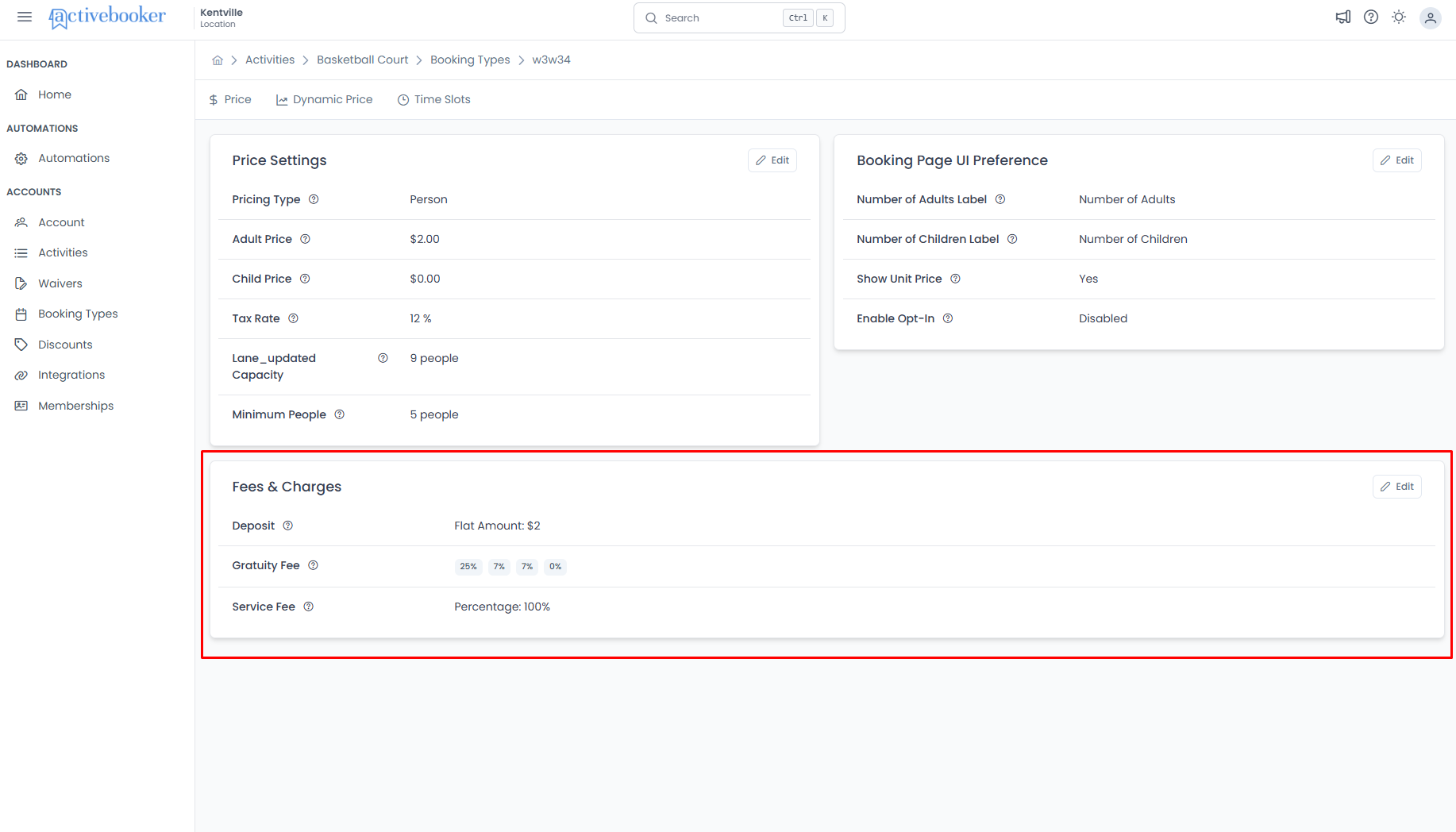
The Edit Fees and Charges dialog opens with all fee configuration options.
Deposit configuration
Deposits ensure customers commit to their booking by paying upfront. You can require a partial payment, full payment, or a per-person amount.
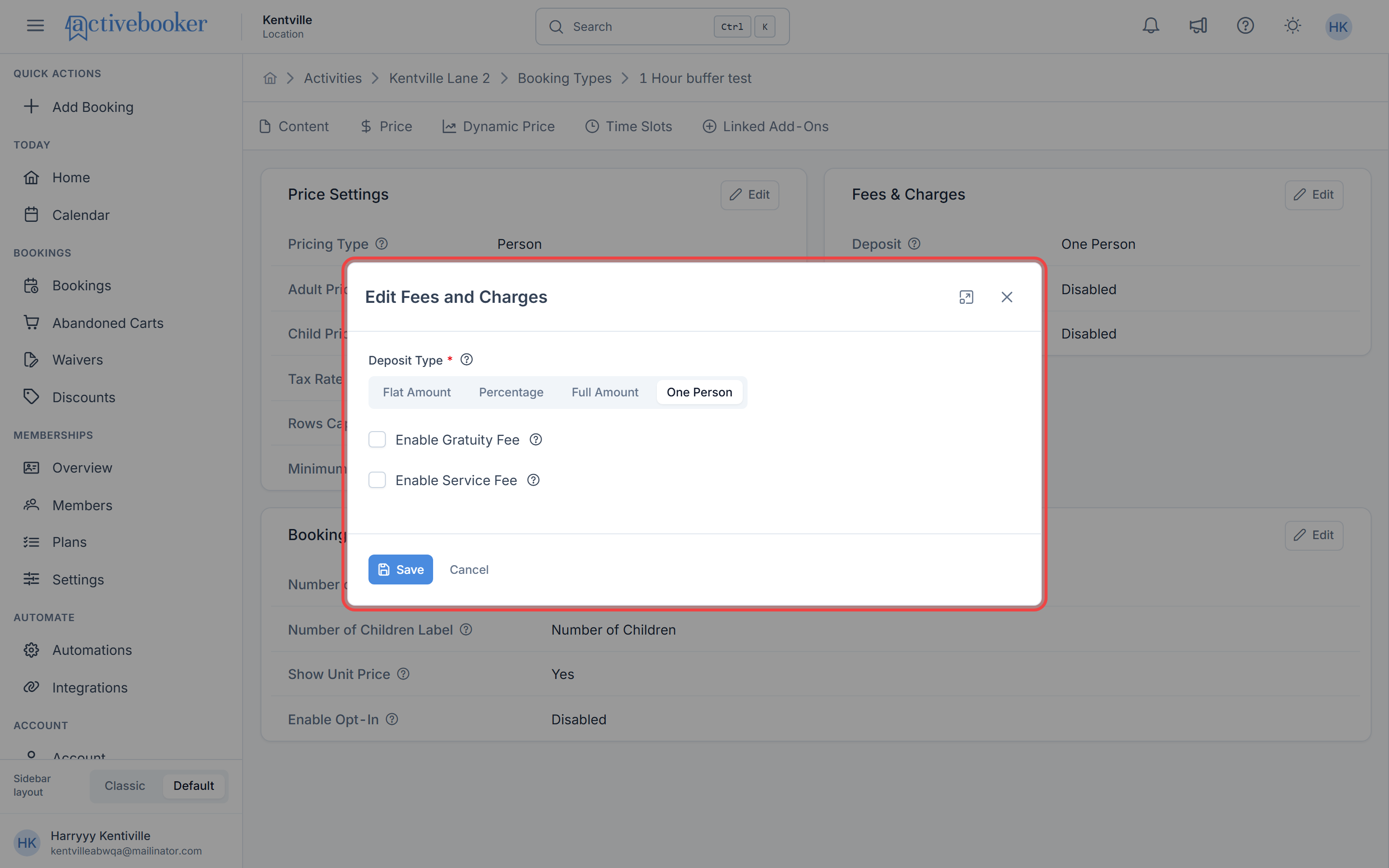
Deposit type options
Flat Amount
Charge a fixed dollar amount as a deposit, regardless of booking size or duration.
- When to use: For consistent upfront commitments across all bookings
- Example: $25 deposit required for all escape room bookings
- Configuration:
- Select "Flat Amount" as Deposit Type
- Enter the amount in "Deposit Flat Amount"
- Minimum: $0.01
- Maximum: Limited by your base pricing (cannot exceed the lowest possible booking price)
Percentage
Charge a percentage of the total booking cost as a deposit.
- When to use: When deposits should scale with booking value
- Example: 50% deposit required for yacht rentals
- Configuration:
- Select "Percentage" as Deposit Type
- Enter the percentage in "Deposit Percentage"
- Range: 0.01% to 100%
- The system automatically calculates the amount based on the booking total
Full Amount
Require complete payment at time of booking (100% deposit).
- When to use: For high-demand activities, non-refundable services, or to minimize no-shows
- Example: Full payment required for concert tickets or special events
- Configuration:
- Select "Full Amount" as Deposit Type
- No additional fields required
- Customers must pay the entire booking cost upfront
Full Amount deposits mean customers cannot book without paying immediately. This eliminates payment issues but may reduce booking conversion for price-sensitive customers.
One Person (Only available for Person pricing)
Charge the equivalent of one person's price as a deposit.
- When to use: For per-person activities where you want a standard deposit
- Example: One person's class fee as deposit for group bookings
- Configuration:
- Select "One Person" as Deposit Type
- Available only when pricing type is "Person"
- The system uses the Adult Price from your Price Settings
- Automatically adjusts if you update the Adult Price
The "One Person" deposit option only appears when your pricing type uses Person pricing. It's not available for Unit or Cascading pricing types.
Deposit validation rules
Flat Amount Deposits:
- Cannot exceed the minimum possible booking price
- For Person pricing: Cannot exceed Adult Price
- For Unit pricing: Cannot exceed the Unit Price
- For Cascading pricing: Cannot exceed the 1st person's price in the cascade
Why these limits exist:
Deposits should be a portion of the booking cost, not more than customers would ever pay.
Gratuity fee configuration
Gratuity fees allow customers to add optional tips at checkout, commonly used for service-based businesses where staff interact directly with customers.
Enable gratuity fee
When enabled, customers see suggested tip percentages during checkout, making it easy to add gratuity to their booking.
Suggested gratuity percentages
Range: 0% to 100% for each suggested percentage
How to configure:
- Check "Enable Gratuity Fee"
- Enter percentage values in the suggested percentages field
- Press Enter after each percentage
- The percentages appear as chips/tags
- Remove unwanted suggestions by clicking the X on each chip
Include a range of options to accommodate different customer preferences. Always include a reasonable default (like 18-20%) that customers can easily select without feeling pressured.
How gratuity appears to customers:
- At checkout, customers see buttons for each suggested percentage
- They can select one percentage or choose to skip gratuity
- The gratuity amount calculates based on the selected percentage of the booking subtotal
- Gratuity adds to the total but is tracked separately for reporting
Service fee configuration
Service fees add an additional charge to cover operational costs, payment processing, or administrative overhead.
Enable service fee
When enabled, a service fee automatically applies to all bookings for this booking type.
Service fee type
Options:
- Flat Amount — Fixed dollar charge per booking
- Percentage — Percentage of the booking subtotal
Flat Amount Service Fee:
- Best for consistent operational costs
- Applied equally regardless of booking size
- Example: $5.00 service fee per booking
- Configuration:
- Select "Flat Amount"
- Enter amount in "Service Fee Amount"
- Minimum: $0.01
- Maximum: Capped at your base pricing to prevent excessive fees
Percentage Service Fee:
- Best for scaling fees with booking value
- Calculated as percentage of booking subtotal
- Example: 3.5% service fee
- Configuration:
- Select "Percentage"
- Enter percentage in "Service Fee Percentage"
- Range: 0.01% to 100%
- The amount calculates automatically
Service fees apply after the base price is calculated but before gratuity. The calculation order is: Base Price → Service Fee → Gratuity → Total.
Service fee maximum values
To prevent unreasonable service fees, the system enforces maximum values:
For Percentage service fees:
- Maximum: 100% (though that's rarely reasonable)
For Flat Amount service fees:
- Maximum varies by pricing type:
- Person pricing: Limited to the Adult Price
- Unit pricing: Limited to the Unit Price
- Cascading pricing: Limited to the 1st person's price
These limits ensure service fees don't exceed the actual booking value.
Service fees add to the customer's total cost. Be transparent about why you're charging them (e.g., "Booking service fee" or "Processing fee") to maintain customer trust. Consider whether service fees might discourage bookings.
Saving and applying changes
After configuring your fees and charges:
- Review all enabled fees to ensure they're appropriate
- Verify amounts and percentages are correct
- Click Save to apply the changes
What happens when you save:
- Fees and charges take effect immediately for new bookings
- Existing bookings are not retroactively changed
- A success message confirms: "Fees and Charges updated successfully"
- The Fees & Charges section updates to show your configuration
Fees and charges display
After saving, the Fees & Charges section displays your current configuration:
Fields Shown:
- Deposit: Shows type and amount (e.g., "Flat Amount: $55" or "100%")
- Gratuity Fee: Shows enabled status and suggested percentages (e.g., "100%, 0%")
- Service Fee: Shows type and amount/percentage (e.g., "Percentage: 0.01%")
How price changes affect your fees & charges
When you change your pricing type or base price in Price Settings, the system automatically resets your deposit and service fee to safe defaults. This protects against misconfigured fees that no longer match your updated pricing.
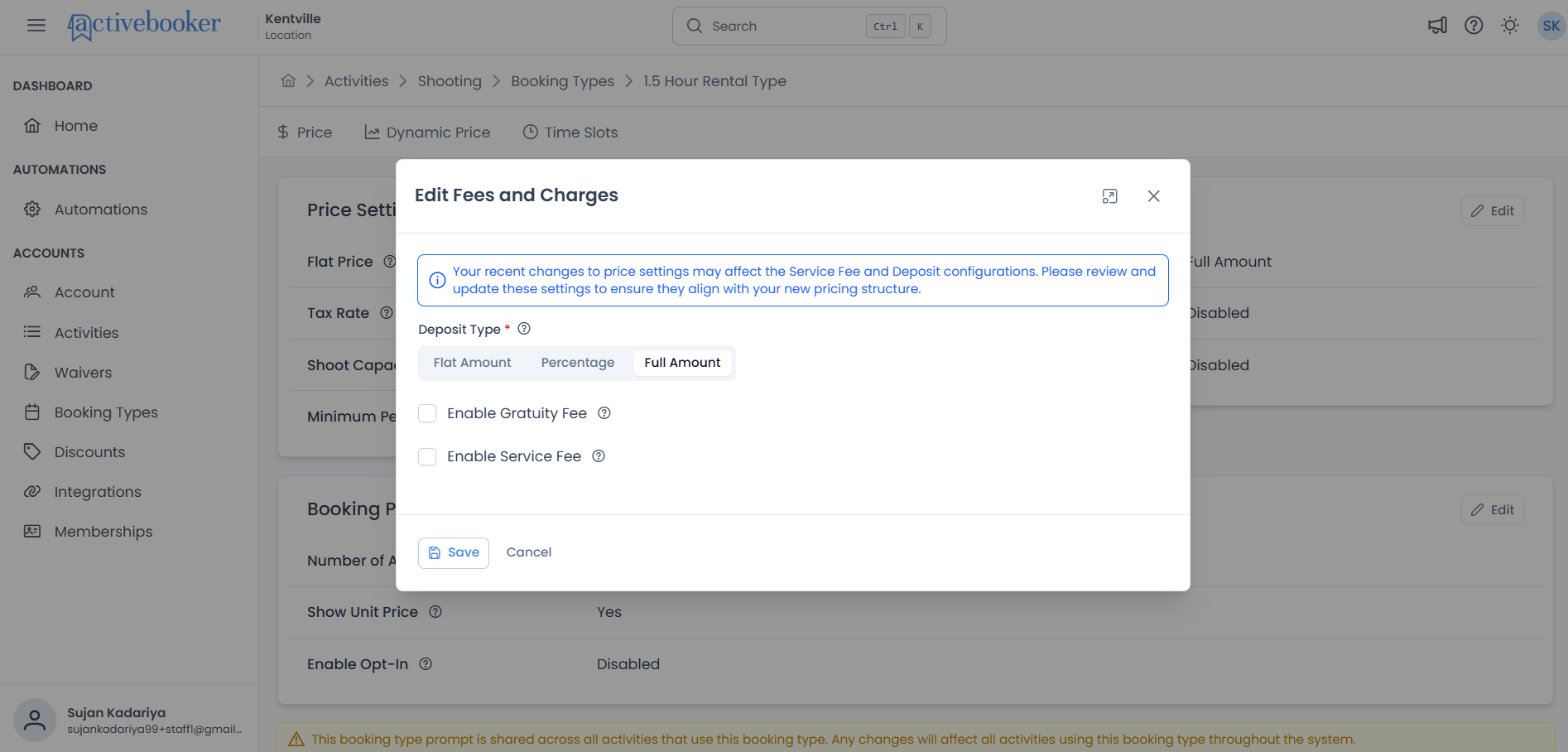
What gets reset
- Deposit is reset to Full Amount when you change:
| What You Changed | Example |
|---|---|
| Pricing Type | Switched from Person to Cascading |
| Adult Price | Changed from $25.00 to $40.00 (Person pricing) |
| Unit Price | Changed from $50.00 to $75.00 (Unit pricing) |
| Flat Price | Changed from $50.00 to $75.00 (Party/Rental pricing) |
| 1st Cascading Price | Changed from $35.00 to $45.00 (Cascading pricing) |
- Service Fee is disabled when you change the Adult Price, Unit Price, Flat Price, or 1st Cascading Price.
After any of these changes, your previous deposit and service fee settings are replaced with defaults. You'll need to reconfigure them if the defaults don't match your preferences.
What does not cause a reset
Cancelling or closing the Edit Price Settings dialog without saving also has no effect on your fees.
Review prompt after price changes
After you save a pricing change, especially when you update a base price such as Adult Price, Unit Price, Flat Price, or 1st Cascading Price, the Fees & Charges edit form opens automatically with a notification banner reminding you to review and update your fee settings.
This prompt appears whenever you save changes to your pricing type or base price, including unit price updates. It gives you the opportunity to:
- Review the reset values (Deposit: Full Amount, Service Fee: Disabled).
- Reconfigure your deposit and service fee to match your new pricing.
- Click Save to confirm.
If you're satisfied with the defaults, simply click Save without making changes.
Make it a habit to review your Fees & Charges after every pricing update, even if the defaults look acceptable. Verify that your deposit strategy and service fee still make sense for your business.
Deposit options for Party and Rental booking types
Party and Rental booking types have three deposit type options:
- Flat Amount — A fixed dollar deposit
- Percentage — A percentage of the booking total
- Full Amount — Full payment at time of booking
The One Person deposit option is not available for Party and Rental booking types because it relies on per-person pricing, which does not apply to these flat-rate booking types.
Comparison
| Deposit Type | Hourly | Party | Rental |
|---|---|---|---|
| Flat Amount | ✅ | ✅ | ✅ |
| Percentage | ✅ | ✅ | ✅ |
| Full Amount | ✅ | ✅ | ✅ |
| One Person | ✅ | Not available | Not available |
How fees calculate on bookings
Understanding the order and calculation of fees helps you configure them appropriately:
Calculation order
- Base Price — Calculated from Price Settings (per person, per unit, or cascading)
- Service Fee — Added to base price (if enabled)
- Subtotal — Base Price + Service Fee
- Tax — Applied to subtotal (if tax rate is set in Price Settings)
- Gratuity — Calculated on subtotal before tax (if customer selects it)
- Total — Subtotal + Tax + Gratuity
Deposit application
- Deposit is required upfront at booking time
- The remaining balance is due according to your payment policies
- If deposit equals "Full Amount", no balance remains
Example calculation
Booking details:
- Base Price: $100.00 (2 people × $50.00)
- Service Fee: 5% ($5.00)
- Tax Rate: 8% ($8.40 on $105 subtotal)
- Gratuity: 20% selected ($21.00 on $105 subtotal)
- Deposit: 50%
Calculation:
Base Price:        $100.00
Service Fee:       $  5.00
----------------------------
Subtotal:          $105.00
Tax (8%):          $  8.40
Gratuity (20%):    $ 21.00
----------------------------
Total:             $134.40
Deposit (50%):     $ 52.50 (due now)
Balance:           $ 81.90 (due later)
Best practices
Deposit strategy
✅ Match deposits to your risk — Higher-value or high-demand bookings warrant larger deposits
✅ Consider customer expectations — What's standard in your industry?
✅ Balance security and conversion — Too high a deposit may discourage bookings
✅ Use Full Amount for special events — Non-refundable experiences often need full prepayment
❌ Don't set deposits higher than the base price — System won't allow it anyway
❌ Don't change deposit policies frequently — Consistency builds customer trust
Gratuity guidelines
✅ Offer reasonable percentage options — 15-25% is standard for most service industries
✅ Always make it optional — Customers should feel comfortable declining
✅ Clearly label gratuity as optional — Use booking page UI to communicate this
❌ Don't pressure customers — Excessive suggested percentages (like 50%) feel aggressive
❌ Don't enable gratuity for non-service bookings — It doesn't make sense for equipment rentals
Service fee considerations
✅ Be transparent about service fees — Explain what they cover
✅ Keep fees reasonable — Customers dislike feeling "nickel and dimed"
✅ Consider including in base price instead — Sometimes simpler pricing works better
❌ Don't hide service fees — Surprise fees at checkout damage trust
❌ Don't use service fees to artificially lower advertised prices — Customers see through this
Before going live with new fees, make a test booking yourself to see the total customer experience. Verify the amounts calculate correctly and the checkout flow feels fair and transparent.
Frequently asked questions
Can I have different fees for different booking types?
Yes. Each booking type has independent fee configuration, so you can vary deposits, gratuity, and service fees based on the activity.
What if I change fees after customers have booked?
Existing bookings keep their original fee structure. Changes only affect new bookings going forward.
Can customers see fee breakdowns before completing the booking?
Yes. The booking page shows all fees, charges, and the total before customers submit payment. Transparency is built in.
Do taxes apply to service fees?
Yes, if you've configured a tax rate in Price Settings, it applies to the subtotal including service fees. Gratuity is typically not taxed.
Can I refund deposits if a customer cancels?
Refunding deposits is a policy decision you control. The system tracks deposits, but your cancellation policy determines whether you refund them. You can process refunds through your payment processor.
Is gratuity tracked separately for reporting?
Yes. Gratuity amounts are recorded separately from other fees, making it easier to distribute tips to staff and for accounting purposes.
What happens if I disable fees after enabling them?
Simply uncheck the "Enable" box for the fee you want to remove. Existing bookings with those fees are not affected, but new bookings won't include them.
Can customers choose a custom gratuity amount?
Currently, customers select from your suggested percentages. For custom tip amounts, they would need to contact you directly.