Dashboard Home
Your Dashboard Home is the first thing you see when you log in to ActiveBooker. It gives you a real-time snapshot of your business performance and quick access to the tools you use most.
Quick start
- Log in to your ActiveBooker account — you land on the Dashboard Home automatically
- Check the Today's Overview cards to see today's bookings and revenue at a glance
- Use the Quick Actions tiles to jump straight to a common task
- Review Recent Bookings to see the latest activity at your location
What you can do
The Dashboard Home helps you:
- Monitor performance at a glance — See today's total bookings, this month's totals, and today's revenue without opening a report
- Spot trends immediately — Comparison indicators show whether each metric is up or down relative to the previous period
- Act quickly — Navigate to Add Booking, Calendar, Bookings, or Waivers from the Quick Actions panel in one click
- Resume where you left off — Recent Visits shows your latest navigation history so you can return to any page instantly
- Stay on top of recent activity — The Recent Bookings panel shows the six most recently added bookings across your location
- Stay informed — The Latest Updates section surfaces the most recent announcements so you see new features and important notices each time you log in
What's on the Dashboard
The Dashboard Home is organized into the following sections:
Welcome area
At the top of the page you'll see a greeting with your name and the current date, along with a brief summary line: "Here's what's happening across your business today."
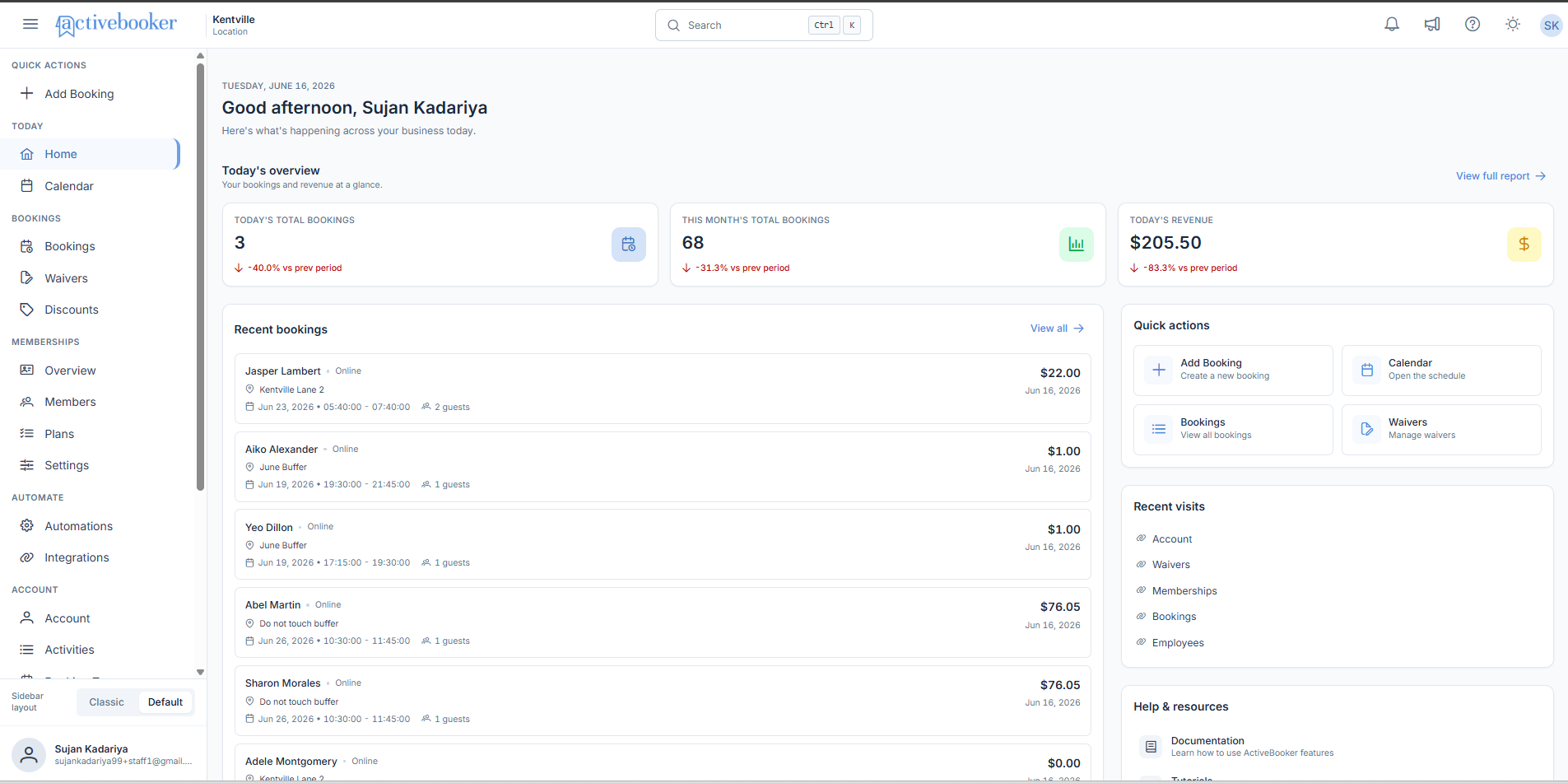
Today's Overview
Three KPI cards that show your key business metrics for today and this month. Each card displays a live value alongside a comparison to the previous period so you can see at a glance whether numbers are trending up or down.
See Today's Overview Cards for full details.
Recent Bookings
A panel showing the six most recently added bookings at your location. Each row displays the customer name, booking channel, activity, scheduled date and time, guest count, booking amount, and the date the booking was created. A View all link opens the full Bookings list.
See Recent Bookings for full details.
Quick Actions
A set of shortcut tiles on the right side of the dashboard for the actions you perform most often: Add Booking, Calendar, Bookings, and Waivers.
See Quick Actions for full details.
Recent Visits
A list of the pages you navigated to most recently, displayed in descending order. Click any item to return to that page directly.
See Recent Visits for full details.
Help & Resources
Links to the ActiveBooker documentation, tutorial videos, FAQs, and the support team contact. These are always available on the right panel of the dashboard.
See Help & Resources for full details.
Latest Updates
The five most recent product announcements and news items from ActiveBooker. A View all link opens the full announcements list.
See Announcements & Updates for full details.
Navigating from the Dashboard
Every section on the Dashboard Home is a starting point for deeper work:
| Action | Destination |
|---|---|
| View full report (Today's Overview) | Full Reports page |
| View all (Recent Bookings) | Bookings list page |
| Add Booking (Quick Actions) | Add Booking screen |
| Calendar (Quick Actions) | Calendar page |
| Bookings (Quick Actions) | Bookings list page |
| Waivers (Quick Actions) | Waivers page |
| Any Recent Visits link | The corresponding page |
| View all (Latest Updates) | Full Announcements list |