Recent Bookings
The Recent Bookings panel on your Dashboard Home displays the six most recently added bookings at your location. It gives you an at-a-glance view of the latest activity without needing to open the full Bookings page.
Quick start
- Log in and navigate to the Dashboard Home
- Locate the Recent bookings section below the KPI cards
- Review the booking rows to see the latest activity
- Click View all in the top-right corner of the panel to open the full Bookings list
What you can do
The Recent Bookings panel helps you:
- Stay on top of new activity — See the most recently created bookings the moment you open the dashboard, without searching or filtering
- Review key details quickly — Each booking row shows the customer name, activity, date, time, guest count, amount, and when it was created
- Identify the booking channel — A channel tag on each row shows whether the booking came in online or as a walk-in
- Jump to the full list — The View all link opens the complete Bookings page where you can search, sort, and filter all your bookings
How it works
When you load the Dashboard Home, ActiveBooker retrieves the six most recently created bookings for the currently selected location and displays them in the Recent Bookings panel. The list is ordered from newest to oldest based on the booking creation date, not the event date.
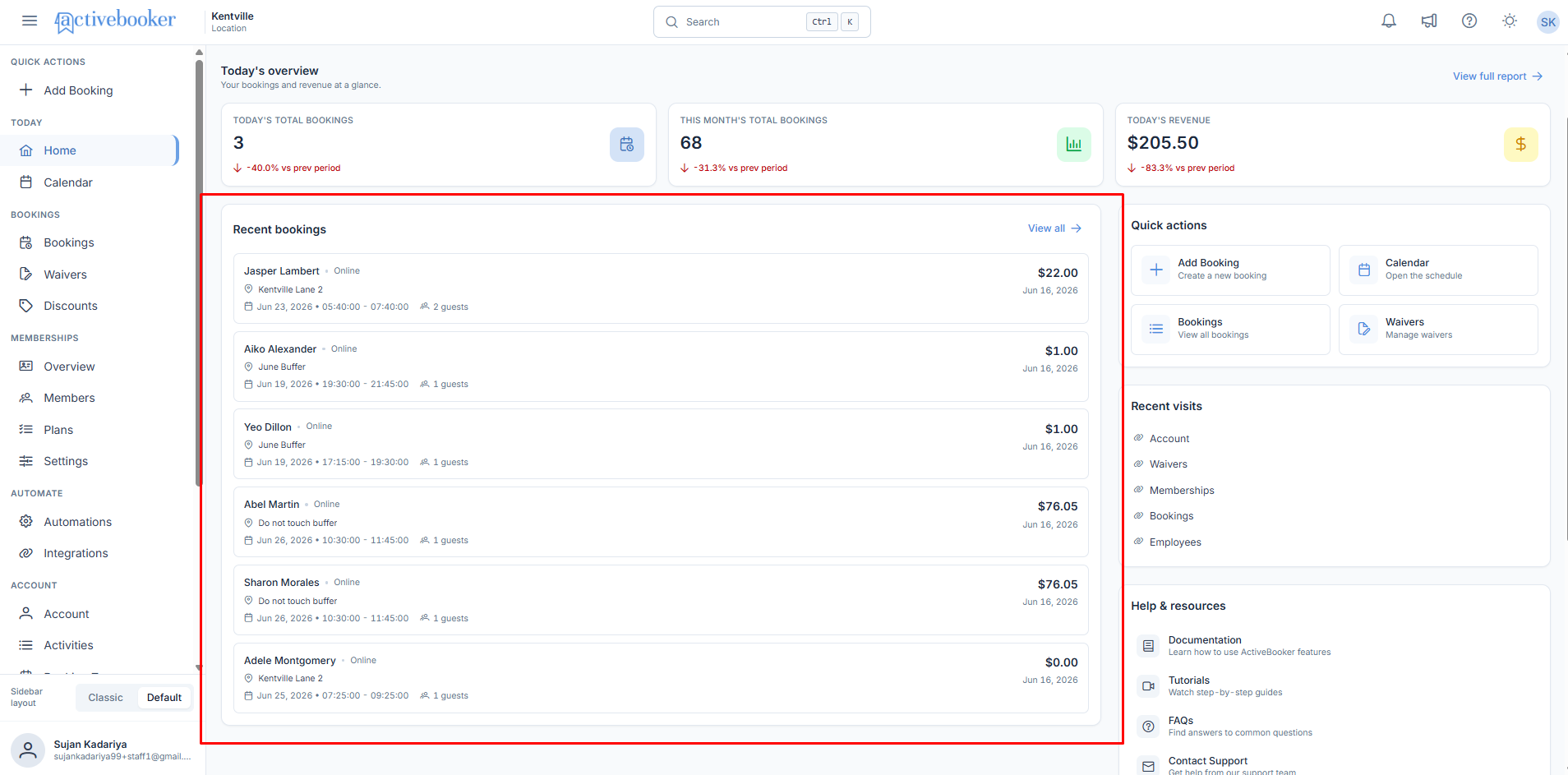
The panel is read-only. To view full booking details, manage a booking, or check in a customer, click View all to go to the Bookings page and open the booking from there.
Understanding the booking rows
Each row in the Recent Bookings panel displays the following information:
Customer name The full name of the person who made the booking, shown as a link at the start of the row.
Booking channel A tag next to the customer name indicating how the booking was made:
- Online — The customer booked through your online booking page
- Walkin — The booking was created manually as a walk-in
Activity or booking type The name of the activity or booking type, shown below the customer name with a location pin icon. This represents what the customer booked (e.g., a specific lane, room, or time slot type).
Date and time The scheduled date and time range for the booking, shown with a calendar icon (e.g., Jun 23, 2026 • 05:40:00 – 07:40:00).
Guest count The number of guests included in the booking, shown with a people icon (e.g., 2 guests).
Booking amount
The total amount charged for the booking, shown with a currency symbol on the right side of the row (e.g., $22.00). Displays $0.00 when the booking has no charge.
Created date The date the booking was created, shown below the amount on the right side of the row (e.g., Jun 16, 2026).
Business rules
- The panel always shows a maximum of six bookings, regardless of how many bookings exist in the system
- Bookings are ordered by creation date, from newest to oldest — not by the scheduled event date
- The list reflects bookings for the currently selected location shown in the top navigation bar
- Switching locations updates the Recent Bookings panel to show that location's six most recent bookings
- The panel is read-only — you cannot edit, cancel, or check in a booking from this view
Navigating to the full bookings list
Click the View all link in the top-right corner of the Recent Bookings panel to open the Bookings list page. From there you can search for any booking, sort by different columns, and open individual booking detail pages.
Edge cases
Fewer than six bookings exist If the selected location has fewer than six bookings in total, the panel shows only the available bookings. No placeholder rows or empty states appear for the missing slots.
No bookings exist for the location If the selected location has no bookings, the Recent Bookings panel displays an empty state message rather than a table. The panel layout remains intact.
Booking with no charge
Bookings with a total of zero display $0.00 in the amount column. This is expected for complimentary or draft bookings.