Quick Actions
The Quick Actions panel on your Dashboard Home gives you one-click shortcuts to the pages and tasks you use most. Instead of navigating through the sidebar, you can jump directly to Add Booking, Calendar, Bookings, or Waivers from wherever you are on the dashboard.
Quick start
- Log in and navigate to the Dashboard Home
- Locate the Quick actions panel on the right side of the page
- Click any tile to navigate directly to that feature
What you can do
The Quick Actions panel helps you:
- Create a new booking immediately — Open the Add Booking screen in one click without using the sidebar
- Check your schedule — Jump to the Calendar page to see what's coming up
- Browse all bookings — Open the full Bookings list to search, filter, and manage bookings
- Manage waivers — Go directly to the Waivers page to review signed and pending waivers
The four Quick Action tiles
The panel displays four tiles arranged in a two-by-two grid. Each tile has an icon, a label, and a short description.
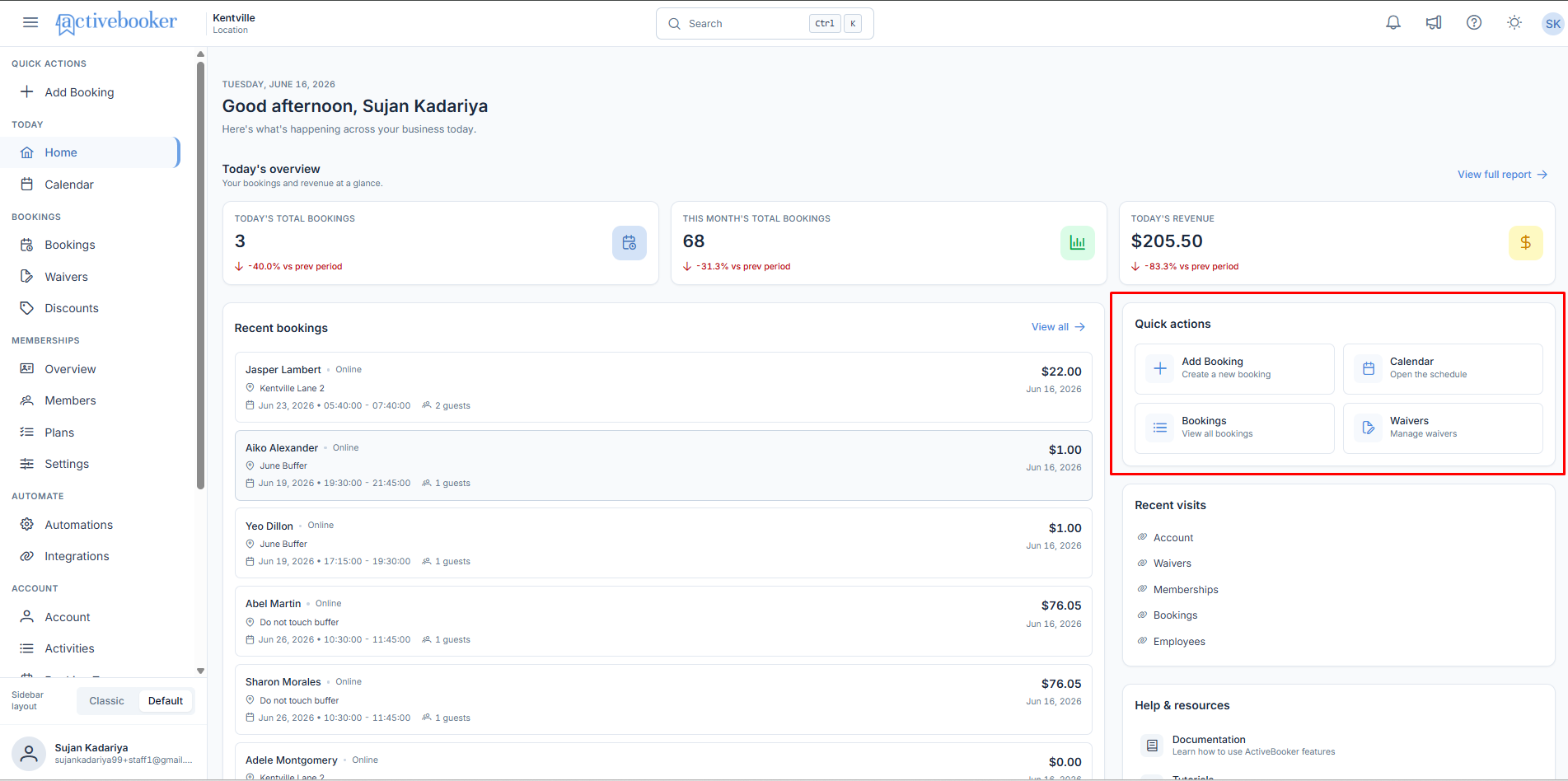
Add Booking
- Label: Add Booking
- Description: Create a new booking
- Where it goes: Opens the Add Booking screen where you can enter customer details, select an activity, choose a date and time, and confirm the booking
Calendar
- Label: Calendar
- Description: Open the schedule
- Where it goes: Opens the Calendar page showing your bookings and availability in a calendar view
Bookings
- Label: Bookings
- Description: View all bookings
- Where it goes: Opens the Bookings list page showing all bookings for your location, with search, sort, and pagination controls
Waivers
- Label: Waivers
- Description: Manage waivers
- Where it goes: Opens the Waivers page where you can review signed waivers and manage waiver templates
How it works
Each tile is a direct navigation link. Clicking a tile takes you immediately to the corresponding page — no confirmation dialogs or intermediate steps. You can return to the Dashboard Home at any time by clicking Home in the left sidebar.
Business rules
- All four Quick Action tiles are always visible on the Dashboard Home regardless of the currently selected location
- Clicking a tile navigates away from the dashboard — use your browser back button or the sidebar to return
- The tiles do not change based on user role or location; they are consistent for all authenticated users