Today's Overview Cards
The Today's Overview section sits at the top of your Dashboard Home and gives you an immediate read on how your business is performing right now. Three KPI cards display your most important metrics and show whether each one is trending up or down compared to the previous period.
Quick start
- Log in and navigate to the Dashboard Home
- Look for the Today's overview heading near the top of the main content area
- Read the three KPI cards from left to right — Today's Total Bookings, This Month's Total Bookings, and Today's Revenue
- Check the comparison indicator below each value to see the trend direction
- Click View full report in the top-right corner of the section to open the full Reports page
What you can do
The Today's Overview cards help you:
- Track today's booking activity — See exactly how many bookings have been made today without navigating away from the dashboard
- Monitor monthly booking volume — Get a running total of all bookings for the current month as soon as you log in
- Check today's revenue — View the total revenue generated from today's bookings at a glance
- Identify trends — Each card shows a percentage change relative to the previous period so you can spot increases or drops immediately
- Jump to the full report — Open the Reports page directly from the overview section for a more detailed breakdown
The KPI cards
The section is labeled Today's overview with the subtitle "Your bookings and revenue at a glance." A View full report link on the right opens the full Reports page.
There are three cards, each following the same layout:
Today's Total Bookings
Displays the total number of bookings created or active for today's date.
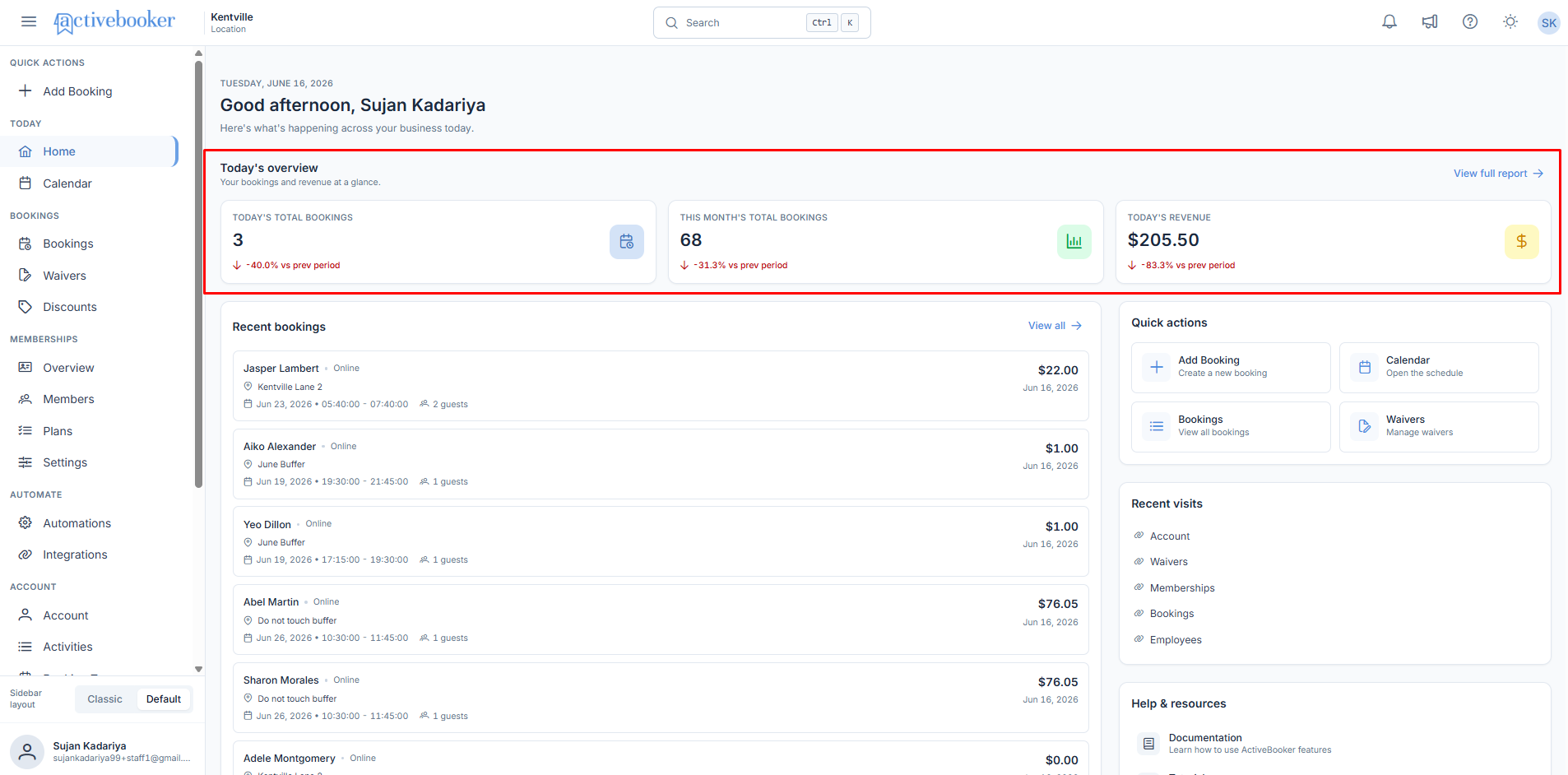
- Value — A whole number representing today's booking count (e.g.,
3) - Comparison — A percentage change compared to yesterday's booking count (e.g.,
↓ -40.0% vs prev period) - Icon — A calendar/booking icon on the right side of the card
The comparison indicator uses a downward arrow (↓) and red text when today's count is lower than yesterday's, or an upward arrow (↑) and green text when it is higher.
This Month's Total Bookings
Displays the cumulative number of bookings for the current calendar month.
- Value — A whole number representing this month's booking count (e.g.,
68) - Comparison — A percentage change compared to the same period in the previous month (e.g.,
↓ -31.3% vs prev period) - Icon — A chart/graph icon on the right side of the card
The previous period comparison uses the equivalent number of days elapsed in the prior month to provide a like-for-like comparison.
Today's Revenue
Displays the total revenue earned from bookings today.
- Value — A monetary value with currency symbol (e.g.,
$205.50) - Comparison — A percentage change compared to the previous period's revenue (e.g.,
↓ -83.3% vs prev period) - Icon — A dollar/currency icon on the right side of the card
Reading the comparison indicators
Each KPI card includes a comparison indicator below the main value:
| Indicator | Meaning |
|---|---|
| ↑ green text, positive percentage | Current value is higher than the previous period |
| ↓ red text, negative percentage | Current value is lower than the previous period |
| No change | Values are equal across both periods |
The label vs prev period appears on every card. The specific period each card compares against differs:
- Today's Total Bookings — compared to the same metric from yesterday
- This Month's Total Bookings — compared to the same metric from last month (prorated to the same number of days elapsed)
- Today's Revenue — compared to the same metric from the previous comparable period
Viewing the full report
The View full report link appears in the top-right corner of the Today's Overview section. Clicking it opens the Reports page so you can see a detailed breakdown of bookings and revenue with date filtering and export options.
Business rules
- KPI values refresh automatically when you load or reload the Dashboard Home
- Values reflect data for the currently selected location shown in the top navigation bar
- If no bookings or revenue exist for today, the cards display
0or$0.00with an appropriate comparison value
Edge cases
No data for today
If no bookings have been made today, the Today's Total Bookings and Today's Revenue cards display 0 and $0.00. The comparison indicator still calculates against yesterday's values.
No data for the previous period If yesterday or last month had zero activity, the percentage change may display as a very large positive number or may not be calculable. In this case the card still renders correctly and shows the current value.
Location with no bookings If the selected location has no bookings at all, all three cards display zero values and no comparison indicator is shown.