Reports overview
Measure how your business is doing with three built-in reports — revenue, bookings, and memberships. Every report is filterable by date range and updates live from your booking data.
Quick start
- Click Reports in the left sidebar under Insights & Files
- Choose a report card — Revenue Report, Bookings Report, or Memberships Report
- Pick a date range in the top-right date picker
- Review the KPI cards and charts; click Refresh to reload the latest data
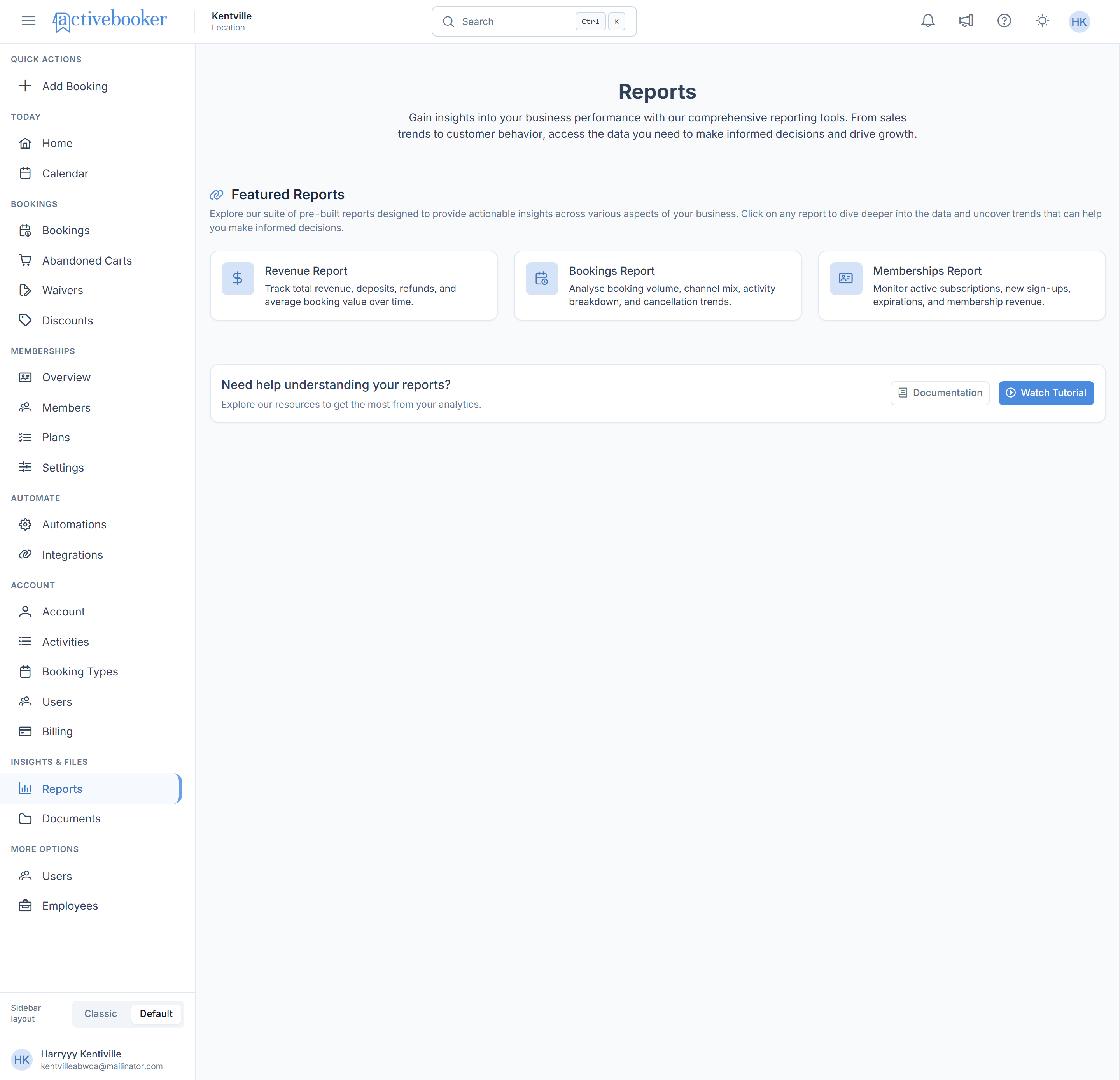
The three reports
| Report | Use it to |
|---|---|
| Revenue Report | Track total revenue, deposits, refunds, and average booking value over time |
| Bookings Report | Analyze booking volume, channel mix, activity breakdown, and cancellation trends |
| Memberships Report | Monitor active subscriptions, new sign-ups, expirations, and membership revenue |
note
The Memberships Report is only available when the membership feature is enabled on your subscription.
How the reports work
- Date range — every report has a date range picker; charts group data daily, weekly, or monthly depending on the range you select
- KPI cards — the headline numbers at the top include a trend indicator (a green up arrow or red down arrow) comparing against the previous period: 1 day compares to the previous day, 1 week to the previous 7 days, 1 month to the previous calendar month, and a custom range to the same number of days right before it
- Charts — hover any chart to see exact values; each report page explains what every chart shows and how it's calculated, with an example
tip
Need the raw data instead of charts? Use Export on the Bookings list to download bookings as Excel or CSV — the file lands in Documents.
Related
- Dashboard Home — today's snapshot without opening a report
- Documents — download exported data files