Booking Page UI Preferences
Customize the text and labels that appear on your customer-facing booking page to match your brand voice and provide a personalized booking experience.
Quick start
Update your booking page text in a few steps:
- Navigate to Activities in your dashboard sidebar
- Click View Detail on the activity you want to customize
- Click the Settings and Preferences tab
- In the Booking Page UI Preference card, click Edit
- Customize your text labels and click Save
What you can do
Booking Page UI Preferences help you:
- Customize customer-facing text — Tailor button labels, prompts, and form fields to match your brand voice
- Localize your booking experience — Adjust text to match your regional language or terminology preferences
- Create consistent messaging — Ensure all booking page elements reflect your business style
Understanding the interface
Booking Page UI Preference card
The Booking Page UI Preference card displays all customizable text elements that appear on your customer-facing booking page.
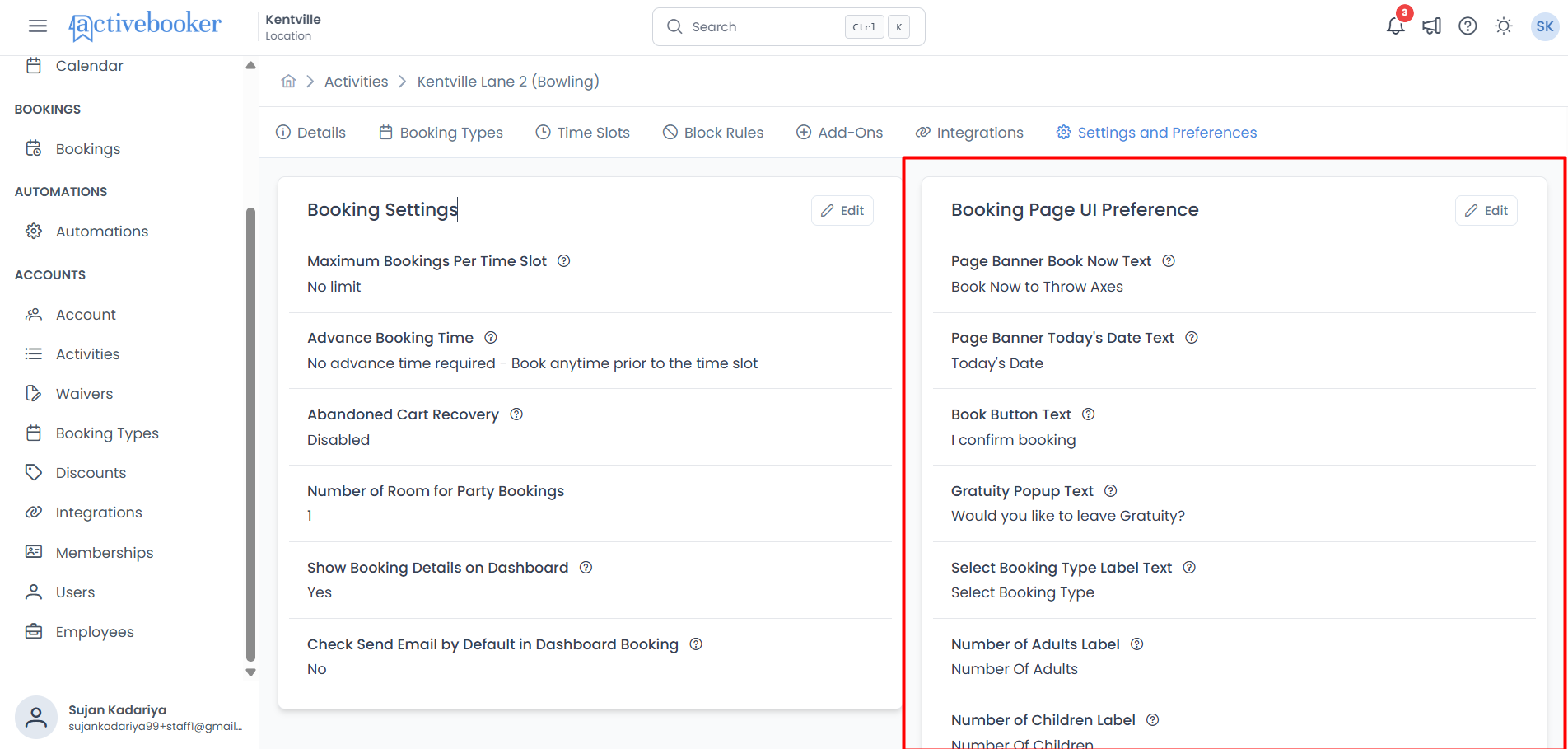
Each preference shows the current text that customers will see:
Page Banner Book Now Text
The headline text displayed prominently on your booking page banner.
Page Banner Today's Date Text
The label shown next to today's date on the booking page banner.
Book Button Text
The text displayed on the primary confirmation button that customers click to complete their booking.
Gratuity Popup Text
The message shown in the tip/gratuity popup asking customers if they'd like to leave a tip.
Select Booking Type Label Text
The label for the dropdown or section where customers choose their booking type.
Number of Adults Label
The default label for the field where customers enter the number of adults. This can be overridden for individual booking types.
Number of Children Label
The default label for the field where customers enter the number of children. This can be overridden for individual booking types.
Time Slots Display Option
Controls whether time slots are displayed with both a start and end time, or with the start time only. This applies on the customer-facing booking page and when creating bookings from the dashboard.
Configuring UI preferences
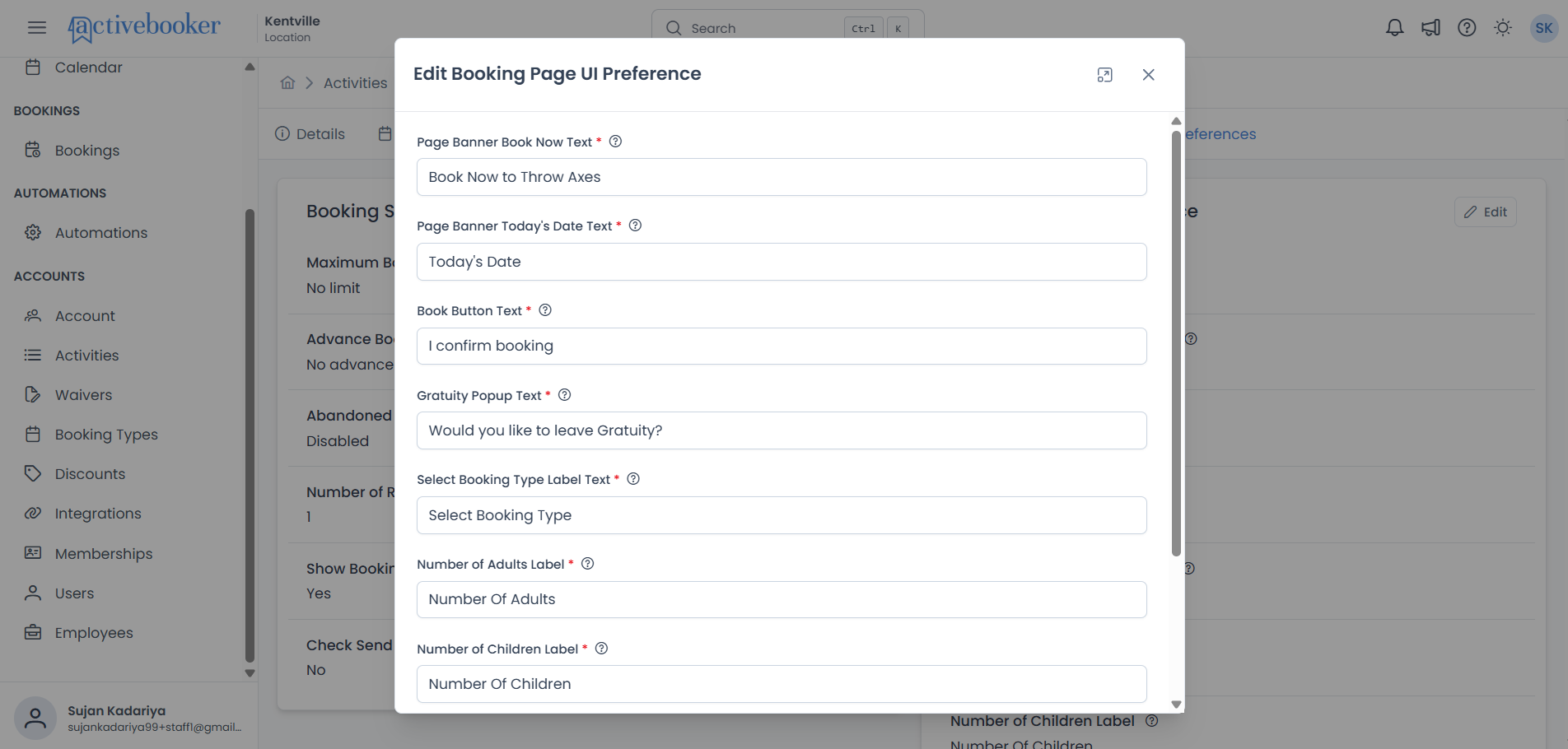
Default values
When you first create an activity, these fields are automatically populated with standard defaults:
- Page Banner Book Now Text: "Book Now"
- Page Banner Today's Date Text: "Today's Date"
- Book Button Text: "Book"
- Gratuity Popup Text: "Would you like to leave our staff a tip?"
- Select Booking Type Label Text: "Select Booking Type"
- Number of Adults Label: "Number Of Adults"
- Number of Children Label: "Number Of Children"
- Time Slots Display Option: "Start Time and End Time" or "Start Time Only"
You can modify any of these defaults to match your preferences.
Text field descriptions
Page Banner Book Now Text
What it controls: The primary headline text on your booking page banner that invites customers to make a booking.
Examples:
- "Book Now"
- "Reserve Your Spot"
- "Start Your Booking"
- "Book Your Experience Today"
Page Banner Today's Date Text
What it controls: The label that appears next to today's date on the booking page banner.
Examples:
- "Today's Date"
- "Today"
- "Current Date"
- "Booking for"
Book Button Text
What it controls: The text on the primary action button customers click to confirm and complete their booking.
Examples:
- "Book"
- "Complete Booking"
- "Reserve Now"
- "Confirm Reservation"
Keep this text short and action-oriented. Customers should immediately understand that clicking this button will complete their booking.
Gratuity Popup Text
What it controls: The message displayed in the tipping popup that asks customers if they'd like to leave a gratuity for your staff.
Examples:
- "Would you like to leave our staff a tip?"
- "Add a tip for our team?"
- "Show your appreciation with a gratuity?"
- "Would you like to tip your service staff?"
Select Booking Type Label Text
What it controls: The label for the section or dropdown where customers choose what type of booking they want to make.
Examples:
- "Select Booking Type"
- "Choose Your Experience"
- "Pick Your Package"
- "Select Option"
Number of Adults Label
What it controls: The default label for the input field where customers specify how many adults will attend.
Examples:
- "Number Of Adults"
- "Adults"
- "Number of Players (Adults)"
- "Adult Participants"
Number of Children Label
What it controls: The default label for the input field where customers specify how many children will attend.
Examples:
- "Number Of Children"
- "Children"
- "Number of Kids"
- "Junior Participants"
Time Slots Display Option
What it controls: Determines how time slots are displayed on the customer-facing booking page and when staff create bookings from the dashboard.
| Option | Time Slot Display |
|---|---|
| Start Time and End Time | Shows both the start and end time for each slot (e.g., "10:00 AM – 11:00 AM") |
| Start Time Only | Shows only the start time for each slot (e.g., "10:00 AM") |
Choose Start Time and End Time when session duration is important for customers to know (e.g., tours, classes, rentals). Use Start Time Only when the end time is variable or not relevant to the booking decision.
Best practices
✅ Keep button text action-oriented — Use verbs like "Book," "Reserve," or "Confirm" that clearly indicate what happens when clicked
✅ Stay consistent with your brand — Use language and tone that matches your other customer touchpoints (website, emails, signage)
✅ Use clear, simple language — Avoid jargon or overly creative labels that might confuse customers
✅ Consider your audience — If serving families, keep "Number Of Adults" and "Number Of Children" clear. For business venues, you might use "Participants" instead
❌ Avoid overly long labels — Keep field labels concise so they don't overwhelm the booking form
❌ Don't use ambiguous text — "Continue" is less clear than "Book" for a booking confirmation button
❌ Don't change text too frequently — Regular customers benefit from consistency in your booking interface
Before making changes, visit your booking page as a customer would and note which text elements feel unclear or don't match your brand. This helps you prioritize which fields to customize first.
Related resources
Learn more about customizing your activity experience:
- Booking Settings — Configure capacity limits, advance booking requirements, and more
- Activity Details — View and manage basic activity information