Booking Settings
Configure how customers book your activity, set capacity limits, require advance booking time, and control dashboard behavior to optimize your booking workflow.
Quick start
Update your booking settings in a few steps:
- Navigate to Activities in your dashboard sidebar
- Click View Detail on the activity you want to configure
- Click the Settings and Preferences tab
- In the Booking Settings card, click Edit
- Configure your preferences and click Save
What you can do
Booking Settings help you:
- Control booking capacity — Set maximum concurrent bookings per time slot to manage resource allocation
- Require advance booking — Prevent last-minute online bookings by requiring minimum advance notice
- Recover abandoned carts — Automatically send reminder emails to customers who didn't complete their booking
- Customize dashboard behavior — Control how booking information displays and default email settings
Understanding the interface
Booking Settings card
The Booking Settings card displays your current configuration for six key booking controls.
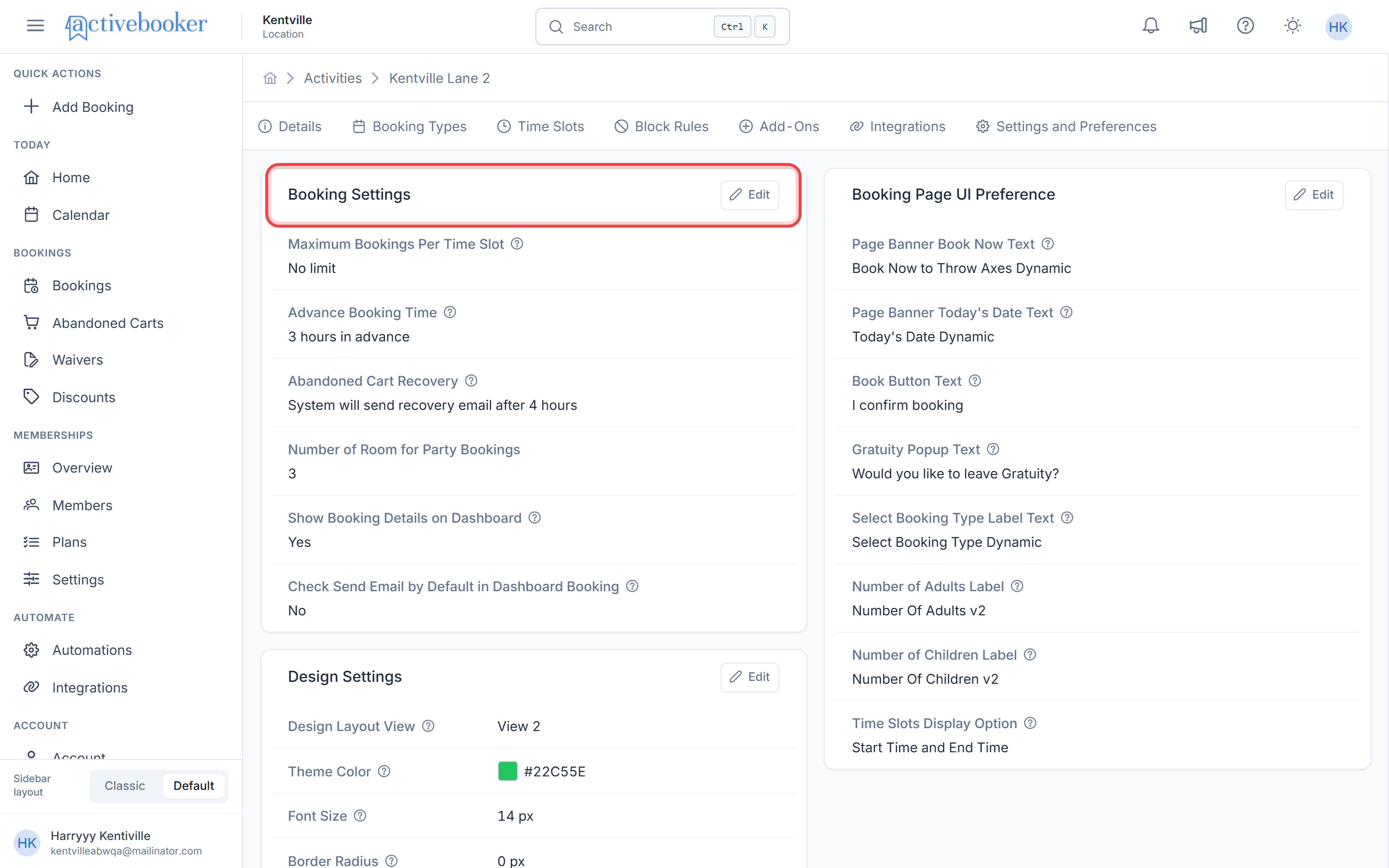
Each setting shows its current status with clear descriptions:
Maximum Bookings Per Time Slot
Displays either "No limit" when disabled, or the specific number when a limit is set (e.g., "2 bookings per time slot").
Advance Booking Time
Shows "No advance time required - Book anytime prior to the time slot" when disabled, or the required advance time when enabled (e.g., "4 hours in advance").
Abandoned Cart Recovery
Displays "Disabled" when turned off, or the delay time before sending recovery emails when enabled (e.g., "System will send recovery email after 15 minutes").
Number of Room for Party Bookings
Shows the configured number (typically 0 if not used).
Show Booking Details on Dashboard
Displays "Yes" or "No" to indicate whether detailed booking information appears on your dashboard calendar.
Check Send Email by Default in Dashboard Booking
Shows "Yes" or "No" to indicate the default state of the email checkbox when creating dashboard bookings.
Hover over the info icon (ⓘ) next to any setting label to see detailed explanations of what each setting controls.
Configuring booking settings
Opening the settings modal
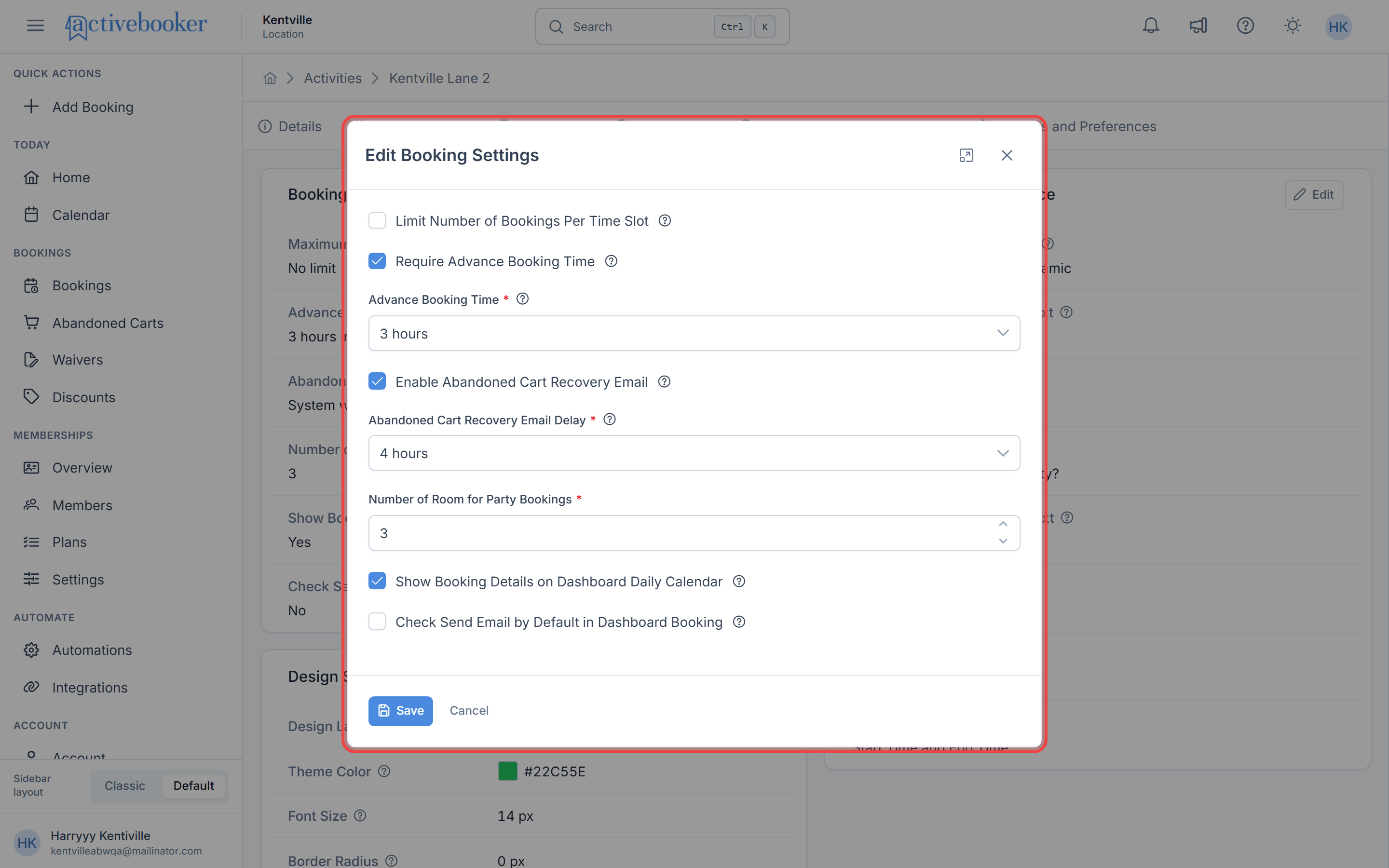
To modify your booking settings:
- Navigate to the Settings and Preferences tab for your activity
- Locate the Booking Settings card
- Click the Edit button in the top-right corner
- The Edit Booking Settings modal opens with all available options
Available settings
The modal presents six configurable options that control various aspects of your booking system.
Setting descriptions and configuration
Limit Number of Bookings Per Time Slot
What it controls: Sets a maximum capacity for concurrent bookings in each time slot, separate from your total activity capacity.
When to use it: Enable this when you want to limit how many bookings can occupy the same time slot, even if you have more total activity units available.
Configuration:
- Check Limit Number of Bookings Per Time Slot to enable
- Enter the Maximum Number of Bookings Per Time Slot (required when enabled)
- Range: 1 to 500 bookings
Behavior:
- When disabled: No booking limit per time slot—customers can book up to your total activity capacity
- When enabled: The system prevents additional bookings once the specified limit is reached for any time slot
This setting is useful for managing resource distribution across time slots or ensuring you don't overbook during peak periods.
Require Advance Booking Time
What it controls: Sets a minimum time buffer between when a customer books and when their activity starts.
When to use it: Enable this to prevent last-minute bookings and ensure adequate preparation time for your team.
Configuration:
- Check Require Advance Booking Time to enable
- Select Advance Booking Time from the dropdown (required when enabled)
- Available options: 1 to 24 hours
Behavior:
- When disabled: Customers can book immediately up until the activity start time
- When enabled: Customers must book at least the specified time in advance (e.g., selecting "6 hours" means customers cannot book slots within the next 6 hours)
Note: The advance booking time restriction applies only when the booking date is today. Bookings made for any future date bypass this check entirely — all time slots on future dates remain available regardless of this setting.
Set advance booking requirements during busy seasons or for activities that require significant preparation time.
Enable Abandoned Cart Recovery Email
What it controls: Automatically tracks customers who start but don't complete their booking, then sends reminder emails to encourage completion.
When to use it: Enable this to recover potential bookings from customers who got distracted or hesitated during checkout.
Configuration:
- Check Enable Abandoned Cart Recovery Email to enable
- Select Abandoned Cart Recovery Email Delay from the dropdown (required when enabled)
- Available options: 10 minutes, 15 minutes, or 1 to 24 hours
Behavior:
- When disabled: No tracking or recovery emails are sent
- When enabled: System monitors incomplete bookings and automatically sends a reminder email after the specified delay
Choose shorter delays (10-15 minutes) for time-sensitive bookings, or longer delays (1-2 hours) for planned activities where customers may need time to decide.
Number of Room for Party Bookings
What it controls: Specifies how many party rooms are available for bookings. This setting integrates with the booking creation process.
Configuration:
- Enter a number between 0 and 500
- Maximum value is limited by your Total Activity Units from the activity's basic settings
- Default: 0 (no party rooms)
When to use it: Set this value if your activity offers dedicated party or group spaces that customers can reserve.
Show Booking Details on Dashboard Daily Calendar
What it controls: Determines whether detailed booking information appears directly in your dashboard's daily calendar view.
Configuration:
- Check to show detailed information
- Uncheck for compact calendar entries
Behavior:
- When enabled: Each calendar entry displays customer name, waiver status, and other relevant booking details
- When disabled: Calendar shows simplified booking entries
When to use it: Enable this if you need quick access to booking details without clicking into individual bookings. Disable for a cleaner calendar view when managing many bookings.
Check Send Email by Default in Dashboard Booking
What it controls: Automatically checks the "send email" option when you create or update bookings from the dashboard.
Configuration:
- Check to enable automatic email checkbox
- Uncheck to leave email option unchecked by default
Behavior:
- When enabled: The send email checkbox is automatically selected when creating dashboard bookings, ensuring customers receive confirmation emails unless you manually uncheck it
- When disabled: The send email checkbox starts unchecked, requiring you to manually select it for each booking
When to use it: Enable this to ensure consistent email communication with customers. Disable if you primarily make internal or test bookings that don't require customer notification.
Most businesses benefit from enabling this setting to maintain professional communication and reduce the risk of forgetting to send confirmation emails.
Related resources
Learn more about managing your activity settings:
- Activity Details — View your activity's basic information
- Add and Edit Activities — Create and modify activities
- Booking Types — Configure pricing and booking options