Design Settings
Design Settings let you change how the waiver form looks for one activity. You can choose the style, color, text size, and corner shape so the page feels more like your business.
Quick start
Update the design for your activity in a few steps:
- Open Activities in the sidebar
- Select the activity you want to update
- Open Settings and Preferences
- In the Design Settings card, click Edit
- Choose your design options and click Save
What you can do
Design Settings help you:
- Choose a layout style — Pick the look that best fits your activity
- Set a theme color — Use a color that matches your activity or brand
- Adjust the text size — Make the waiver form easier to read
- Round the corners — Change how rounded the boxes and buttons look
- See changes on the waiver form — Saved updates appear on the activity waiver form
How it works
Overview
The Design Settings card shows the current look for the activity. When you open it, you can change the design and save your choices. After you save, the activity waiver form uses the new look.
Key concepts
Design layout
This controls the overall look of the waiver form.
Theme color
This is the main color used on the activity waiver form.
Font size
This controls how large the text appears.
Corner shape
This controls how sharp or rounded the edges look.
Using this feature
Access the feature
- Log in to your dashboard
- Open the activity you want to update
- Go to Settings and Preferences
- Find the Design Settings card
Configure your settings
Design Layout View
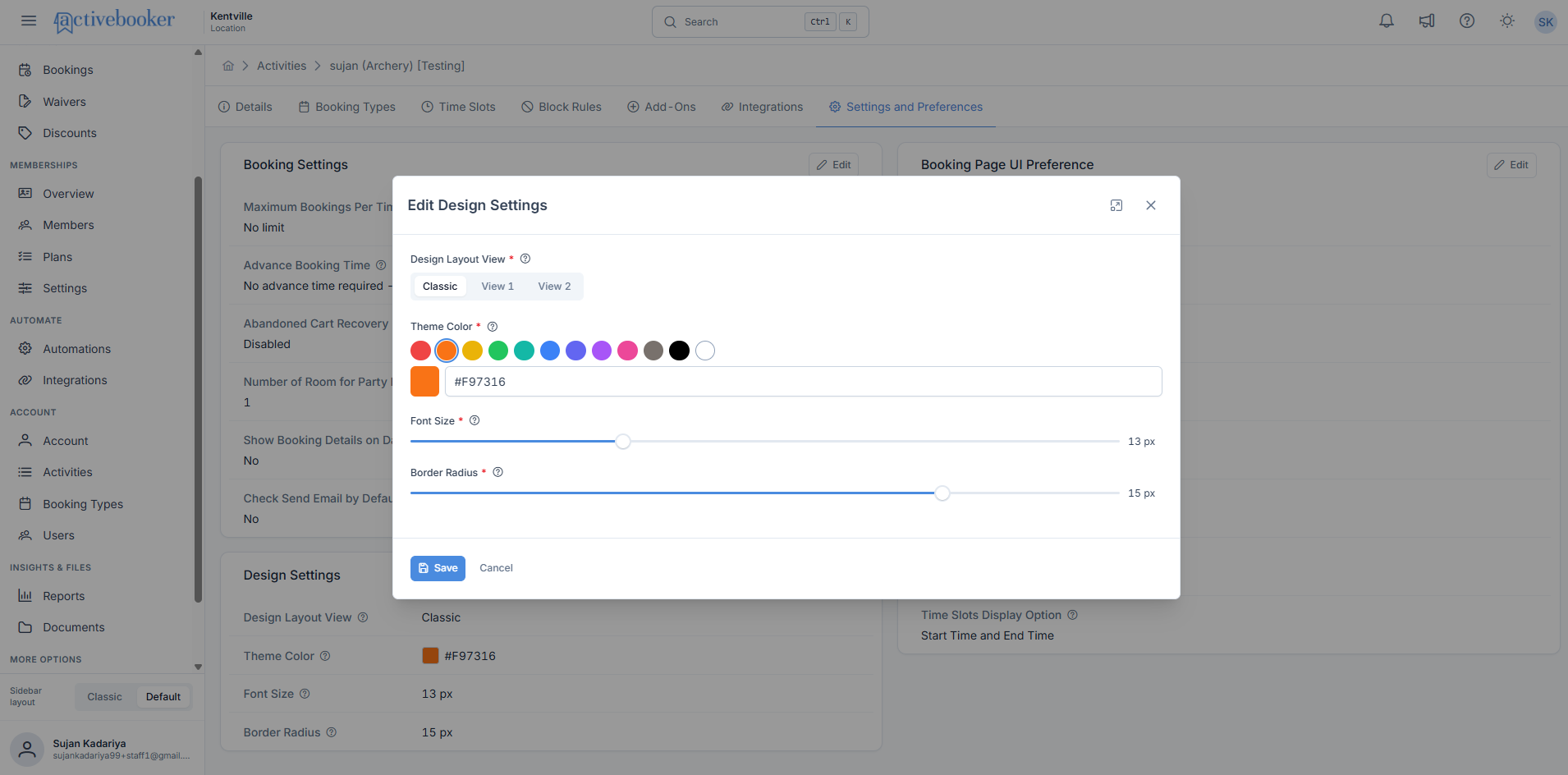
Choose the overall style for the waiver form. You can switch between the available layout choices.
Theme Color
Choose the main color for the activity waiver form. You can pick a color or type the color code.
Font Size
Use the slider to choose a text size between 10 px and 20 px.
Border Radius
Use the slider to choose how rounded the corners should be, from 0 px to 20 px.
Complete your setup
After you make your changes, click Save. Then open the activity waiver form to see the updated look.
Common scenarios
Scenario 1: When you want the waiver form to match your activity
Use the design settings to make the waiver form feel closer to your activity’s style.
- Open the Design Settings card
- Choose a layout style
- Pick a theme color
- Save your changes
Scenario 2: When you want the text to be easier to read
If the text feels too small or too large, adjust the font size.
- Open the Design Settings card
- Move the Font Size slider
- Save the change
- Check the waiver form after saving
Understanding the interface
Main design card
The Design Settings card shows the current choices for the activity.
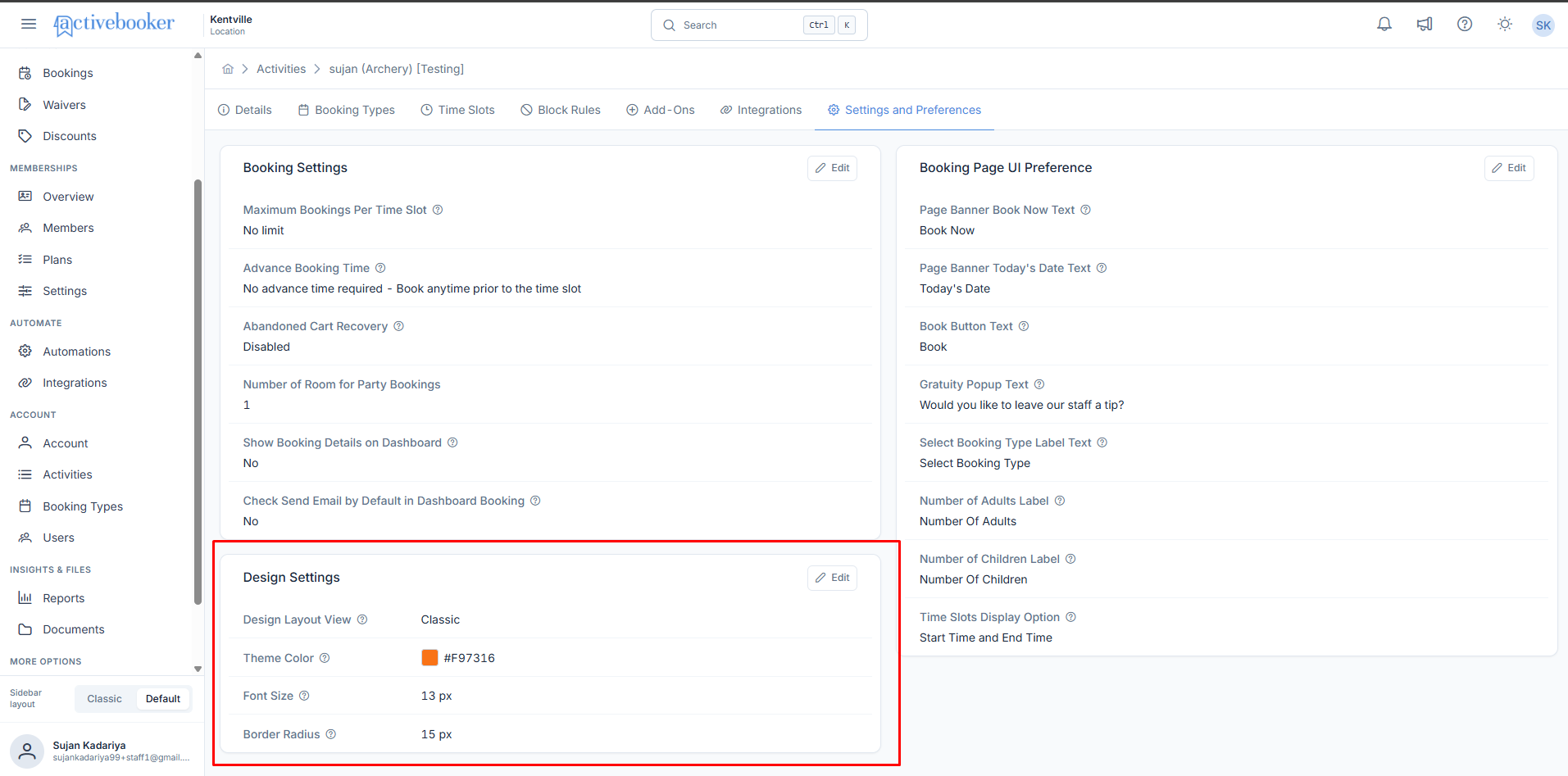
Design Layout View
Shows which layout style is currently in use.
Theme Color
Shows the current color for the activity.
Font Size
Shows the current text size.
Border Radius
Shows how rounded the corners are.
Edit button
Opens the window where you can make changes.
Edit window
The edit window lets you change all design options in one place. You can save the new look or cancel if you do not want to keep the changes.
Best practices
✓ Use a clear color — Choose a color that is easy to see and matches your activity ✓ Keep the text readable — Pick a font size that feels comfortable on the page ✓ Check the waiver form after saving — Make sure the page looks the way you want ✓ Use a simple style — A clean look is usually easier for guests to use
✗ Avoid very small text — It can be hard for guests to read ✗ Avoid a color that blends in — Important parts of the form may be harder to notice ✗ Do not skip checking the waiver form — A quick review helps catch mistakes
Tip: If you are unsure, start with a simple color and a medium text size, then adjust after you preview the waiver form.
Troubleshooting
Issue: The color field is empty and you cannot save
Why this happens: The theme color is required.
How to fix it:
- Enter a color again in the Theme Color field
- Choose a valid color from the options if needed
- Click Save again
Issue: Your changes do not appear on the waiver form
Why this happens: The form may not have been refreshed yet, or the changes were not saved.
How to fix it:
- Make sure you clicked Save
- Open the waiver form for the same activity
- Refresh the page if needed
Can't find what you're looking for?
If you still need help, try these steps:
- Check that you opened the correct activity
- Make sure you have Staff or Admin access
- Open the waiver form again for the same activity
- Contact support if the problem continues
Limits and considerations
Keep these points in mind when using Design Settings:
- Font size: 10 px to 20 px
- Corner shape: 0 px to 20 px
- Scope: Changes apply to one activity at a time
- Visibility: Saved changes show on the activity waiver form
Note: If you manage more than one activity, you may need to update each activity separately.
Frequently asked questions
Will this change every activity?
No. These settings only change the activity you are editing.
Can I go back to the previous look?
Yes. Open the Design Settings card again, choose the earlier values, and save them.
Do I need to update the waiver form separately?
No. Once you save the design settings, the waiver form uses the new look for that activity.
What if I choose the wrong color?
You can open the settings again and change it anytime.
Related resources
Learn more about other activity settings:
- Booking Settings — Set booking rules and limits
- Booking Page UI Preferences — Change the text shown on the booking page
- Activity Details — Review the main information for your activity