Add Bulk Time Slots
Create multiple time slots at once for recurring schedules. This is perfect for setting up daily operating hours across multiple booking types. This page covers how to add bulk time slots, configure all available fields, understand how bulk generation works, and delete multiple time slots at once.
Adding bulk time slots
Create multiple time slots at once for recurring schedules.
How to add bulk time slots
- Navigate to the Time Slots tab for your activity
- Click + Add Bulk Time Slots in the toolbar
- The "Add Bulk Time Slots" dialog opens
- Configure the bulk settings (see fields below)
- Click Save to generate all time slots
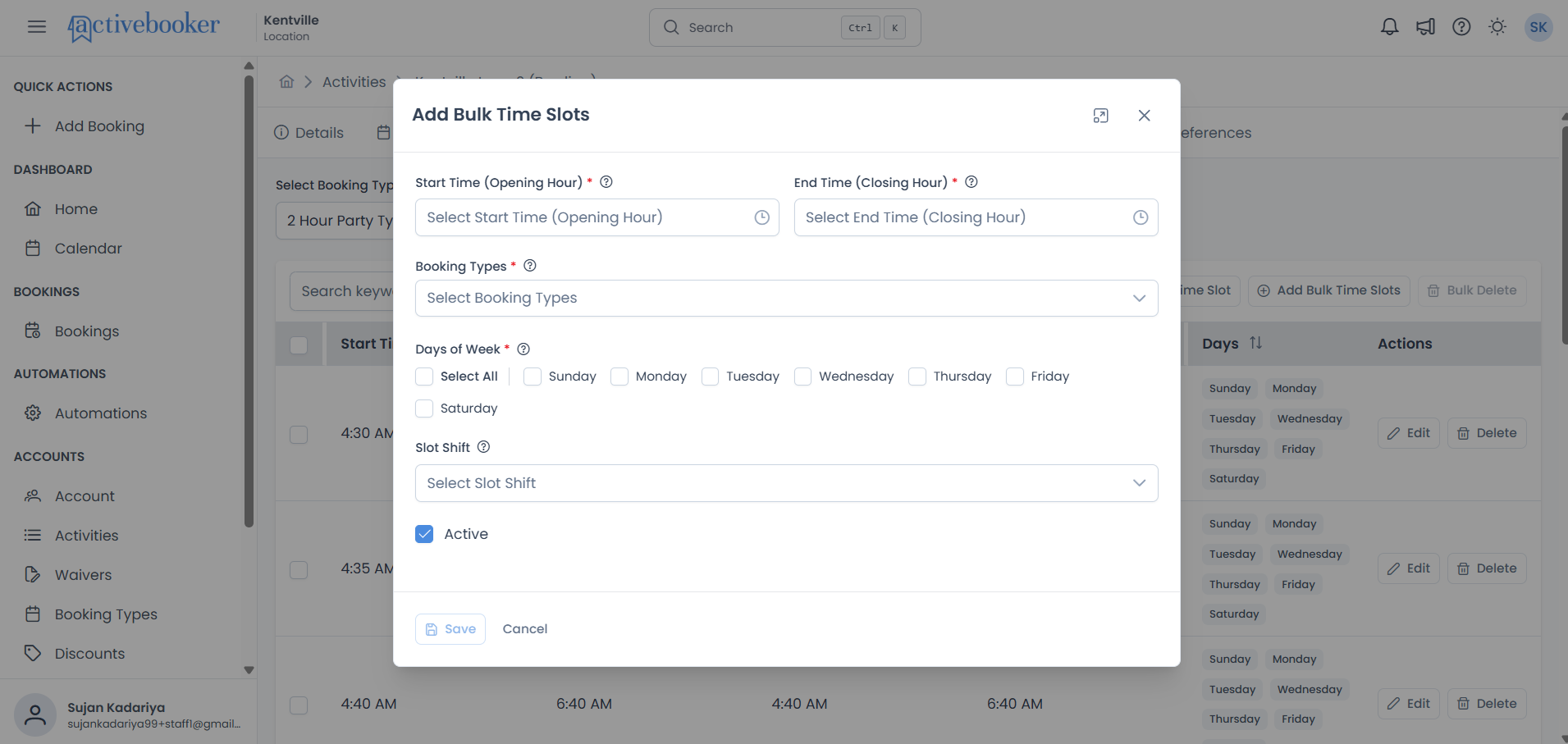
If you're creating a regular schedule (like hourly slots from 9 AM to 5 PM), bulk creation is much faster than adding individual time slots one at a time.
Bulk time slot fields
Start Time (Opening Hour)
The earliest time when time slots should begin being generated. Select a time in AM/PM format (for example, 9:00 AM).
- Format: AM/PM, in 5-minute intervals (e.g., 9:00 AM, 9:05 AM, 9:10 AM)
Example: Setting the start time to 9:00 AM means the first generated time slot will start at 9:00 AM.
Start times must fall on a 5-minute mark (e.g., 9:00 AM, 9:05 AM). Values like 9:03 AM or 9:07 AM are not available.
End Time (Closing Hour)
The latest time when time slots should stop being generated. This is the cutoff, no time slot will start after this time.
- Format: AM/PM, in 5-minute intervals
Example: Setting the end time to 5:00 PM means no time slot will start after 5:00 PM.
The system generates time slots up until the end time. If a slot would start after the end time, it won't be created.
Booking Types
The booking types for which to create time slots. Select one or more booking types from the dropdown. Time slots will be generated for each selected booking type based on its configured duration.
Example: Select "1 Hour Bowling", "2 Hour Bowling", and "Party Package" to create slots for all three types with one bulk operation.
Bulk creation can generate time slots for multiple booking types simultaneously, each with its own appropriate end time based on the booking type's duration.
Days of Week
The days of the week when the generated time slots should be available for booking. Select one or more days from Sunday through Saturday. Use the Select All checkbox to quickly select or deselect all days at once.
Example: Selecting Monday through Friday creates weekday-only availability.
To offer different hours on different days, create separate bulk time slot sets, for example, one set for Monday–Friday and another for Saturday–Sunday.
Slot Shift
The interval (in minutes) between consecutive time slot start times. This is optional, leave it empty for non-overlapping slots that follow the booking type's duration.
- Options: 15 minutes, 30 minutes, 45 minutes, 60 minutes, etc.
Slot Shift creates overlapping time slots by starting new slots at intervals shorter than the booking duration.
Example without Slot Shift:
- Booking Duration: 1 hour
- Start Time: 8:00 AM
- End Time: 12:00 PM
- Generated Slots: 8:00 AM, 9:00 AM, 10:00 AM, 11:00 AM (4 slots)
Example with 15-minute Slot Shift:
- Booking Duration: 1 hour
- Start Time: 8:00 AM
- End Time: 12:00 PM
- Slot Shift: 15 minutes
- Generated Slots: 8:00 AM, 8:15 AM, 8:30 AM, 8:45 AM, 9:00 AM, 9:15 AM, ... 11:00 AM, 11:15 AM, 11:30 AM, 11:45 AM (16 slots)
Each slot is still 1 hour long, but they start every 15 minutes, creating overlapping availability.
When to use Slot Shift:
| Scenario | Use Slot Shift? | Why |
|---|---|---|
| Bowling lanes with multiple lanes | Yes (15-30 min) | Customers can start at flexible times; lanes available even if one is occupied |
| Meeting rooms (single room) | No | Only one booking can use the room at a time; non-overlapping slots prevent conflicts |
| Party rooms (one party at a time) | No | Parties need exclusive access; overlapping slots would cause conflicts |
| Tennis courts with multiple courts | Yes (30-60 min) | Multiple courts available; staggered start times increase booking flexibility |
| Guided tours (limited group size) | Maybe (30 min) | If multiple groups can tour simultaneously, use slot shift; otherwise, no |
Use slot shift when you have multiple instances of the same resource (multiple lanes, multiple courts, multiple rooms). This maximizes booking opportunities and customer flexibility.
Slot shift creates time slots that overlap. Make sure your resource can handle multiple simultaneous bookings before using this feature. If you only have one of something (one room, one instructor), don't use slot shift.
Active
Controls whether the generated time slots are visible and bookable by customers. Enabled by default.
- Enabled: All generated time slots appear on the booking page and customers can book them.
- Disabled: All generated time slots are hidden from customers but remain saved in the system.
Example: You're setting up your schedule for next month but aren't ready to accept bookings yet. Create the slots as inactive, then re-enable them when you're ready.
If time slots may be needed again later, deactivate them rather than deleting them. All settings are preserved and the slots can be reactivated at any time.
How bulk generation works
When you click Save, the system:
- Validates your settings — Ensures all required fields are filled and values are valid
- Calculates time slots — Determines which time slots to create based on your parameters
- Generates slots for each booking type — Creates time slots for each selected booking type
- Applies slot shift (if set) — Creates additional overlapping slots at the specified interval
- Creates time slots — Saves all generated time slots to the database
Example calculation:
Settings:
- Start Time: 9:00 AM
- End Time: 5:00 PM
- Booking Types: "1 Hour Bowling" (60 min duration)
- Days: Monday, Wednesday, Friday
- Slot Shift: 30 minutes
- Active: Yes
Generated Time Slots:
- 9:00 AM - 10:00 AM (Mon, Wed, Fri, Active)
- 9:30 AM - 10:30 AM (Mon, Wed, Fri, Active)
- 10:00 AM - 11:00 AM (Mon, Wed, Fri, Active)
- 10:30 AM - 11:30 AM (Mon, Wed, Fri, Active)
- ... (continuing every 30 minutes)
- 4:00 PM - 5:00 PM (Mon, Wed, Fri, Active)
- 4:30 PM - 5:30 PM (Mon, Wed, Fri, Active)
Total: 18 time slots created
If you select 3 booking types, and the system would generate 18 slots for one type, you'll get 54 total time slots (18 × 3).
Deleting multiple time slots (Bulk Delete)
Remove multiple time slots at once when restructuring your schedule or cleaning up outdated slots.
How to bulk delete time slots
- Navigate to the Time Slots tab
- Check the checkbox for each time slot you want to delete
- Click ** Bulk Delete** in the toolbar (becomes enabled when slots are selected)
- A confirmation dialog appears: "Are you sure you want to delete the X Time Slots?"
- Click Confirm to delete all selected slots, or Cancel to keep them
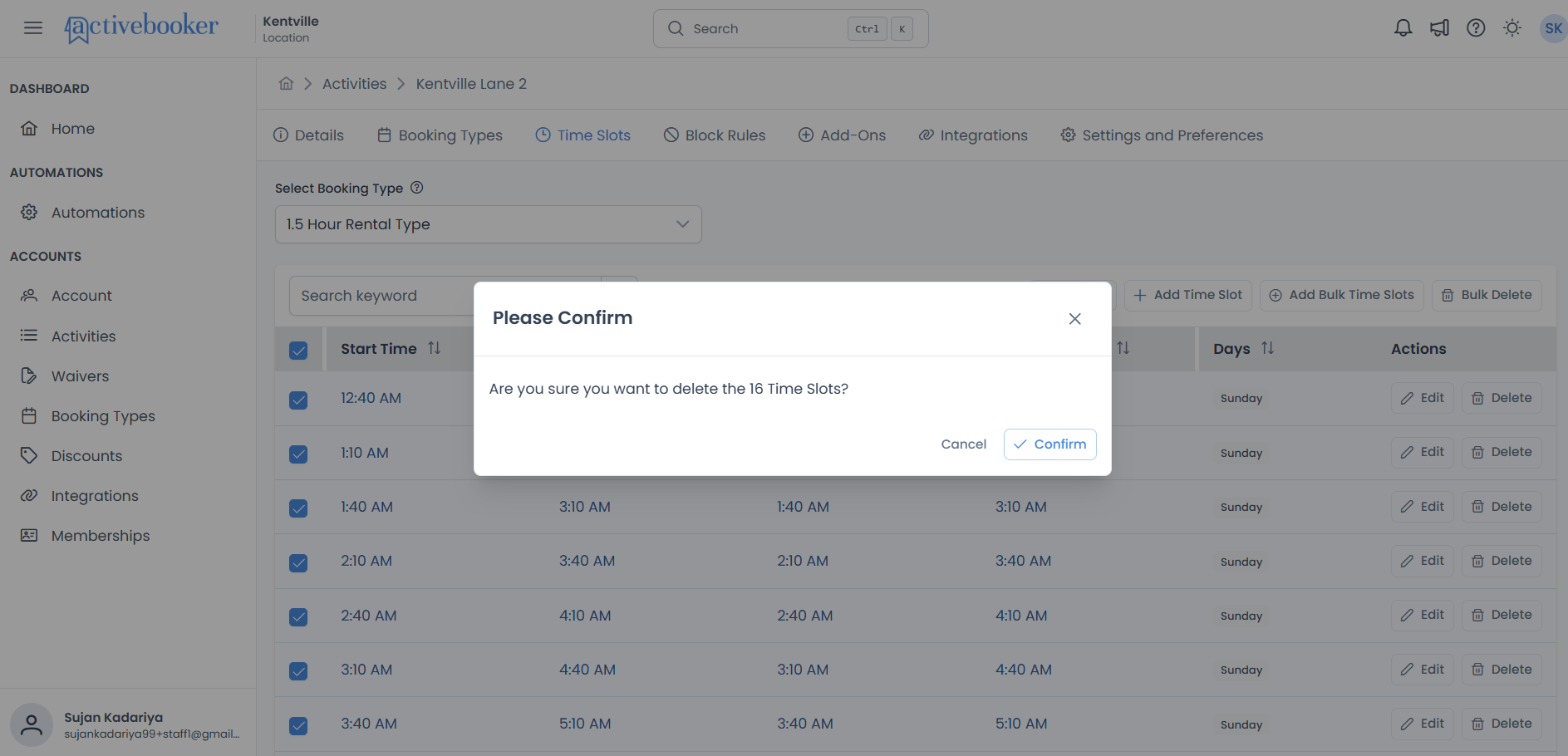
Deleting time slots is permanent and cannot be undone. If you think you might need time slots later, consider making them inactive instead of deleting them.
If you're restructuring your schedule, use bulk delete to remove old time slots efficiently. Select all slots for a particular time range or day, then delete them all at once.
To delete just one time slot, use the row-level Delete button. See Deleting a Single Time Slot for steps.
Real-world scenarios and use cases
Scenario 1: Bowling Alley with Multiple Lanes
Business challenge:
A bowling alley has 12 lanes and offers 1-hour and 2-hour lane rentals. They want to maximize lane utilization by allowing bookings to start every 30 minutes, even though games last 1-2 hours.
Why bulk creation is best:
The bowling alley needs many uniformly spaced slots across a long operating window. Bulk creation with Slot Shift generates dozens of overlapping slots in one operation.
Time slot solution:
For 1-hour rentals:
- Start Time: 10:00 AM
- End Time: 10:00 PM
- Booking Type: "1 Hour Lane Rental"
- Days: All days
- Slot Shift: 30 minutes
- Active: Yes
Result: Customers can book 1-hour slots starting at 10:00, 10:30, 11:00, 11:30, etc., maximizing lane usage and customer flexibility.
For 2-hour rentals:
- Same settings but select "2 Hour Lane Rental" booking type
- Each slot is 2 hours long but starts every 30 minutes
Scenario 2: Yoga Studio with Single Room
Business challenge:
A yoga studio has one studio room and offers 60-minute yoga classes. They want clear, non-overlapping class times throughout the day, with different hours on weekdays and weekends.
Why bulk creation is best:
The studio needs uniform, consecutive slots across operating hours. Two bulk operations (weekday + weekend) create the entire weekly schedule.
Time slot solution:
Weekday Schedule:
- Start Time: 6:00 AM
- End Time: 8:00 PM
- Booking Type: "60 Min Yoga Class"
- Days: Monday through Friday
- Slot Shift: (leave empty for non-overlapping slots)
- Active: Yes
Result: Classes at 6:00 AM, 7:00 AM, 8:00 AM, ... 7:00 PM, 8:00 PM. No overlapping times since there's only one studio.
Weekend Schedule:
- Start Time: 8:00 AM
- End Time: 6:00 PM
- Days: Saturday and Sunday
- (Other settings same as weekday)
Scenario 3: Tennis Club with Seasonal Hours
Business challenge:
A tennis club has 6 courts and offers 1-hour court reservations. They want to allow bookings starting every 30 minutes to increase availability, with different hours in summer and winter.
Why bulk creation is best:
Multiple courts with staggered start times across long operating windows. Bulk creation with Slot Shift handles this efficiently, and separate bulk operations for each season make seasonal transitions easy.
Time slot solution:
Summer schedule (more hours):
- Start Time: 7:00 AM
- End Time: 9:00 PM
- Booking Type: "1 Hour Court Rental"
- Days: All days
- Slot Shift: 30 minutes
- Active: Yes
Winter schedule (fewer hours):
- Start Time: 9:00 AM
- End Time: 5:00 PM
- Days: All days
- Slot Shift: 30 minutes
- Active: Yes
Result: In summer, customers can book courts starting every 30 minutes from 7 AM to 9 PM. In winter, the schedule automatically adjusts to shorter hours. When transitioning seasons, bulk delete the old set and bulk create the new one.
Scenario 4: Escape Room with Fixed Game Times
Business challenge:
An escape room facility has 4 rooms and offers 90-minute escape room experiences. They want games to start at specific times only (on the hour and half-hour) to coordinate staff.
Why bulk creation is best:
Regular half-hour start intervals across a full day are exactly what bulk creation with Slot Shift is designed for.
Time slot solution:
Daily schedule:
- Start Time: 10:00 AM
- End Time: 9:00 PM
- Booking Type: "90 Min Escape Room"
- Days: All days
- Slot Shift: 30 minutes
- Active: Yes
Result: Games start at 10:00, 10:30, 11:00, 11:30, etc. Each game is 90 minutes (ending at 11:30, 12:00, 12:30, 1:00, etc.), but new games start every 30 minutes across the 4 rooms.
Alternative (Non-overlapping):
If the business wants games to start only after previous games end (all rooms start together), omit Slot Shift:
- Slots at: 10:00 AM, 11:30 AM, 1:00 PM, 2:30 PM, etc. (every 90 minutes)
Tips for configuring bulk time slots
Create Different Schedules for Different Days
You might have:
- Different hours on weekends vs. weekdays
- Special hours on holidays
- Reduced hours in off-seasons
Create separate bulk time slot sets for each schedule pattern.
Example:
- Bulk create weekday slots: Monday-Friday, 9 AM - 5 PM
- Bulk create weekend slots: Saturday-Sunday, 10 AM - 8 PM
Choose the Right Slot Shift
- No Slot Shift — Use for single-resource businesses (one room, one instructor) where only one booking can occur at a time
- 15-minute Slot Shift — Maximum flexibility, but creates many slots; best for high-capacity facilities
- 30-minute Slot Shift — Good balance of flexibility and manageability; the most common choice
- 60-minute Slot Shift — Moderate overlap; good for resources with moderate capacity
Select All Relevant Booking Types at Once
If an activity has multiple booking types that follow the same schedule, select them all in a single bulk operation. The system generates appropriate slots for each type based on its configured duration, saving you from running multiple bulk operations.
Use Inactive Slots for Future Schedules
Preparing next month's or next season's schedule? Create the bulk slots as Inactive. When you're ready to accept bookings, edit them to Active. This lets you plan ahead without prematurely opening availability.
Preview the Math Before Saving
Before clicking Save, estimate how many slots will be created:
- Calculate the number of intervals: (End Time - Start Time) ÷ Slot Shift (or booking duration if no shift)
- Multiply by the number of selected booking types
- If the number seems too high, consider using a larger Slot Shift or narrower time range
Troubleshooting
Issue: Bulk time slot creation generates fewer slots than expected
Why this happens: The end time cutoff prevents slots that would start after the closing hour.
How to understand it:
If your End Time is 5:00 PM and your booking type duration is 2 hours, the last possible slot starts at 3:00 PM (ending at 5:00 PM). A slot at 4:00 PM would end at 6:00 PM, which is past your End Time, so it won't be created.
How to fix it:
If you want more slots, extend your End Time. Remember, End Time represents when the last booking can end, not when the last booking can start.
Issue: Slot Shift creates too many overlapping time slots
Why this happens: Slot Shift creates a new slot at every interval, which multiplies the number of slots.
Example:
- 8-hour operation (8 AM - 4 PM)
- 1-hour booking duration
- 15-minute slot shift
- Result: 32 time slots instead of 8
How to fix it:
Use a longer slot shift interval (30 or 60 minutes) or remove slot shift entirely if you don't need overlapping slots.
Issue: Cannot create time slots for a booking type
Why this happens: The booking type uses custom duration.
How to fix it:
Time slots cannot be configured for custom duration booking types because customers choose their own session length at booking time. If you need time slots, create a different booking type with a fixed duration. Custom duration types are automatically excluded from the Booking Types dropdown in the bulk creation dialog.
Issue: Bulk Delete button is greyed out
Why this happens: No time slots are selected.
How to fix it:
Check the checkbox next to each time slot you want to delete. The Bulk Delete button becomes enabled only when at least one slot is selected.
Frequently asked questions
How many time slots can I create at once with bulk creation?
There is no hard limit. The number of slots depends on your Start Time, End Time, Slot Shift, and number of selected booking types. For example, a 12-hour window with a 15-minute slot shift and 3 booking types could generate over 140 slots in one operation.
Can I undo a bulk creation if I made a mistake?
There is no single "undo" action. However, you can use Bulk Delete to select and remove all the incorrectly created slots, then run a new bulk creation with the correct settings.
Does bulk creation overwrite or duplicate existing time slots?
Bulk creation adds new time slots. It does not remove or overwrite existing ones. If you run bulk creation twice with the same settings, you may end up with duplicate slots. Delete the old set first if you need to recreate.
Can I use bulk creation for party booking types with mock times?
Bulk creation does not include mock time fields. If you need mock start/end times for party bookings, use individual time slot creation instead.
What's the difference between Slot Shift and booking type duration?
- Booking Type Duration: How long each booking lasts (e.g., 1 hour). This determines the end time of each slot.
- Slot Shift: How often new slots start (e.g., every 15 minutes). This determines the spacing between consecutive start times. When Slot Shift is shorter than the duration, slots overlap.