Add Time Slot
Create individual time slots for precise control over your booking availability. This page covers how to add a single time slot, configure all available fields, edit existing time slots, and delete individual time slots.
Adding a single time slot
Create one time slot at a time for precise control over your booking availability.
How to add a time slot
- Navigate to the Time Slots tab for your activity and booking type
- Click + Add Time Slot in the toolbar
- The "Add Time Slot" dialog opens
- Configure the time slot settings (see fields below)
- Click Save to create the time slot
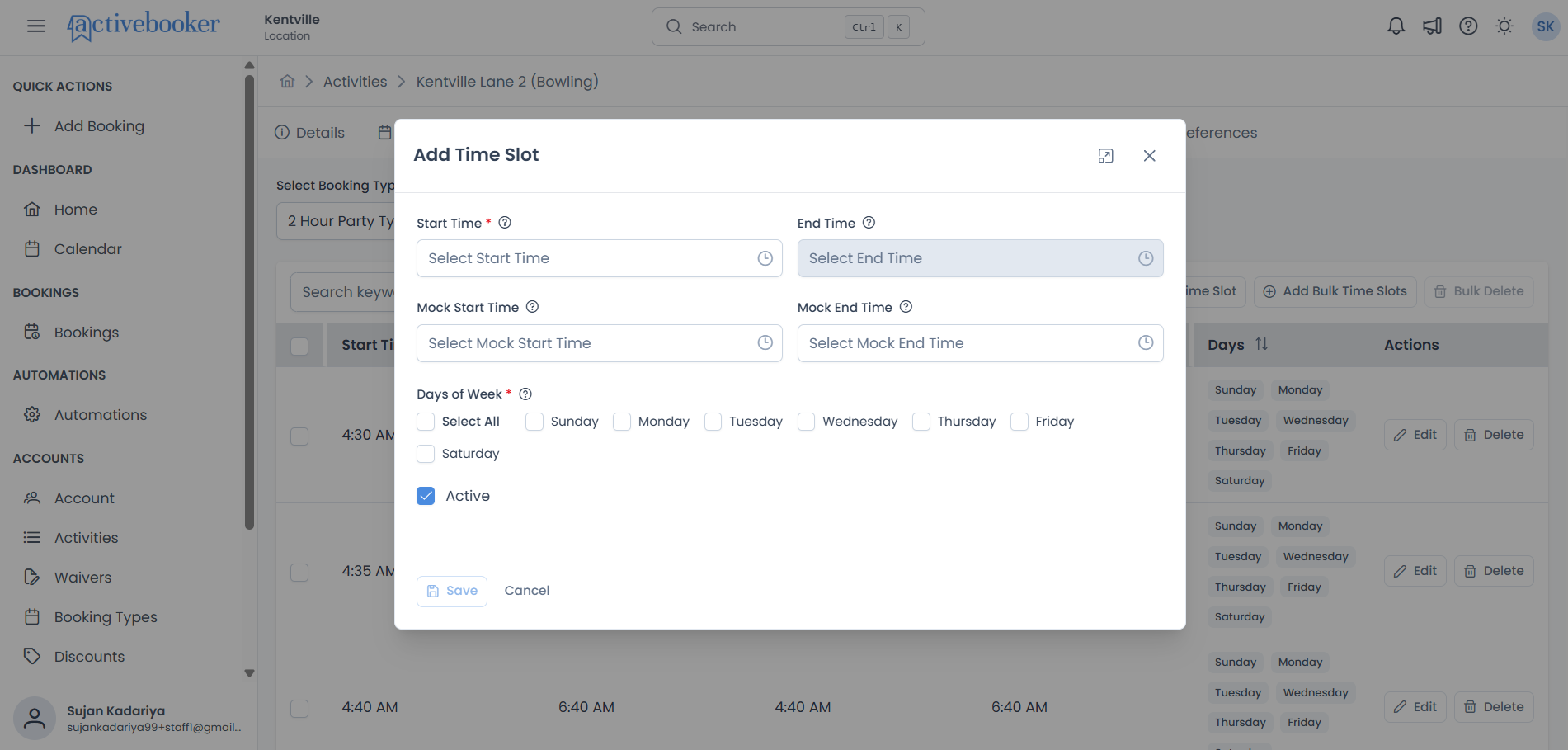
Time slot fields
Start Time
The time the booking begins. Select a time in AM/PM format (for example, 10:00 AM).
- Format: AM/PM, in 5-minute intervals (e.g., 8:00 AM, 8:05 AM, 8:10 AM)
Example: Setting the start time to 10:00 AM on a 1-hour booking makes the 10:00 AM – 11:00 AM window available to customers.
Start times must fall on a 5-minute mark (e.g., 10:00 AM, 10:05 AM). Values like 10:03 AM or 10:07 AM are not available.
End Time
The time the booking ends. This value is calculated automatically based on the start time and the booking type's duration, it cannot be edited directly.
- Calculation: Start Time + Booking Type Duration
Example: A booking with a 1 hour 30 minute duration that starts at 2:00 PM will show an end time of 3:30 PM.
To change the end time, adjust either the start time or the booking type's duration in Booking Types settings.
Mock Start Time (Party/Rental Booking Types)
An optional display-only start time shown to customers. Use this to indicate an earlier arrival time, for example, when setup is needed before the party begins. The actual schedule is not affected; only the time the customer sees changes.
- Format: AM/PM, in 5-minute intervals
- Applies to: Party and Rental booking types
Example: The actual party starts at 2:00 PM, but you set the mock start time to 1:30 PM to allow 30 minutes for setup. Customers will see "1:30 PM – 4:30 PM" as the party window.
Set a mock start time when customers need to arrive earlier than the scheduled booking, for example, to set up decorations or check in. This does not change how the time slot is scheduled internally.
Mock End Time (Party/Rental Booking Types)
An optional display-only end time shown to customers. Use this to indicate a later departure time, for example, when cleanup is needed after the party ends. Like mock start time, this only changes what the customer sees and does not affect the actual schedule.
- Format: AM/PM, in 5-minute intervals
- Applies to: Party and Rental booking types
Example: The actual party ends at 4:00 PM, but you set the mock end time to 4:30 PM to allow 30 minutes for cleanup. Customers will see 4:30 PM as the end of their booking.
Days of Week
The days of the week this time slot is available for booking. Select one or more days from Sunday through Saturday. Use the Select All checkbox to quickly select or deselect all days at once.
Example: Selecting Monday, Wednesday, and Friday makes this time slot available to customers on those three days each week.
To offer different times on different days, create separate time slots, for example, one slot at 9:00 AM for Monday–Friday and another at 10:00 AM for Saturday–Sunday.
Active
Controls whether this time slot is visible and bookable by customers. Enabled by default.
- Enabled: The time slot appears on the booking page and customers can book it.
- Disabled: The time slot is hidden from customers but remains saved in the system.
Example: A 10:00 AM Monday slot needs to be paused for a few weeks. Instead of deleting it, uncheck Active to hide it temporarily, then re-enable it when ready.
If a time slot may be needed again later, deactivate it rather than deleting it. All settings are preserved and the slot can be reactivated at any time.
Editing time slots
Update an existing time slot to change its schedule, days, or status.
How to edit a time slot
- Navigate to the Time Slots tab for your activity and booking type
- Find the time slot you want to edit
- Click the Edit button in the Actions column
- The "Edit Time Slot" dialog opens with current values filled in
- Modify the fields as needed
- Click Save to apply changes
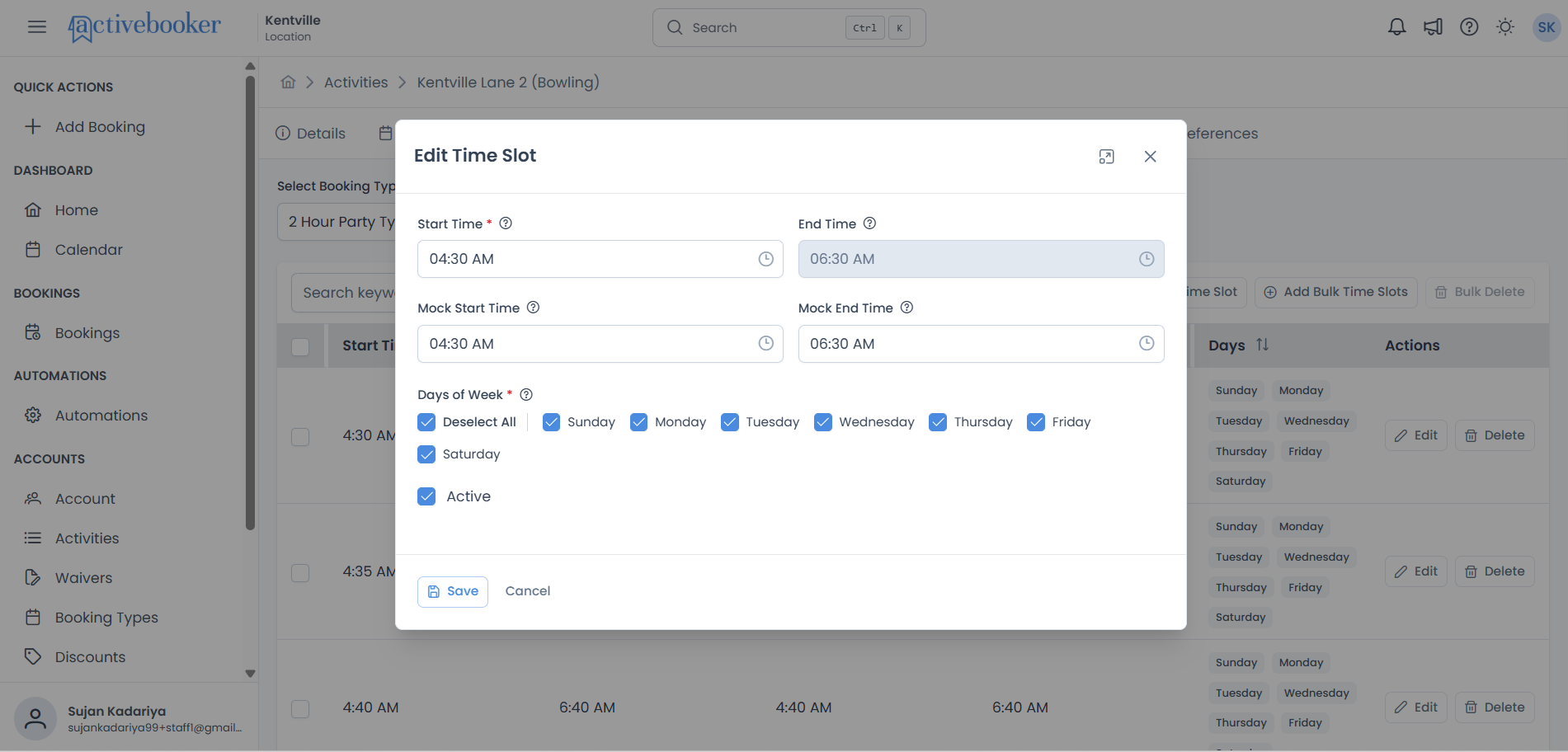
What you can edit:
- Start Time
- Days of Week
- Mock Start Time and Mock End Time (party bookings only)
- Active status
What you cannot edit:
- End Time (always calculated from Start Time and booking type duration)
- Booking Type (create a new time slot for different booking types)
If you need to change multiple time slots similarly, it might be faster to delete them and use bulk creation to recreate them with new settings.
Deleting a single time slot
Remove an individual time slot that is no longer needed or was created in error.
How to delete a single time slot
- Navigate to the Time Slots tab
- Find the time slot you want to delete
- Click the Delete button in the Actions column
- A confirmation dialog appears: "Are you sure you want to delete this time slot?"
- Click Confirm to delete, or Cancel to keep it
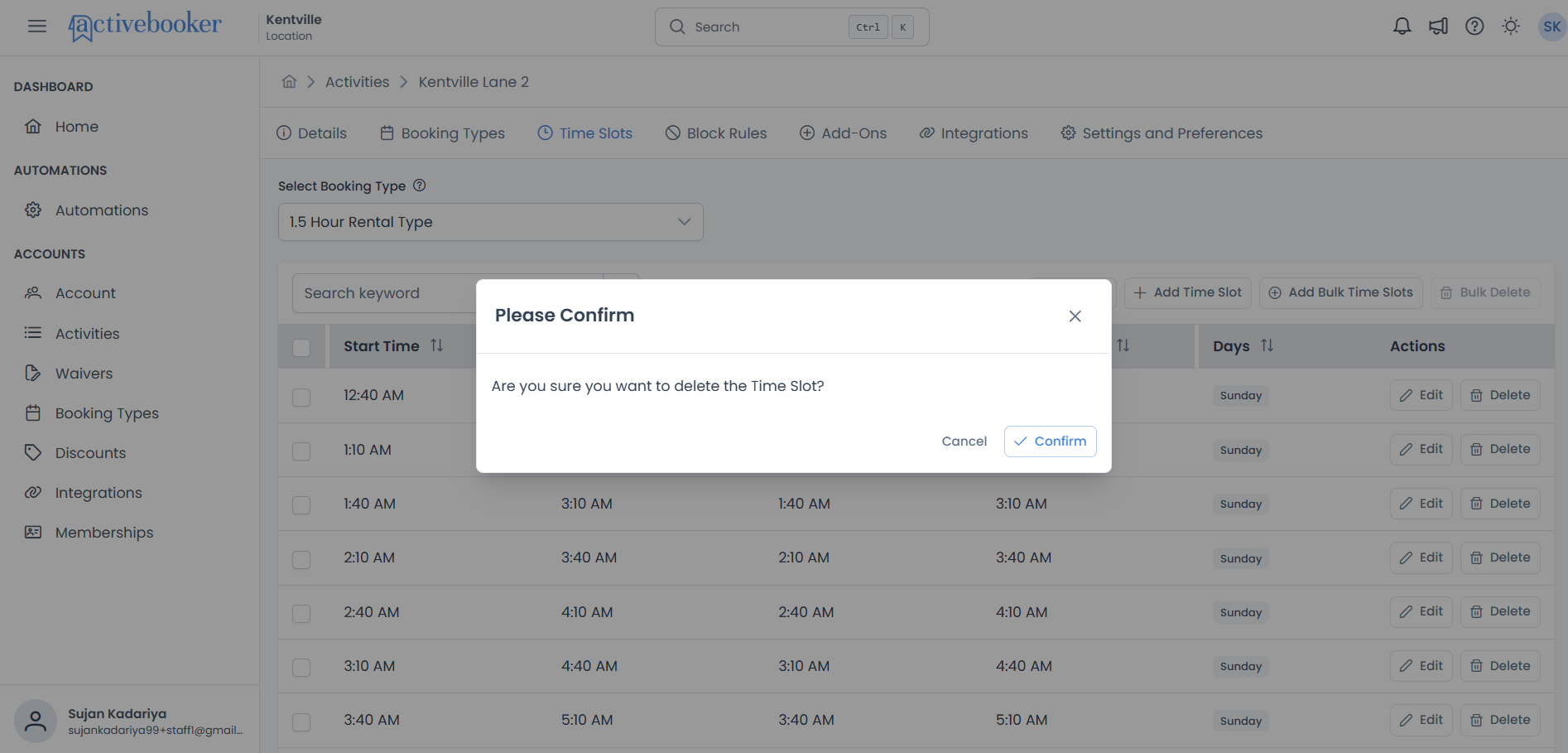
Deleting a time slot is permanent and cannot be undone. If you think you might need a time slot later, consider making it inactive instead of deleting it.
To delete several time slots at once, use the Bulk Delete feature instead of deleting them one by one.
Real-world scenarios and use cases
Scenario 1: Party Venue with Setup/Cleanup Time
Business challenge:
A party venue offers 2-hour party packages but needs 30 minutes before for setup and 30 minutes after for cleanup. They want customers to see the full 3-hour commitment.
Why individual slot creation is best:
Party slots require mock times, which are configured per slot. Creating them individually gives precise control over each party window.
Time slot solution:
- Create booking type: "2 Hour Party Package" (120 minutes)
- Create time slots individually with mock times:
- Start Time: 12:00 PM (actual party starts)
- End Time: 2:00 PM (automatically calculated, actual party ends)
- Mock Start Time: 11:30 AM (customer arrives for setup)
- Mock End Time: 2:30 PM (customer leaves after cleanup)
- Days: Saturday, Sunday
- Active: Yes
Result: Customers see "11:30 AM - 2:30 PM" (3 hours total) but the system schedules the actual party from 12:00 PM - 2:00 PM internally.
Scenario 2: One-Off Special Session
Business challenge:
A yoga studio typically runs classes on weekdays, but wants to add a single Saturday morning slot for a special weekend workshop without changing the regular bulk schedule.
Why individual slot creation is best:
Adding one specific slot is faster and cleaner than regenerating the entire bulk schedule. It avoids accidentally creating unwanted slots.
Time slot solution:
- Navigate to the activity's Time Slots tab
- Click + Add Time Slot
- Set Start Time to 9:00 AM
- Select Saturday only
- Set Active to checked
- Click Save
Result: The Saturday 9:00 AM slot is added without affecting any of the existing weekday schedule.
Scenario 3: Staggered Instructor-Led Sessions
Business challenge:
A cooking school has 2-hour classes at specific times that don't follow a uniform pattern (10:00 AM, 1:30 PM, and 6:00 PM on weekdays). The irregular start times aren't suited for bulk generation.
Why individual slot creation is best:
Non-uniform start times can't be generated by bulk creation, which uses fixed intervals. Individual creation lets you set each slot precisely.
Time slot solution:
- Create slot 1: Start Time 10:00 AM, Days Mon-Fri
- Create slot 2: Start Time 1:30 PM, Days Mon-Fri
- Create slot 3: Start Time 6:00 PM, Days Mon-Fri
Result: Three distinct class times per weekday, each independently managed.
Tips for configuring individual time slots
Use Individual Slots for Precision
Individual time slot creation is ideal when:
- You need mock times for party bookings (configured per slot)
- Start times don't follow a regular pattern
- You're adding a single slot to supplement an existing schedule
- You want to test a new time before committing to a full schedule
For regular, repeating schedules, consider using bulk creation instead.
Choose Days Carefully
Think about which days a time slot should be available before saving. If you later realize you need different days, you can edit the slot, but you cannot split a single slot into two separate day-patterns. Instead, create a second slot for the additional days.
Deactivate Before Deleting
If you're unsure whether a time slot is still needed, set it to Inactive rather than deleting it. Inactive slots are hidden from customers but can be reactivated instantly, saving you from having to recreate the configuration.
Verify End Time After Saving
Since end time is calculated from Start Time + Booking Type Duration, always confirm that the resulting end time makes sense for your schedule. If the end time seems wrong, check the booking type's configured duration.
Troubleshooting
Issue: End time seems wrong or doesn't match expectations
Why this happens: End time is always calculated from Start Time plus the booking type's duration. It's not editable.
How to fix it:
If you want a different end time, you need to either:
- Change the start time, or
- Change the booking type's duration (in Booking Types settings)
Example:
- Booking Type Duration: 2 hours
- Start Time: 1:00 PM
- End Time: 3:00 PM (always)
To get an end time of 4:00 PM, you'd need to either:
- Change start time to 2:00 PM, or
- Change booking type duration to 3 hours
Issue: Mock start/end time fields are not showing
Why this happens: Mock times are only not available for hourly-type booking types.
How to fix it:
Check if your booking type is configured as a "Hourly" type. If you need mock times, edit the booking type to set its type to "Party"or "Rental". Regular hourly types don't use mock times.
Frequently asked questions
Can I have different time slots for the same booking type on different days?
Yes! Create multiple time slot entries with different start times and different Days of Week settings. For example:
- Time Slot A: 9:00 AM, Monday-Friday
- Time Slot B: 10:00 AM, Saturday-Sunday
Can I edit the end time of a time slot?
No. The end time is always calculated as Start Time + Booking Type Duration. To change the end time, either adjust the start time or modify the booking type's duration in Booking Types settings.
What happens when I delete a time slot — can I undo it?
No. Deletion is permanent and cannot be undone. If you think you might need the time slot again, deactivate it instead of deleting it.
Do I need to create individual slots if I already used bulk creation?
Not necessarily. Individual creation is useful for adding one-off slots, party bookings with mock times, or slots at non-standard times that bulk creation doesn't cover. Both methods can be used together.