Create a league
Creating a league gives you a registration page with its own link, a fee that is charged at sign-up, and a roster that fills in as people register.
Quick start
- Go to Leagues and click Add League.
- Enter a Name, a Description, and the Registration Fee.
- Give the Type Selection Label a name your customers will recognise — "League Night", "Session", "Division".
- Click Save.
The league opens on its Settings tab, and the Registration Link is ready to copy.
Creating and editing leagues needs the same access as managing your other settings. If Add League is missing, ask whoever manages your users to check your permissions.
The settings, one by one
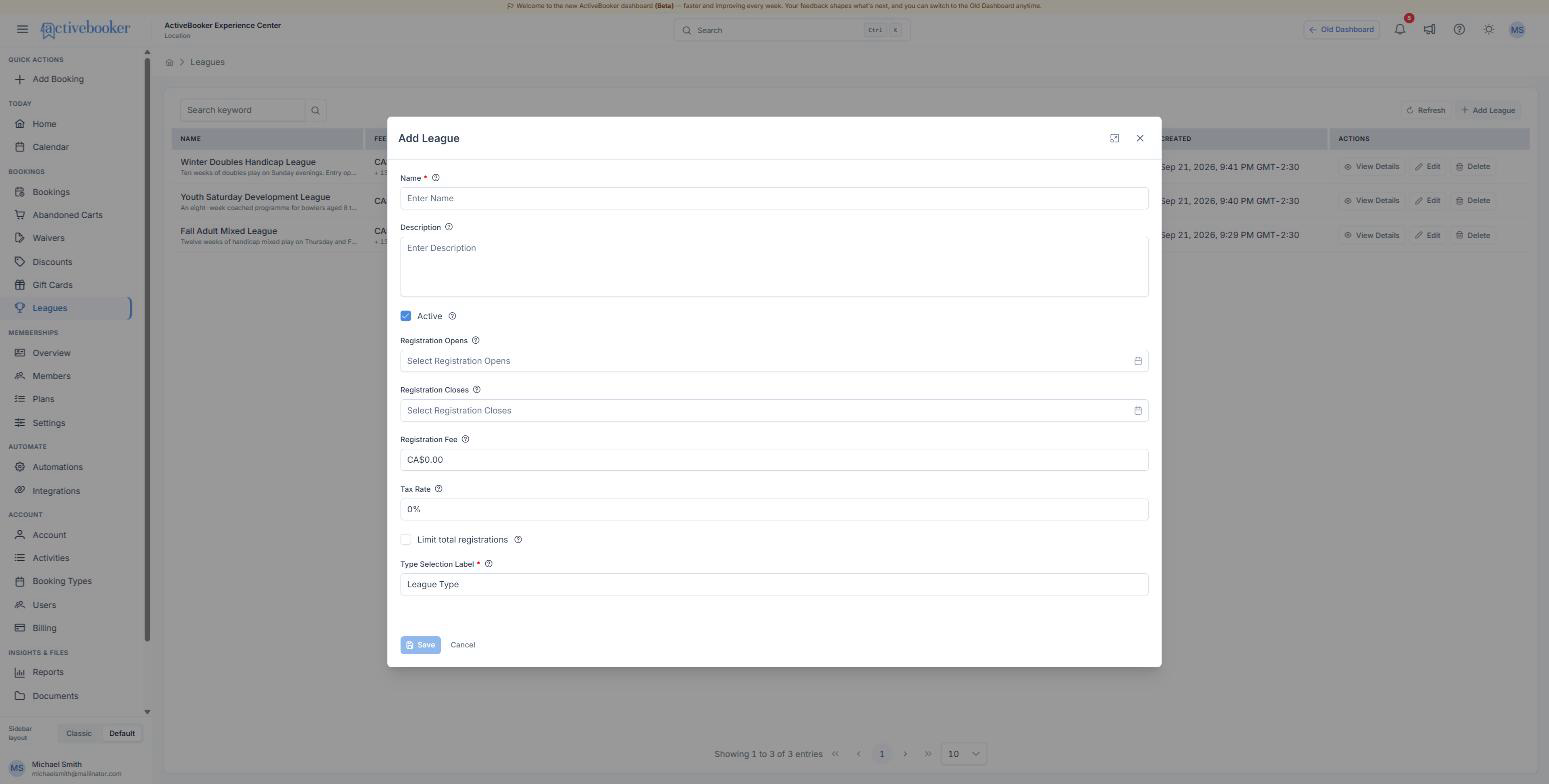
| Field | What it does |
|---|---|
| Name | Appears as the heading on the registration page and in the league list. Required. |
| Description | The paragraph under the heading. Use it for what people want to know before they commit: how many weeks, what is included, what time play starts. |
| Active | On by default. Turn it off to stop taking registrations while keeping everything you have set up. |
| Registration Opens | The date and time the page starts accepting sign-ups. Leave it empty and registration opens immediately. |
| Registration Closes | The date and time sign-ups stop. Leave it empty and registration stays open until you deactivate the league. |
| Registration Fee | What one person pays to join, in your venue's currency. Set it to 0 for a free league — the payment step disappears from the registration page. |
| Tax Rate | The percentage added to the fee. It is shown to the customer as a separate line, so CA$60.00 at 13% reads as CA$60.00 + CA$7.80 = CA$67.80. |
| Limit total registrations | Tick this to cap the league as a whole, then enter the Total Capacity. Leave it unticked to let the per-option capacities do the limiting. |
| Type Selection Label | What you call the thing people choose between. Whatever you type here names the tab in the dashboard and the first step on the registration page. Required. |
Dates and times are shown in your venue's timezone, both here and on the registration page.
After you save
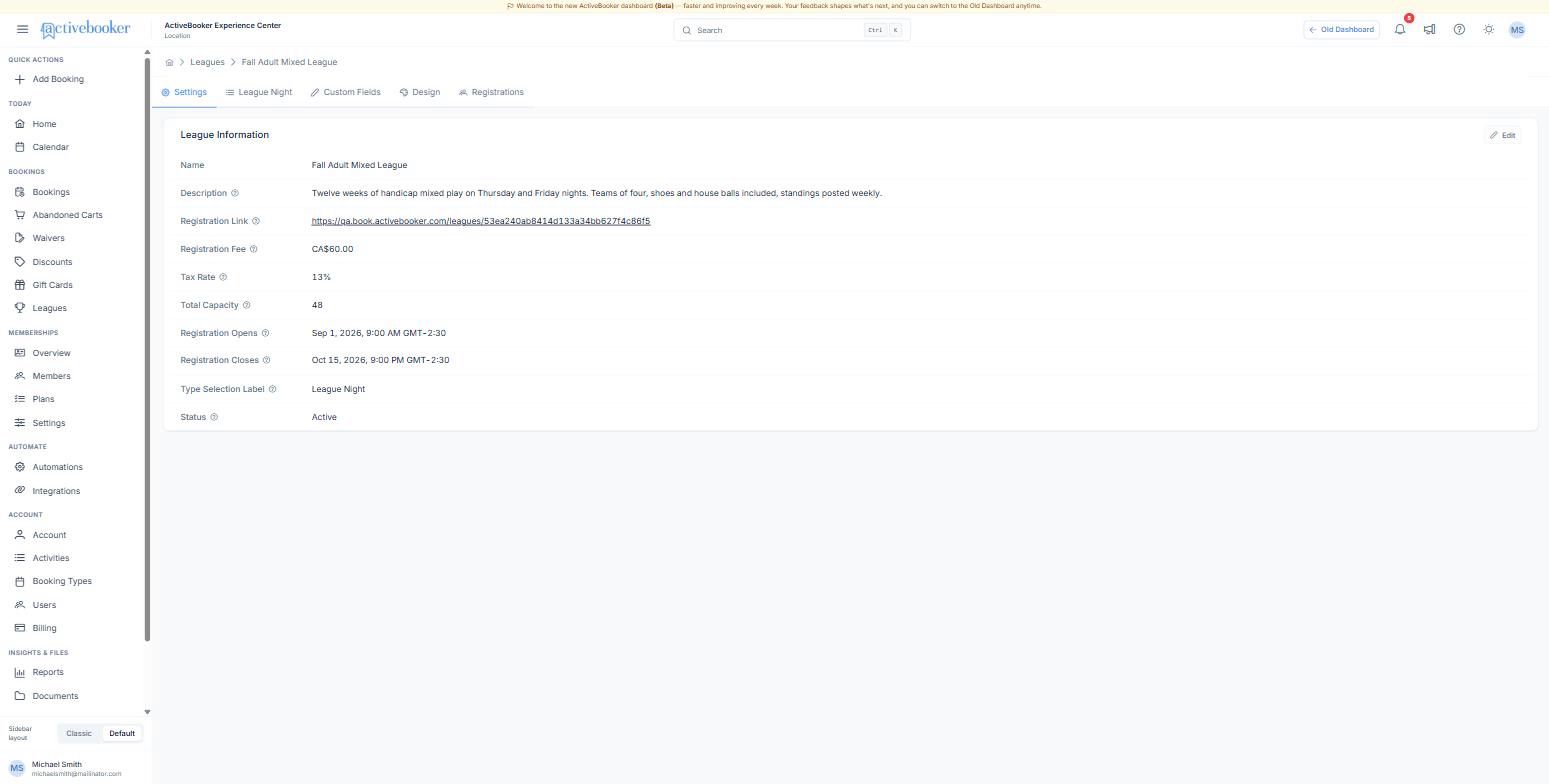
The Settings tab is the league's summary. Two rows are worth knowing:
Registration Link
The public address of this league's registration page, for example https://book.activebooker.com/leagues/53ea240ab8414d133a34bb627f4c86f5. Every league gets its own link. Put it on your website, in an email, or behind a QR code at the desk — no login is needed to open it.
Total Capacity Shows a number when you have capped the league, and Per type when you have not — meaning the only limits are the ones on each option.
Click Edit at the top right of the card to change any of it. Changes take effect on the registration page as soon as you save.
Choosing a fee and a cap
- Charge what one person pays. The fee is per registration, not per team. If you run teams of four, either register each bowler or set the fee to the team price and register one captain.
- Cap the league, the options, or both. A league cap is the total across every option. An option cap limits one night. When both are set, the tighter one wins.
- Leave the closing date open if you are not sure. You can deactivate the league at any moment, which closes registration immediately.
Troubleshooting
The registration link says the league cannot be found
Why this happens: The link was copied by hand and a character was lost, or the league was deleted. How to fix it: Open the league, click the Registration Link row, and copy the link with your browser's copy-link command rather than retyping it.
Customers say registration is closed, but the league looks fine
Why this happens: The league is inactive, today's date sits outside the registration window, or every option is full. How to fix it: Check Status, Registration Opens, and Registration Closes on the Settings tab, then check the capacities on the options tab.
Related
- Set up league options — the nights or sessions people choose between
- Ask your own registration questions — collect shirt sizes, averages, anything else
- Style the registration page — colour, text size, and corners
- What customers see — the page your link opens