Manage registrations
The Registrations tab is your roster. It shows everyone who has signed up for the league, what they told you, what they paid, and where they stand.
Quick start
- Open the league and go to Registrations.
- Type into Search keyword to find someone by name, email, phone, reference, option, or status.
- Scroll sideways to reach the money columns and the row actions.
Reading the roster
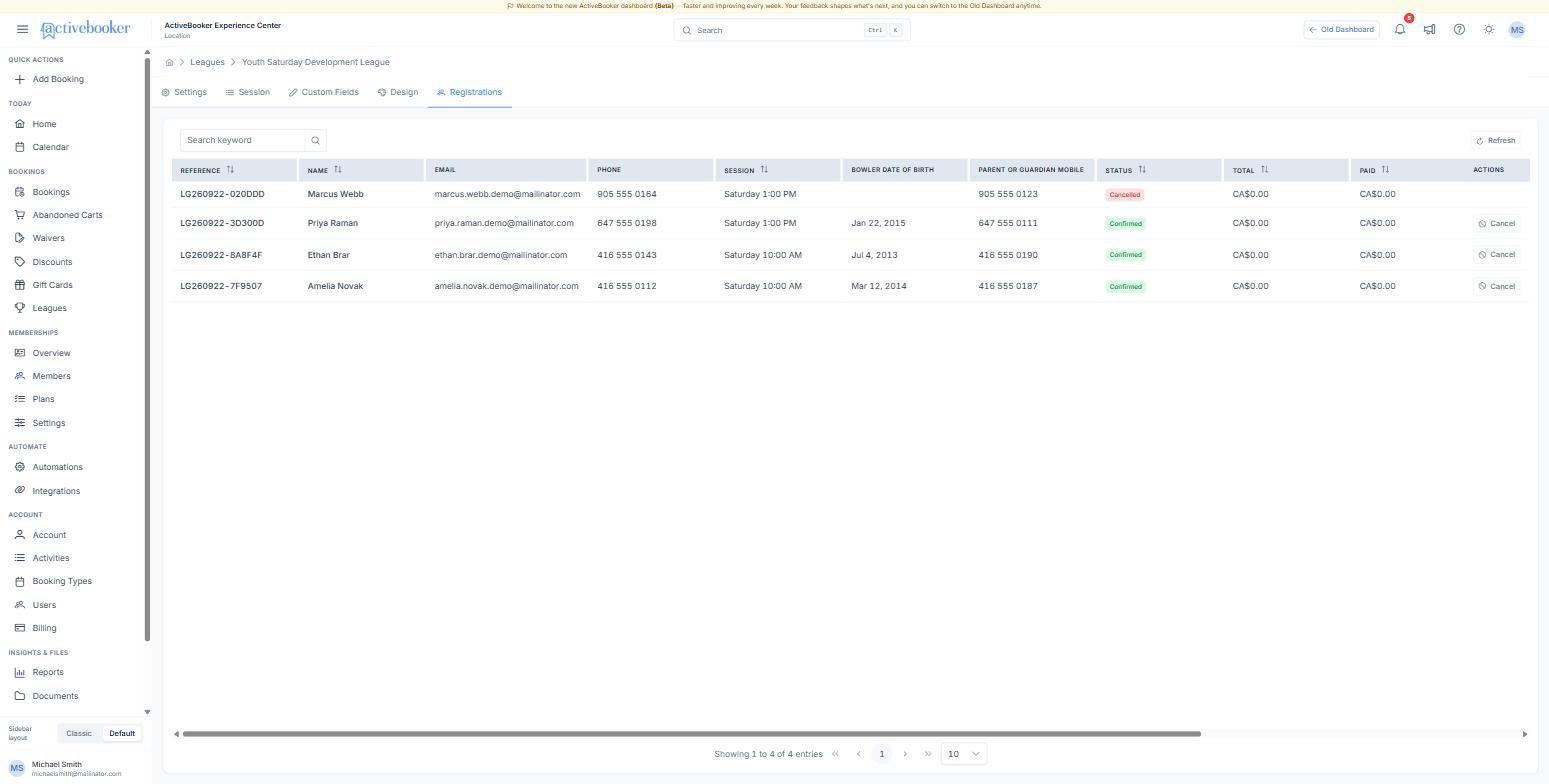
| Column | What it shows |
|---|---|
| Reference | The booking reference, for example LG260922-7F9507. Customers quote it from their email |
| Name, Email, Phone | What the customer entered on the registration form |
| Session (or your option label) | Which option they chose |
| One column per question | The answers to your registration questions |
| Status | Confirmed or Cancelled |
| Total | The fee plus tax for that registration |
| Paid | What has actually been taken |
| Refunded | What has been sent back |
| Balance Due | What is still owed. A cancelled registration owes nothing |
| Registered | When they signed up, in your venue's timezone |
| Actions | Cancel, and Refund where money has been taken |
Registrations are listed newest first. Refresh reloads the roster without leaving the tab — useful the morning registration opens.
Finding one person
The search box filters as you type and matches across the whole row, so any of these work:
- part of a name —
morgan - part of an email —
@mailinator.com - a phone number, with or without spaces
- the reference, or just the tail of it —
7F9507 - an option name —
saturday - a status —
cancel
Clear the box to get the whole roster back.
Using the roster on league night
- Check the option column first. It tells you which night each person belongs to, and it is the column people get wrong when they register.
- Take the reference for anything you need to look up later. It is the fastest way to find a registration again, and it is the number the customer has in their email.
- Watch Balance Due. Anything other than zero on a confirmed registration means the money has not landed — see Cancel or refund a registration.
Troubleshooting
Somebody says they registered but they are not on the roster
Why this happens: Their payment did not go through, so no place was held — or they registered for a different league. How to fix it: Search the other leagues for their email. If the payment failed, ask them to register again; nothing was charged.
The roster is empty after registration opened
Why this happens: The link that went out points at a different league, or the league was inactive when the email was sent. How to fix it: Open Settings, copy the Registration Link again, and check the Status is Active.
A customer wants to change nights
Why this happens: They picked the wrong option, or their schedule changed. How to fix it: Cancel the registration and ask them to register again for the right option. For a paid league, refund them first so they are not charged twice.
Related
- Cancel or refund a registration — what the row actions do
- Ask your own registration questions — the extra columns in this table
- What customers see — the receipt behind each reference