Ask your own registration questions
Every league needs something the standard form does not collect — an average, a shirt size, a parent's mobile number. Custom fields add those questions to the registration page, and the answers land on the roster, the receipt, and the confirmation email.
Quick start
- Open the league and go to Custom Fields.
- Click Add Field.
- Enter the Label customers will read, choose a Type, and tick Required if an answer is compulsory.
- Click Save.
The question appears on the registration page straight away, under Additional Information.
The questions you have set up
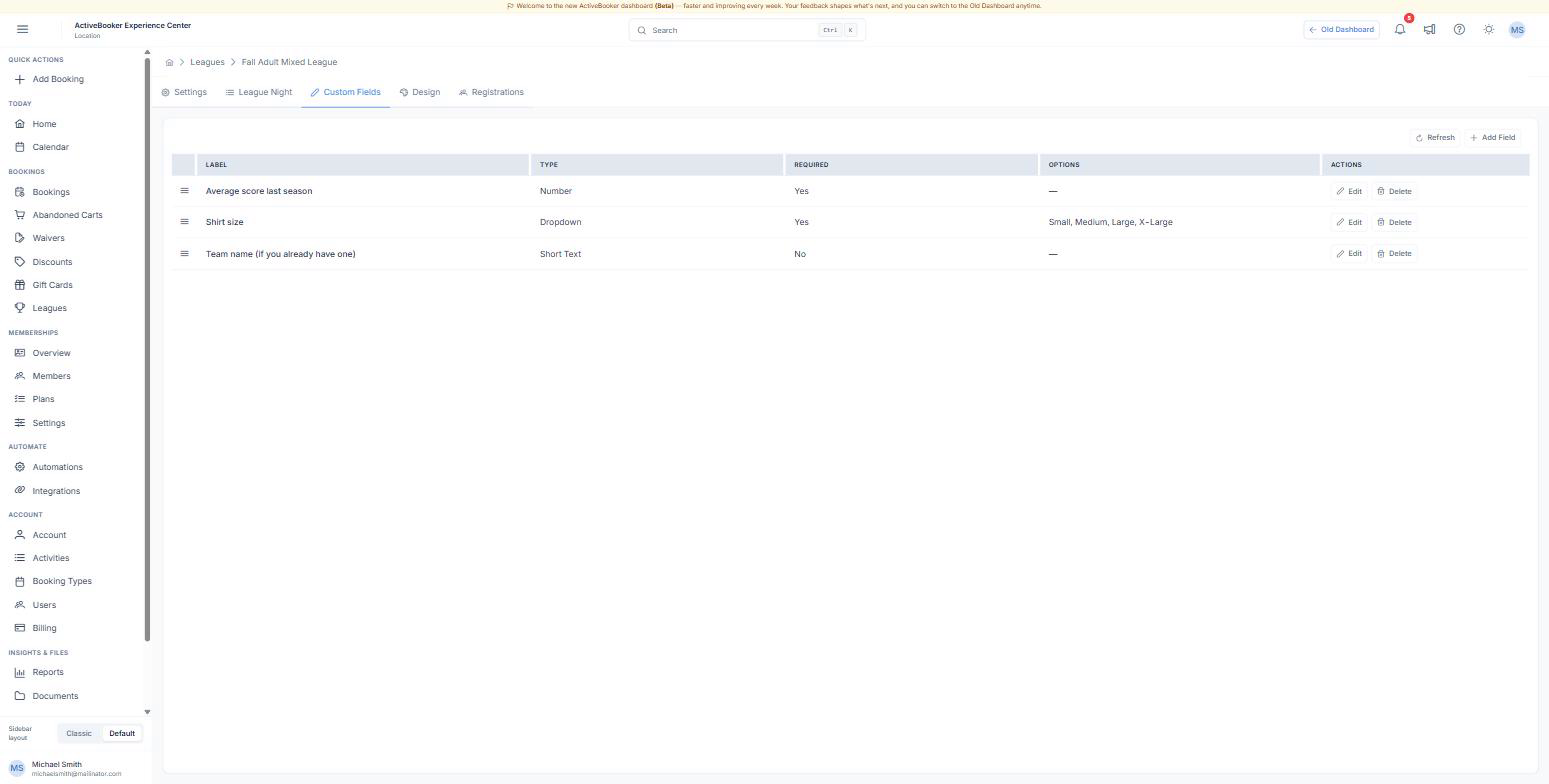
| Column | What it shows |
|---|---|
| (drag handle) | Drag a row to reorder the questions on the registration page |
| Label | The question as customers read it |
| Type | The kind of answer that is collected |
| Required | Yes when the form cannot be submitted without an answer |
| Options | The choices for a dropdown; a dash for every other type |
| Actions | Edit and Delete |
The types of question
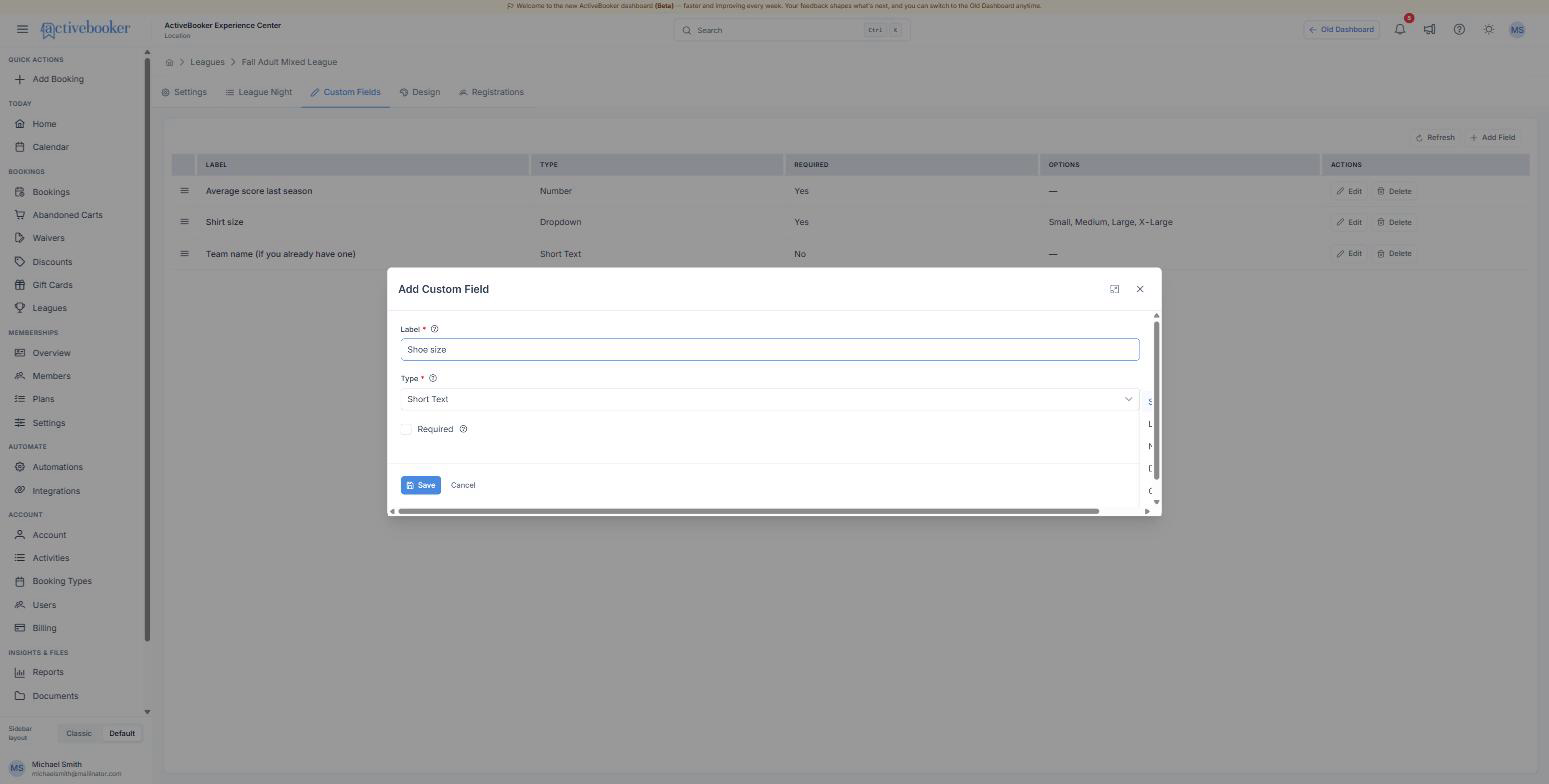
| Type | Use it for | What the customer gets |
|---|---|---|
| Short Text | Names, team names, short notes | A single-line box |
| Long Text | Anything that needs a sentence or two | A multi-line box |
| Number | Averages, handicaps, ages | A box that only takes numbers |
| Date | Dates of birth, certification dates | A date picker |
| Checkbox | A single yes or no, such as "I need shoe rental" | A tick box |
| Dropdown | A fixed list you want to count later — shirt sizes, divisions | A list of your options |
Options for a dropdown
Choose Dropdown and an Options box appears. Type each choice and press Enter — it turns into a tag you can remove with the ✕. Keep the list to the answers you can act on; every extra choice is another line for someone to read on a phone.
Where the answers turn up
| Place | What you see |
|---|---|
| Registrations tab | One column per question, so you can read the whole roster at a glance |
| Customer receipt | Under Additional Information, with the answer next to your label |
| Confirmation email | The same block, so the customer has a record of what they told you |
A date is shown the way the rest of the dashboard shows dates, and a checkbox reads as Yes or No.
Best practices
✓ Ask only what changes what you do. Every question costs you registrations. If nobody will read the answer before week one, leave it out. ✓ Write the label as a question or a plain noun — "Average score last season", "Parent or guardian mobile". Customers read the label, not your field name. ✓ Use a dropdown when you will count the answers. Shirt sizes typed by hand come back as "L", "large", and "Large". ✓ Mark a question required only when you would chase someone for it.
✗ Don't collect card or bank details in a question. Payment is handled on the payment step; these boxes are plain text. ✗ Don't rename a question mid-season into a different question. Answers already given keep the old meaning under the new label — add a new question instead.
Troubleshooting
A dropdown will not save
Why this happens: A dropdown needs at least one option. How to fix it: Type a choice into Options and press Enter before saving.
A question is missing from the roster
Why this happens: The column is off to the right of the table. How to fix it: Scroll the registrations table sideways — the questions sit after the option column.
Existing registrations have no answer to a new question
Why this happens: The question was added after they registered, and nothing is filled in retrospectively. How to fix it: Leave those cells empty and collect the answer at the desk, or email the customers who are missing it.
Related
- Manage registrations — where the answers are listed
- What customers see — the Additional Information step
- Create a league — the settings that sit above these questions