What customers see
Your registration link opens one page. This is what is on it, in the order customers meet it, so you know what you are sending people to before you send it.
The registration page
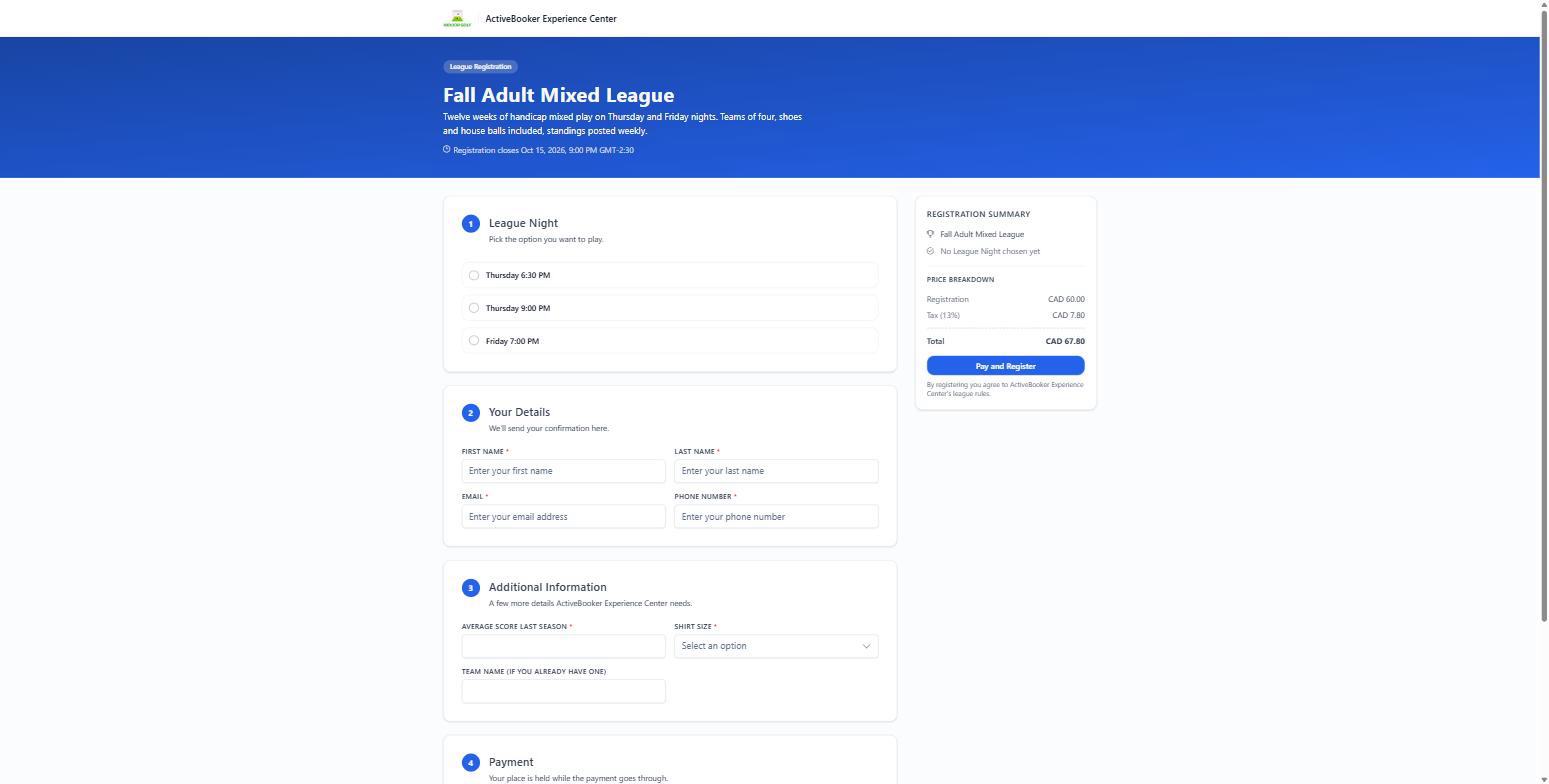
The banner carries your logo, the league name, the description you wrote, and the closing date if you set one. Its colour comes from the Design tab.
The steps are numbered down the left:
- Your option label — the nights, sessions, or divisions, with "3 spots left" or "Full" where it applies
- Your Details — first name, last name, email, phone, all required
- Additional Information — your registration questions; this step is missing when you have not set any
- Payment — the last step, and only when the league has a fee
The summary panel on the right fills in as the form is typed: the league, the chosen option, then the name, email and phone. Under it sits the price breakdown — registration, tax, total — and the button, which reads Pay and Register when there is a fee and Register when there is not.
Nothing is submitted until that button is pressed. If something is missing, the page marks the fields rather than losing what was typed.
Paying
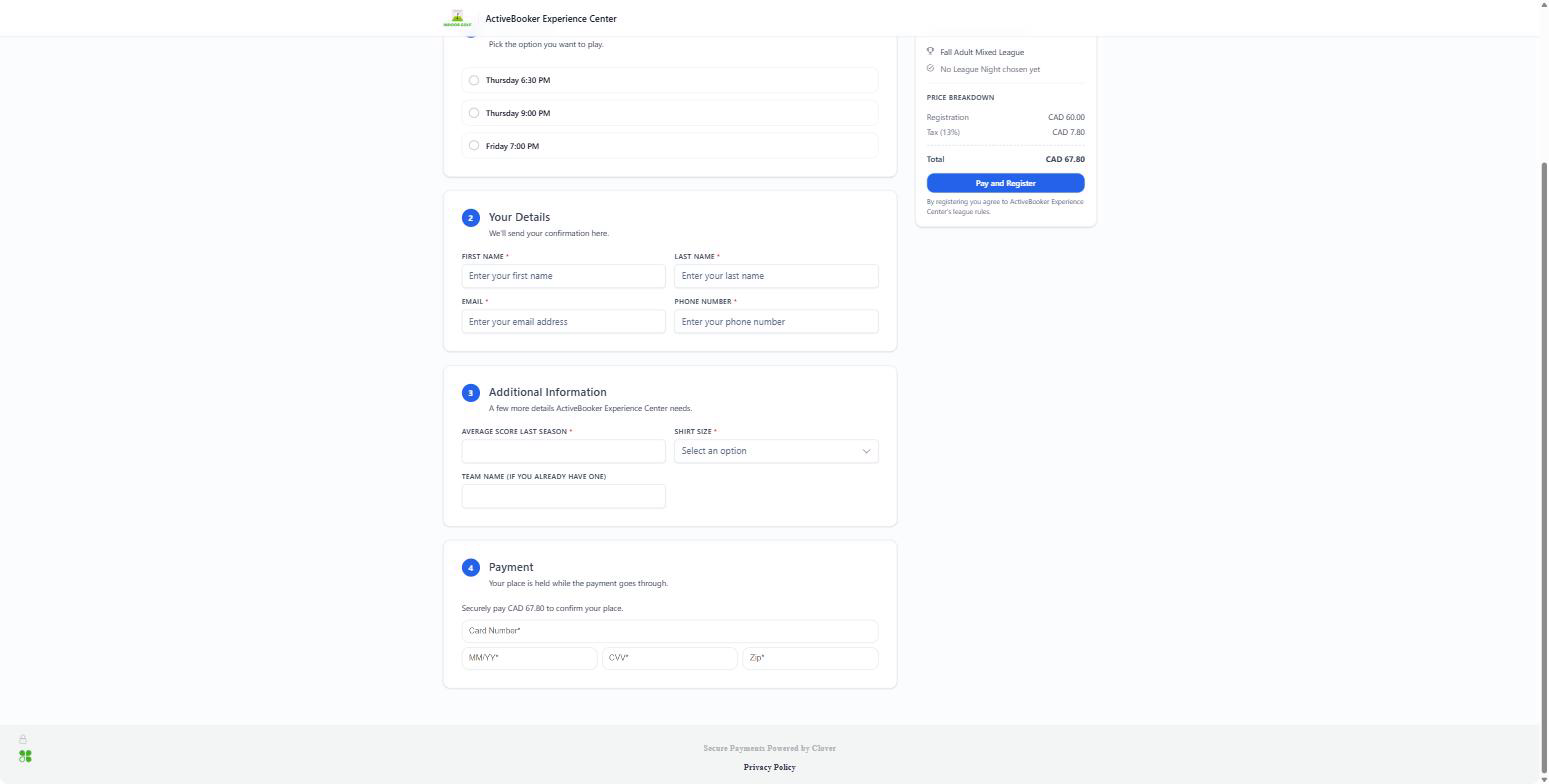
For a league with a fee, the customer enters their card on the page and pays as they register. Card details go straight to your payment provider — ActiveBooker never holds them, and neither do you.
For a free league, the payment step reads "No payment is required for this league" and the button says Register.
If the card is declined, the customer stays on the page with their answers intact and can try again. No place is held until the payment goes through, which is why a failed attempt never shows up on your roster.
The confirmation
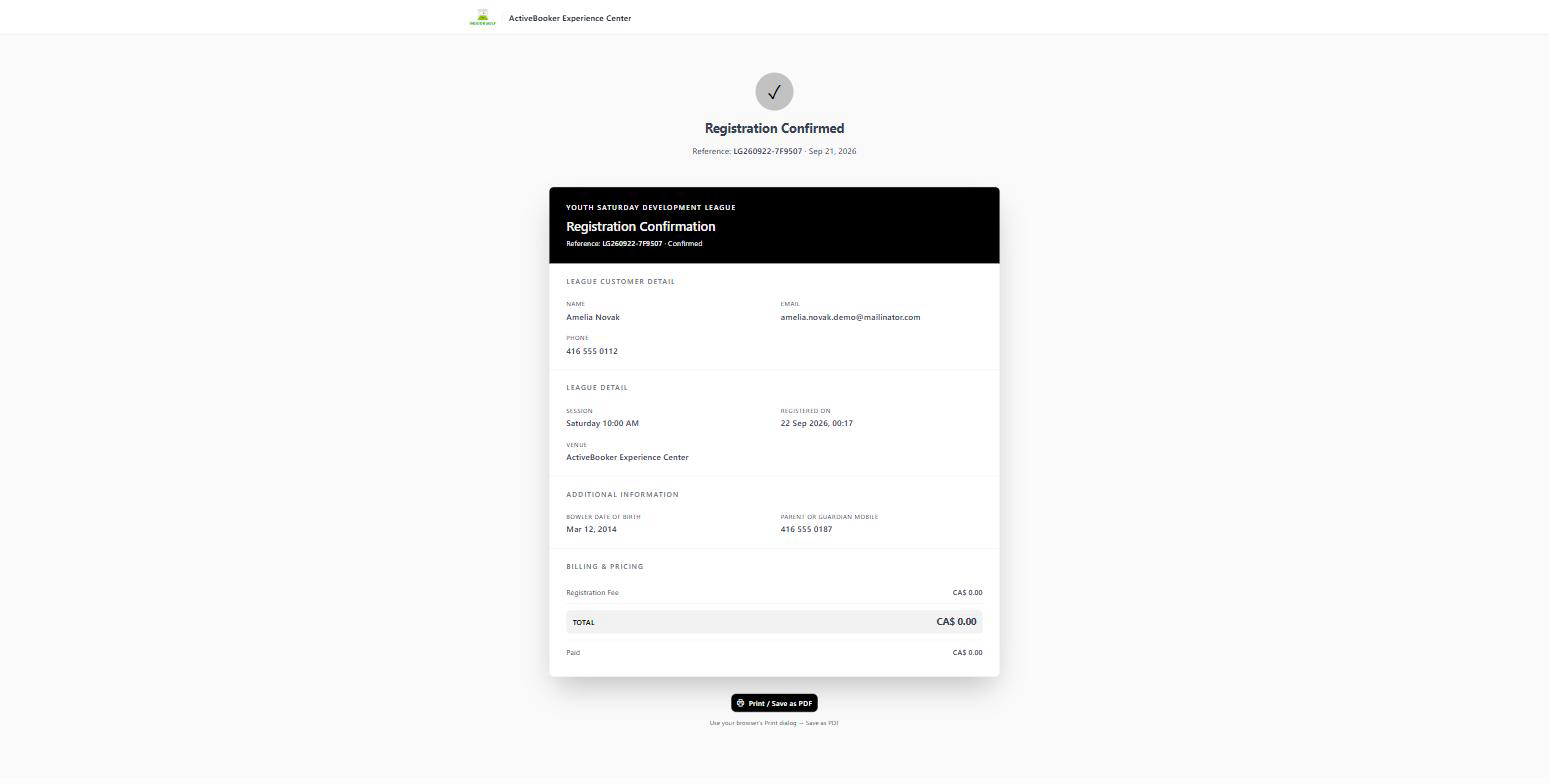
Registering opens a receipt with a reference such as LG260922-7F9507. It lists:
- League Customer Detail — name, email, phone
- League Detail — the option, when they registered, and the venue
- Additional Information — their answers to your questions
- Billing & Pricing — the fee, tax, total, and what has been paid
Print / Save as PDF at the bottom produces a copy for people who want one on paper. The page stays at its own address, so the link in the confirmation email reopens it later.
The confirmation email
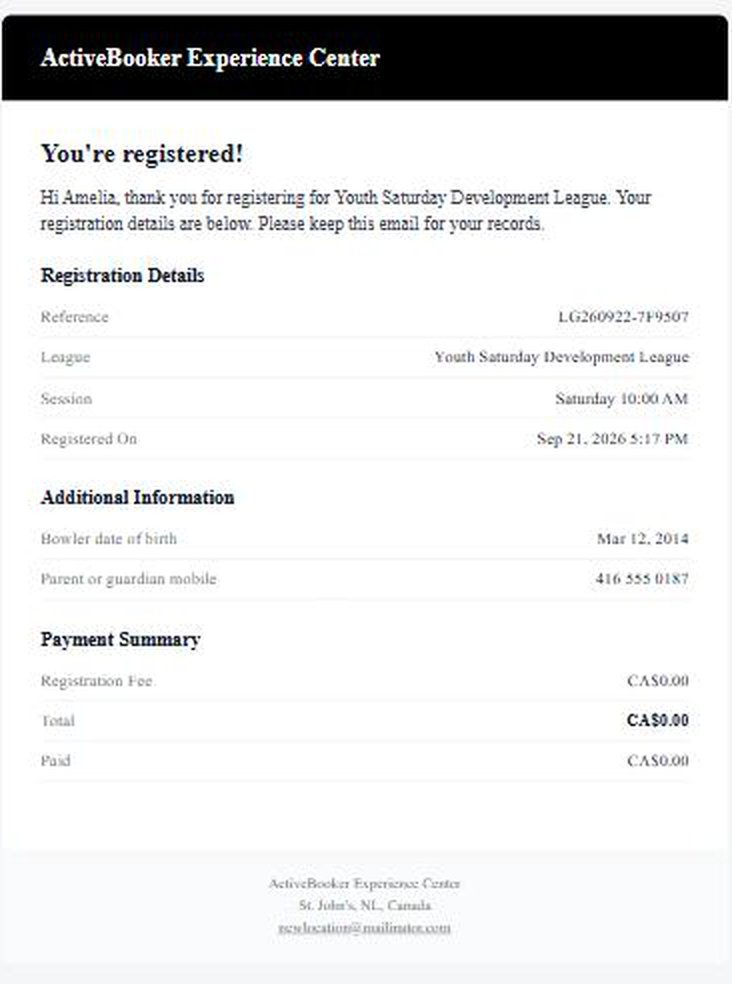
The customer is emailed immediately, from your venue's name, with the same details as the receipt. Your venue gets its own copy, so the desk knows about a registration without watching the dashboard.
Cancellations and refunds are emailed the same way — see Cancel or refund a registration.
What customers see when they cannot register
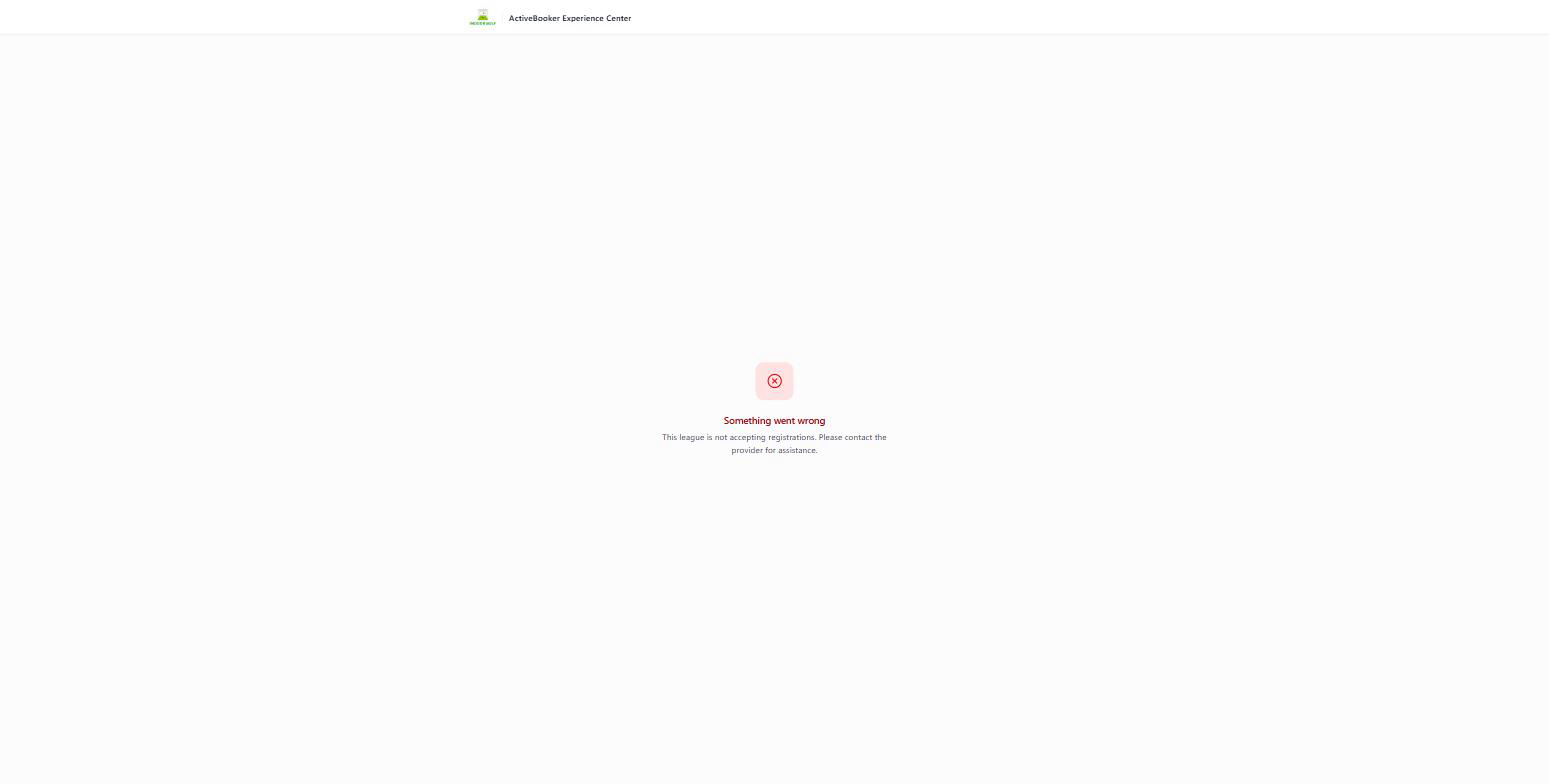
| Situation | What the page says |
|---|---|
| The league is inactive, or today is outside the registration window | "This league is not accepting registrations. Please contact the provider for assistance." |
| The link is wrong, or the league was deleted | "League with the specified link not found. Please check the link or contact the provider for assistance." |
| One option is full | That option reads "Full" and cannot be picked; the others still work |
| Every option is full | The form cannot be submitted, so nobody registers for a place that does not exist |
The messages name the problem without naming your league's settings, so a customer who hits one knows to call you rather than to keep retrying.
Sharing the link
- Put it on the league page of your website, not just in an email — it is the address people will look for again in week three.
- It works on a phone, so a QR code at the desk is a fair way to catch walk-ins.
- Give each league its own link. There is no combined page listing every league.
Related
- Style the registration page — colour, text size, and corners
- Ask your own registration questions — the Additional Information step
- Create a league — where the link, fee, and registration window come from