Linked Add-Ons
The Linked Add-Ons tab displays all add-ons that have been connected to a specific booking type. This read-only view helps you quickly see which additional products or services are available for customers to purchase when they book this particular booking type.
Quick start
Viewing linked add-ons
- Navigate to Booking Types in your dashboard sidebar
- Select an activity from the breadcrumb navigation
- Choose a booking type to view
- Click the Linked Add-Ons tab
- Review the list of add-ons available for this booking type
Searching for a linked add-on
- Navigate to the Linked Add-Ons tab
- Use the search field at the top of the page
- Type the add-on name to filter results
- Clear the search to view all linked add-ons again
What you can do
The Linked Add-Ons tab helps you:
- View all linked add-ons — See which add-ons are available for this booking type
- Check pricing — Review the unit price set for each add-on
- Monitor status — Verify whether add-ons are active or inactive
- Search efficiently — Find specific add-ons quickly using the search feature
- Understand offering — Get a complete picture of what customers can purchase with this booking type
Accessing linked add-ons
Navigate to Booking Types > select a booking type > Linked Add-Ons tab from your dashboard.
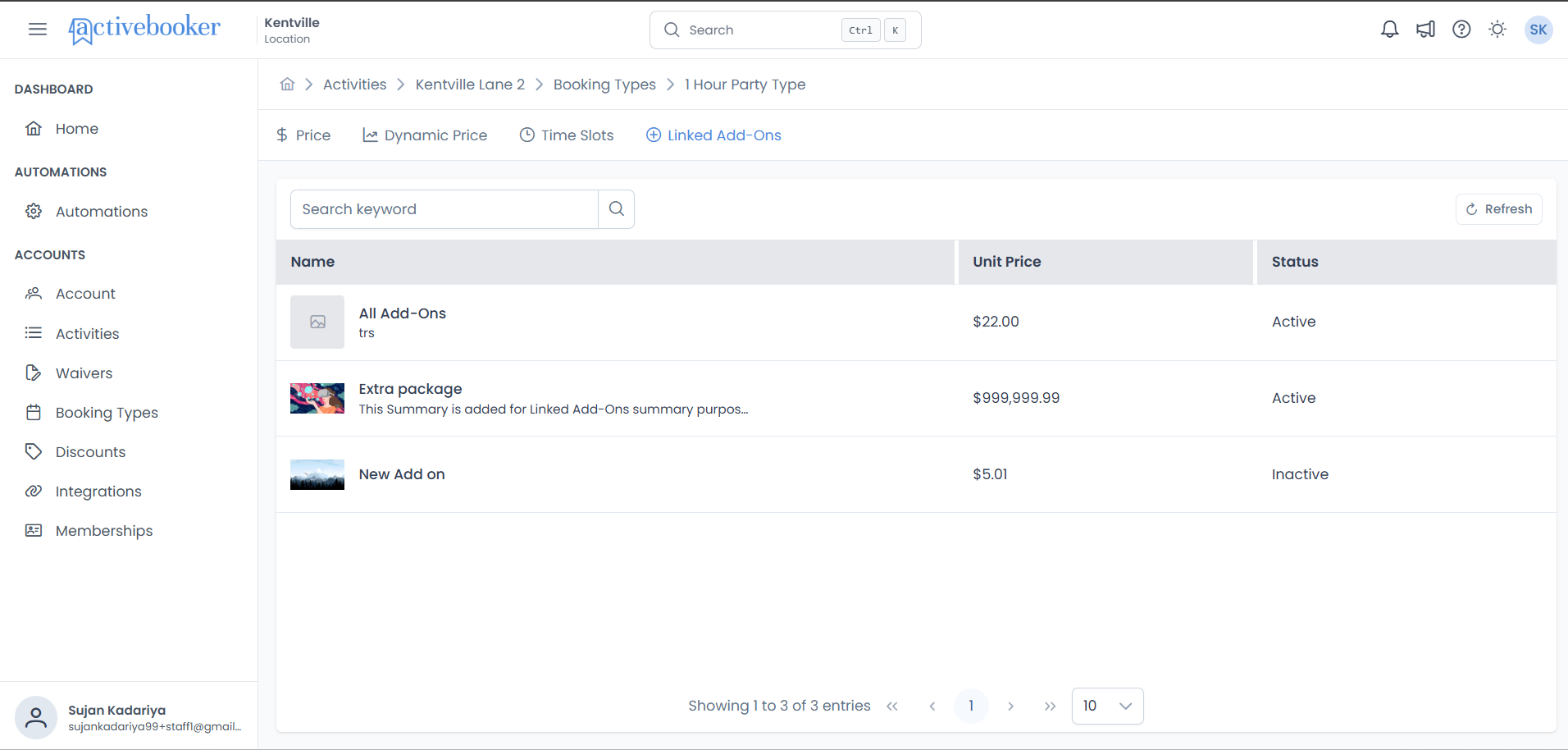
Page components
Search and actions bar
Located at the top of the page, this section includes:
| Element | Description |
|---|---|
| Search Field | Search linked add-ons by name using the Search keyword input field |
| Refresh Button | Click to reload the linked add-ons list and fetch the latest data |
The Linked Add-Ons tab is for display purposes only. To add or remove add-ons from this booking type, edit the add-on from the Activities > Add-Ons page and update its linked booking types.
Linked add-ons table
The main table displays all add-ons connected to the selected booking type with the following columns:
Column reference
| Column | Description |
|---|---|
| Name | Displays the add-on thumbnail, name, and optional summary description |
| Unit Price | The price charged per unit of the add-on in currency format |
| Status | Indicates whether the add-on is currently Active or Inactive |
Name column
The Name column provides comprehensive add-on information:
- Thumbnail: Visual preview of the add-on (uploaded image or placeholder icon)
- Add-On Name: The display name shown to customers
- Summary Description: Optional brief description that appears below the name
- Searchable: Use the search field to filter add-ons by name
The thumbnail helps customers quickly identify add-ons during the booking process. Eye-catching images can increase add-on purchases.
Unit price column
- Shows the price charged per unit of the add-on
- Displayed in currency format (e.g.,
$0.01,$25.00,$99.99) - This is the cost customers pay for each unit they purchase
- Price is set when creating or editing the add-on
Status column
- Shows whether the add-on is currently available to customers
- Display values:
- Active: Customers can see and purchase this add-on when booking
- Inactive: Add-on is hidden from the booking page
- Status is controlled from the add-on settings in Activities > Add-Ons
Only Active add-ons appear during the booking process. Inactive add-ons still display in this list but are not available for purchase. To change status, edit the add-on from the Activities > Add-Ons page.
Common tasks
Searching for linked add-ons
- Click the search field at the top of the page
- Type the name of the add-on you're looking for
- The table automatically filters to show matching results
- Clear the search field to view all linked add-ons again
Refreshing the list
To ensure you're viewing the most current data:
- Click the Refresh button in the top-right area
- The system reloads the linked add-ons list
- Any recent changes to add-on status, pricing, or links will be reflected
Refresh the list after making changes to add-ons in the Activities section to see updated information immediately.
Reviewing add-on details
To see complete information about a linked add-on:
- Locate the add-on in the table
- Review the name, thumbnail, and summary in the Name column
- Check the current unit price
- Verify the status (Active/Inactive)
This is a read-only view. To edit add-on details or modify which booking types are linked, navigate to Activities > select activity > Add-Ons tab > Edit the desired add-on.
Understanding add-on linking
How linking works
Add-ons are linked to booking types from the Activities > Add-Ons page. When creating or editing an add-on, you can select which booking types should have access to that add-on using a multi-select dropdown.
Linking Process:
- Add-ons are created in Activities > Add-Ons
- During creation or editing, select target booking types from the Booking Types dropdown
- The add-on becomes available for the selected booking types
- Linked add-ons display here in the Booking Types > Linked Add-Ons tab
Selection display logic
When viewing linked booking types in the add-on editor:
- 1-4 selections: Each booking type displays as an individual tag
- 5+ selections: Displays as a count summary (e.g., "5 items selected")
- When editing: Previously linked booking types are automatically pre-selected
Linking scenarios
Scenario 1: Universal add-on
An add-on linked to all booking types within an activity.
Example: Safety equipment required for all party duration options Booking Types Selected: All available booking types Result: Appears in every booking type's Linked Add-Ons tab
Scenario 2: Selective add-on
An add-on linked to specific booking types only.
Example: Premium party package only for 2-hour and 3-hour bookings Booking Types Selected: 2 Hour Party Type, 3 Hour Party Type Result: Only appears in those two booking types' Linked Add-Ons tabs
Scenario 3: No linked booking types
An add-on with no booking type selections.
Example: Retired add-on not currently offered Booking Types Selected: None Result: Does not appear in any booking type's Linked Add-Ons tab
Tips and best practices
Managing linked add-ons
- 📋 Review regularly — Check this tab periodically to ensure appropriate add-ons are linked
- 🔍 Use search — Quickly find specific add-ons in large lists
- 💡 Verify status — Ensure add-ons you want to offer are Active
- 📊 Monitor pricing — Keep track of add-on prices for accurate customer communication
- 🔄 Stay updated — Use the refresh button after making changes elsewhere in the system
Optimization strategies
- ✅ Match add-ons to booking duration — Longer bookings might need more or different add-ons
- ✅ Consider pricing tiers — Link premium add-ons to higher-priced booking types
- ✅ Maintain consistency — Ensure similar booking types have appropriate add-on offerings
- ✅ Seasonal adjustments — Review and adjust linked add-ons based on seasonal demand
- ❌ Avoid overloading — Don't link too many add-ons to avoid overwhelming customers
Customer experience
- 🎯 Target relevance — Only link add-ons that make sense for each booking type
- 💰 Price appropriately — Ensure add-on pricing aligns with booking type pricing
- 📸 Use quality images — Thumbnails help customers understand what they're purchasing
- 📝 Write clear descriptions — Summaries should quickly convey value and details
- ⚡ Keep offerings current — Deactivate out-of-stock items promptly
Troubleshooting
Expected add-on not appearing
Symptoms: An add-on you expect to see is not in the list
Solutions:
- Verify the add-on is actually linked to this booking type
- Go to Activities > Add-Ons > Edit the add-on
- Check the Booking Types dropdown to confirm this booking type is selected
- Ensure the add-on belongs to the correct parent activity
- Click the Refresh button to reload the latest data
- Clear any active search filters
- Check if you're viewing the correct booking type
Status shows inactive when it should be active
Symptoms: Add-on displays as Inactive but should be Active
Solutions:
- Status is set at the add-on level, not the booking type level
- Navigate to Activities > Add-Ons
- Find and edit the add-on
- Check the Active checkbox
- Save the changes
- Return to Booking Types > Linked Add-Ons and refresh
Pricing appears incorrect
Symptoms: Unit price doesn't match expected value
Solutions:
- Verify you're looking at the correct add-on
- Pricing is set at the add-on level in Activities > Add-Ons
- Navigate to the add-on editor to check or update the unit price
- Remember this is a read-only view; changes must be made in Activities > Add-Ons
- Click Refresh after making pricing changes elsewhere
Empty list when add-ons should be linked
Symptoms: The table shows no entries but add-ons should be available
Solutions:
- Confirm add-ons have been created for the parent activity
- Verify at least one add-on has this booking type selected in its Booking Types field
- Check that you're viewing the correct activity and booking type (review breadcrumb)
- Click Refresh to reload data
- Navigate to Activities > Add-Ons to verify add-ons exist and are properly configured
Related topics
- 📦 Activities Add-Ons — Create and manage add-ons with booking type linking
- 📋 Booking Types List — View and manage all booking types
- ➕ Add Booking Type — Create new booking types
- ✏️ Edit Booking Type — Modify existing booking type settings
- 💰 Price Settings — Configure booking type pricing options
- 📊 Activities Details — Manage parent activity settings